Convert
How to convert HEIC to JPEG on iPhone — in bulk
Websites, forms and Windows PCs often reject iPhone's HEIC photos. Convert a whole batch to JPEG or PNG on your iPhone, in seconds.
Updated November 17, 2026 · Free on the App Store · iPhone & iPad, iOS 17+
Why iPhone photos are saved as HEIC and why they fail
Starting with iOS 11, Apple set HEIC (High Efficiency Image Container, based on the HEIF standard) as the default capture format for camera photos. HEIC uses compression derived from HEVC video coding and makes smaller files than JPEG at a similar quality.
HEIC saves space on Apple devices, but other places do not always accept it:
- Windows PCs: Windows may need Microsoft's HEIF Image Extension before it opens
.heicfiles. - Web forms and portals: Many upload forms accept only
.jpgor.png. - Online shops and marketplaces: Some sites refuse HEIC uploads.
OptiPixel converts a batch of HEIC photos to JPEG or PNG on your iPhone or iPad, without uploading them.
HEIC vs JPEG vs PNG format comparison
The table below outlines the trade-offs in compatibility, compression, and feature support across image formats:
| Format Feature | HEIC (Apple Default) | JPEG (Standard) | PNG (Lossless) |
|---|---|---|---|
| Size of our 8 test photos (measured below) | 22.9 MB | 47.8 MB | 126.3 MB |
| Windows PC Compatibility | May need the HEIF Image Extension | Opens everywhere | Opens everywhere |
| Web Upload Forms | Often not accepted | Widely accepted | Widely accepted |
| Transparency Support | Yes | No | Yes |
| Best Use Case | Long-term iPhone storage | Cross-platform sharing, forms | Graphic design, transparent logos |
Real results on iPhone 17 Pro Max
Measured on 17 November 2026 on an iPhone 17 Pro Max with iOS 27.2 and OptiPixel 1.6.0, using the app's own Convert engine. The photos: 8 HEIC photos taken on an iPhone 17 Pro (3649 to 4032 px on the long side) and 3 HEIC photos of 24 MP (5712 × 4284). Time is per photo, on the phone; reading from and saving to Photos is not included. 1 MB = 1,000,000 bytes.
| Photos | HEIC | Converted to JPEG | Converted to PNG | Time per photo |
|---|---|---|---|---|
| 8 photos, iPhone 17 Pro | 22.9 MB (1.3–3.9 MB each) | 47.8 MB (3.1–7.9 MB each) | 126.3 MB (9.0–20.3 MB each) | JPEG 0.05–0.13 s, PNG 0.5–0.7 s |
| 3 photos, 24 MP | 1.7–3.4 MB each | 7.7–11.5 MB each | not measured | JPEG under 0.1 s |
Every converted photo kept its full width and height. Convert writes JPEG at its highest quality, so the JPEGs were about twice the size of the HEIC files (three to four and a half times for the 24 MP photos), and PNG about five and a half times. If the converted file has to be small, use Photo Compress instead: its Balanced preset turned the same 8 HEIC photos into 10.0 MB of JPEGs.
Convert HEIC to JPEG, step by step
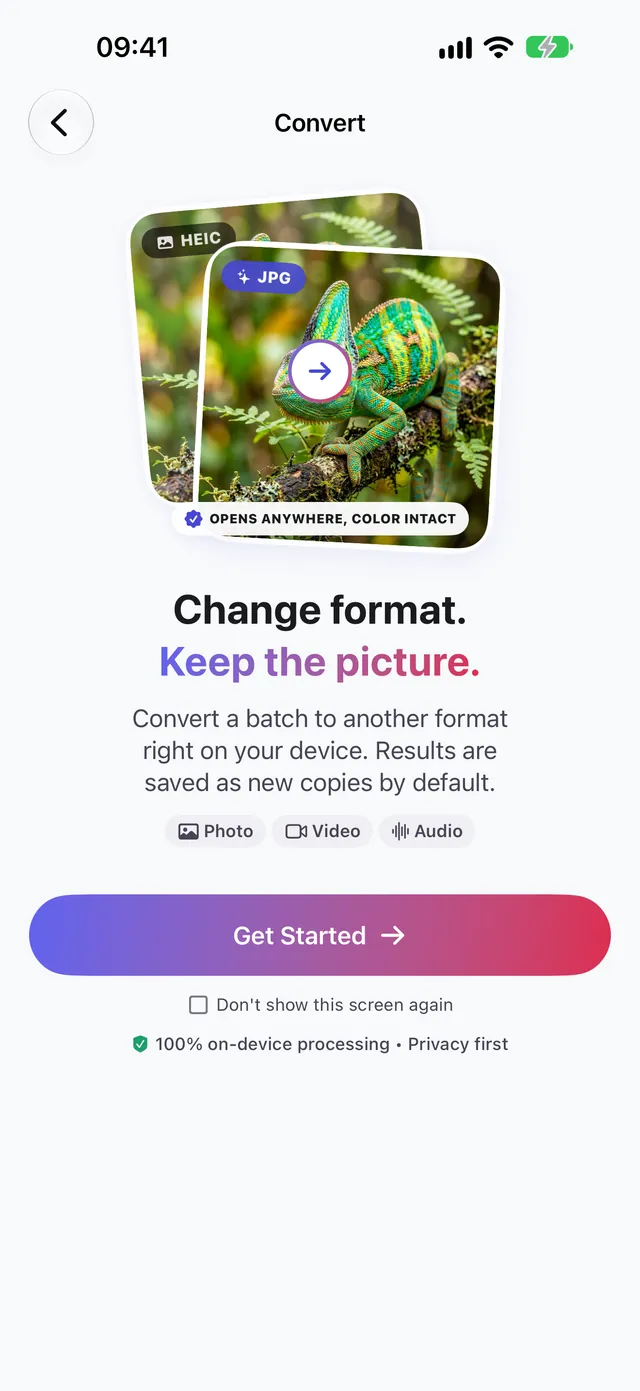
- Open OptiPixel and open Convert on Home (tap See all if it is not pinned), then tap Get Started.
- Select your HEIC photos from Photos or the Files app — you can select single images or entire albums.
- Choose JPEG as the output format for maximum universal compatibility, or PNG if you need lossless rendering.
- Review the conversion queue and tap Add to Queue.
- OptiPixel processes the conversion on your device in the background. Converted JPEGs are saved as new files in your library while your original HEIC photos remain intact.
Need to make the converted JPEGs even smaller to satisfy a strict upload quota? Use OptiPixel's Photo Compress tool to combine format conversion with target KB/MB limits in one step.
Converting a paper document instead of a photo? See Convert a scan or photo to Word.
How to convert video and audio formats on iPhone
OptiPixel's conversion engine also handles video and audio files with native Apple hardware acceleration:
- Video Convert: Changes a video's container and codec. Choose MP4, MOV, M4V, MKV, FLV, 3GP, AVI or WMV, pick H.264 or HEVC where the format allows it, lower the frame rate, and set the bitrate. See Convert video to MP4, MKV, AVI or WMV.
- Audio Convert: Converts audio files between MP3, M4A (AAC), FLAC, ALAC, WAV, AIFF and CAF. See Convert audio to MP3 or FLAC.

OptiPixel — Reduce Photo & Video File Size
Free · No account · Runs on your iPhone
Frequently asked questions
Does converting HEIC to JPEG reduce image resolution?
No. Converting keeps the photo's full width and height; in our measurements every converted photo had the same pixel dimensions as its HEIC original. Only the format changes.
Will converting HEIC photos erase GPS and EXIF data?
Convert keeps a photo's metadata, such as the capture date and location, wherever the new format can store it. To remove it before you share, run the photos through the Metadata scrubbing tool, which wipes GPS coordinates and device details.
Does the conversion require an internet connection?
No. OptiPixel converts on your iPhone with Apple's image frameworks and does not upload your photos, so converting uses no mobile data.
How do I stop my iPhone camera from shooting in HEIC?
To make your iPhone camera capture directly in JPEG, go to iOS Settings › Camera › Formats and select Most Compatible. Note that new photos then take more space than HEIC photos.
Does OptiPixel delete the original HEIC photos after conversion?
Not by default: results are saved as new items, so your originals stay in your library. Only if you choose Edit Original or Replace Original in Settings › Where results are saved does a result take the original's place.