Compress
How to compress photos on iPhone and reduce the file size
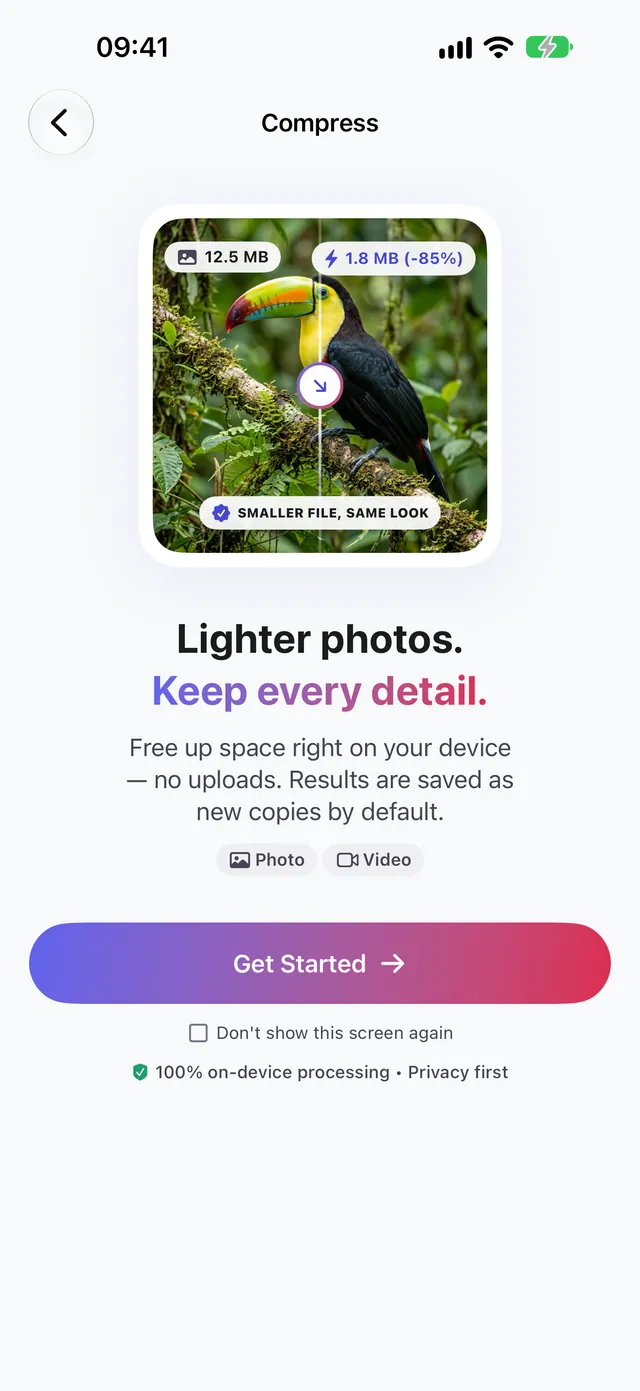
Make photos small enough for an upload form, an email or a website — one at a time or a whole album, right on your iPhone.
Updated November 17, 2026 · Free on the App Store · iPhone & iPad, iOS 17+
Why iPhone photos exceed file upload limits
An iPhone photo is usually a few megabytes: the HEIC photos we measured below were 1.3 MB to 3.9 MB each, and 24 MP photos 1.7 MB to 3.4 MB. Many upload forms and email services ask for less — "JPG under 1 MB" or "under 500 KB" is common — and a batch of photos adds up quickly.
OptiPixel re-encodes photos on your iPhone with Apple's image frameworks, so they are not uploaded to a server. The measurements below show what each preset gives.
Compression settings at a glance
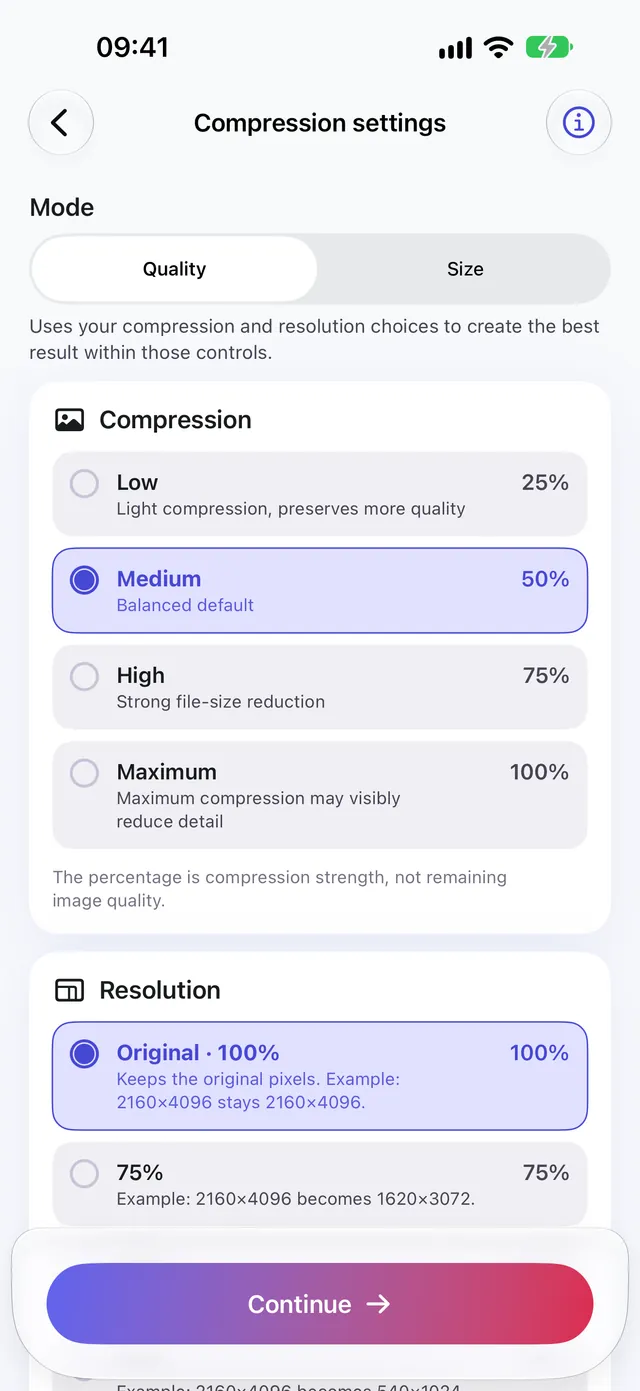
Photo Compress has two tabs: Presets for a ready-made combination, or Custom for your own quality, resolution, or target-size choices. The preset list includes:
| Group | Preset | What it does |
|---|---|---|
| Recommended | High quality | Keeps original dimensions and uses High quality |
| Recommended | Balanced | Keeps original dimensions and uses Medium quality; this is the default |
| Recommended | Smaller file | Uses Low quality and 50% width and height |
| For a purpose | Sharing | Uses Medium quality and 75% width and height |
| For a purpose | Target 200 KB | Tries to reach 200 KB per photo |
| For a purpose | Email — target 1 MB | Tries to reach 1 MB per photo |
In Custom, choose Choose quality for image quality and resolution controls, or Target file size to set a target size per photo. Available quality names are High quality, Medium quality, Low quality, and Lowest quality. A target is an attempt, not a guarantee; some photos may not reach it under the selected priority.
Real results on iPhone 17 Pro Max
Measured on 17 November 2026 on an iPhone 17 Pro Max with iOS 27.2 and OptiPixel 1.6.0, using the app's own compression engine. The photos: 8 HEIC photos taken on an iPhone 17 Pro (3649 to 4032 px on the long side, some of them cropped; 22.9 MB together). Time is per photo, on the phone; reading from and saving to Photos is not included. 1 MB = 1,000,000 bytes.
| Preset | 8 photos together | Each photo | Smaller by | Pixels | Time per photo |
|---|---|---|---|---|---|
| High quality | 20.5 MB | 1.3–3.6 MB | 10% | unchanged | under 0.1 s |
| Balanced | 10.0 MB | 0.66–1.87 MB | 56% | unchanged | under 0.1 s |
| Sharing | 6.2 MB | 0.42–1.16 MB | 73% | 75% width and height | 0.1 s |
| Smaller file | 1.5 MB | 0.12–0.29 MB | 93% | 50% width and height | under 0.1 s |
| Target 200 KB | 1.6 MB | 0.20 MB, all 8 under 200 KB | 93% | 896–1627 px long side | 0.5–0.8 s |
| Email — target 1 MB | 8.3 MB | 1.02–1.05 MB, all 8 under 1 MB | 64% | 2137–4032 px long side | 0.1–1.4 s |
Three 24 MP photos (5712 × 4284) went from 1.7–3.4 MB to 1.3–2.7 MB each with Balanced. With High quality, one of the eight photos would not get smaller, so the app keeps the original for it. For a big saving with full resolution, start with Balanced; when a form sets a limit, a target preset is the one that reliably fits under it.
Screenshots behave differently: four 1320 × 2868 PNG screenshots (1.9 MB together) became 0.9 MB with Balanced, but with Email — target 1 MB two of them came out larger than the PNG, because they were already under the target.
Presets or Custom
Choose a preset when you want its quality and dimensions applied together. Choose Custom when you want to set image quality or resolution yourself, or enter a target file size in KB or MB. Quality labels describe the resulting image; they are not percentages of compression. A lower quality can make a smaller file and lose detail. Custom resolution can keep the original pixels, use a percentage, or set maximum dimensions without upscaling.
Compress photos, step by step
- Open OptiPixel and choose Compress.
- Select photos from Photos, Files, or Camera, then continue to Settings.
- On the Presets tab, choose a preset, or open Custom to choose quality, resolution, or a target file size.
- On Review, check the selected photos and settings. Supported metadata is kept by default, and results are saved as new items unless you choose a destination that replaces the original.
- Add the batch to the Queue. Compression runs in the background, and you can continue using OptiPixel while it works.
Need exact pixel dimensions (width × height) rather than a file size cap? Use the Resize tool to adjust pixel dimensions directly.
Tips for best compression results
- For upload limits: In Custom, choose Target file size and enter a target just under the service's limit. The app tries to reach that size for each photo; it may not always succeed.
- For smaller files: Try Smaller file, then check the result. It uses Low quality and smaller dimensions, so fine detail may be lost.
- For exact pixel dimensions: Use the Custom resolution controls, or the Resize tool when dimensions are your only goal.

OptiPixel — Reduce Photo & Video File Size
Free · No account · Runs on your iPhone
Frequently asked questions
Does compressing reduce photo quality noticeably?
It depends on the setting. The quality name describes the result: High quality keeps more detail, Lowest quality can look visibly blurry. Check a result to see how it looks for your photo; the measured sizes are in the Real results section above.
Are photos uploaded to external servers for compression?
No. Compression runs on-device; OptiPixel does not upload photos to its servers.
Can OptiPixel compress HEIC photos directly to JPEG?
Compress re-encodes photos as JPEG and keeps supported metadata. When there is no saving, the original file may be kept. See the HEIC to JPEG guide for converting formats.
How many photos can be compressed in batch?
The free task limit is up to 3 photos. A short video can unlock up to 10 photos in one task; Premium has no photo limit.
Will the compression overwrite original photos in the library?
Supported metadata is kept by default. Results are saved as new items unless you choose a destination that replaces the original. For Photos, the available choices include Edit Original and Replace Original; Files can offer an overwrite choice.