Compress photos and videos. Free up iPhone storage.

OptiPixel: Compress, Scan Docs — Reduce Photo & Video File Size

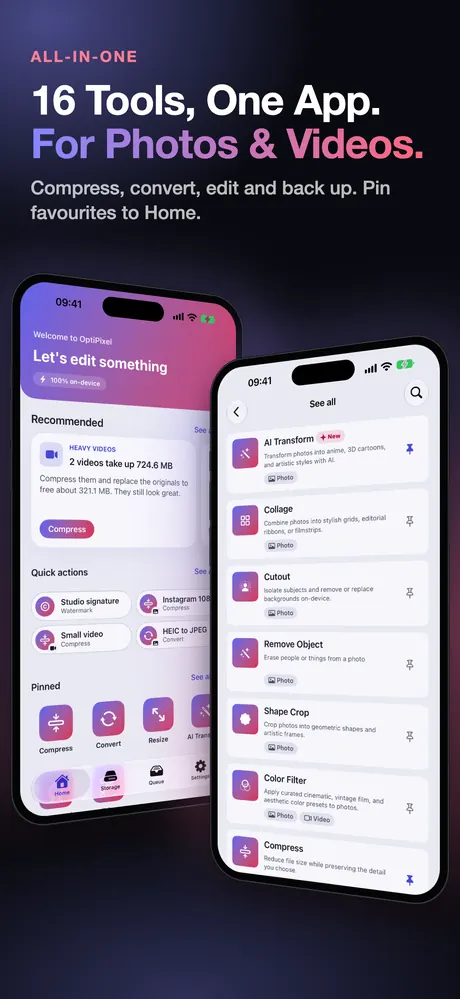
OptiPixel shrinks photos and videos, resizes them, converts HEIC and clears out space — fast, private, with nothing uploaded. AI styles, watermarks, timestamps and Scan & Convert are there when you want more.

Free on the App Store · iPhone & iPad · iOS 17 or later

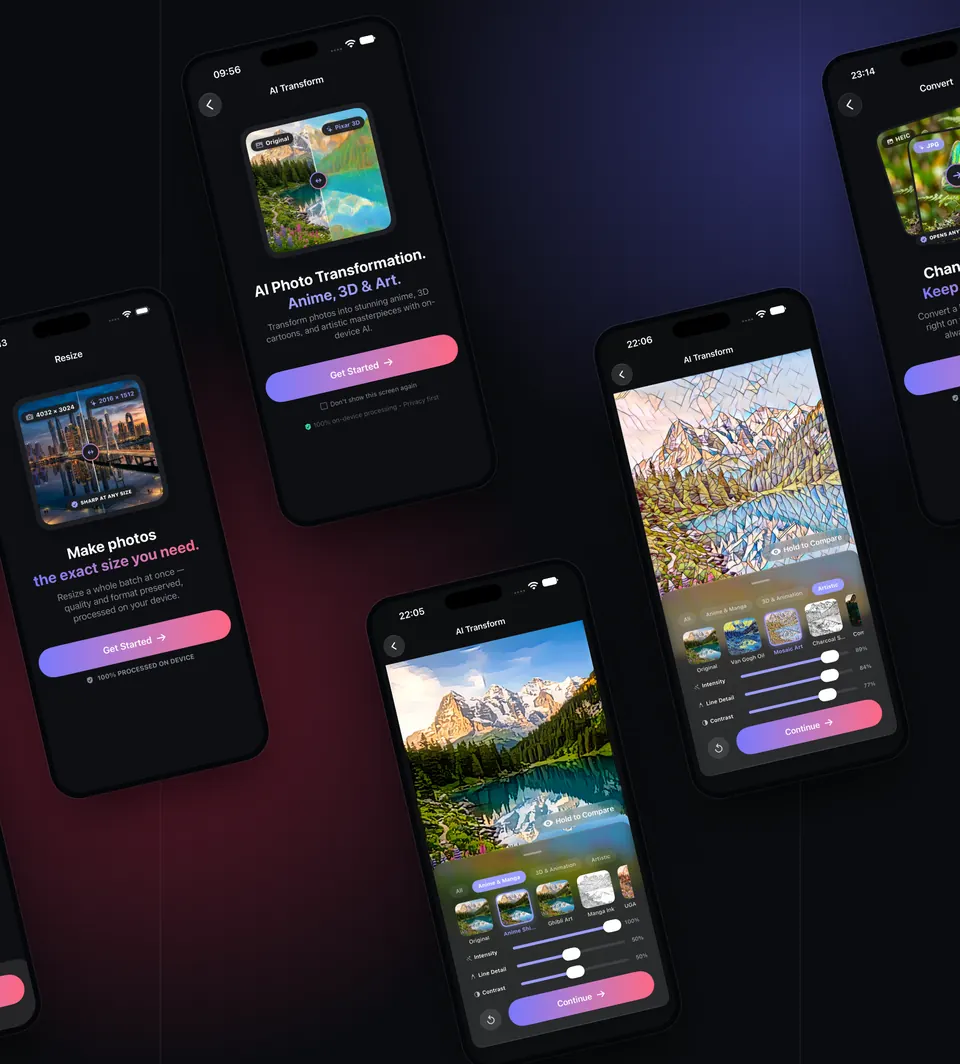
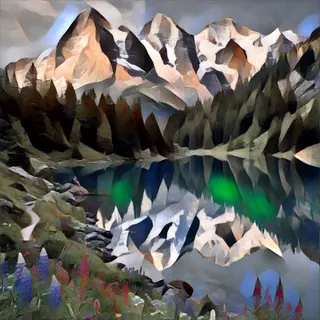
OptiPixel AI Transform comparing a landscape photo with its painted version

Why people switch to OptiPixel

Features

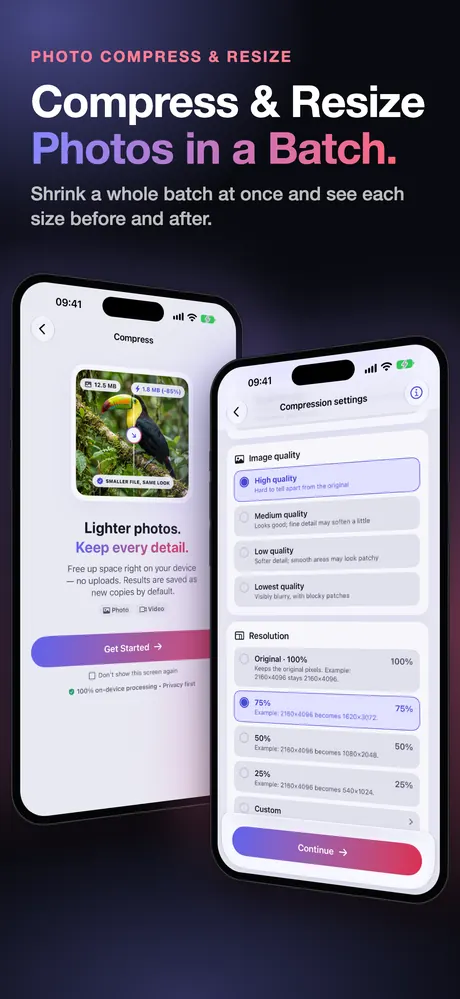
Compress

Smaller files. Same moments.

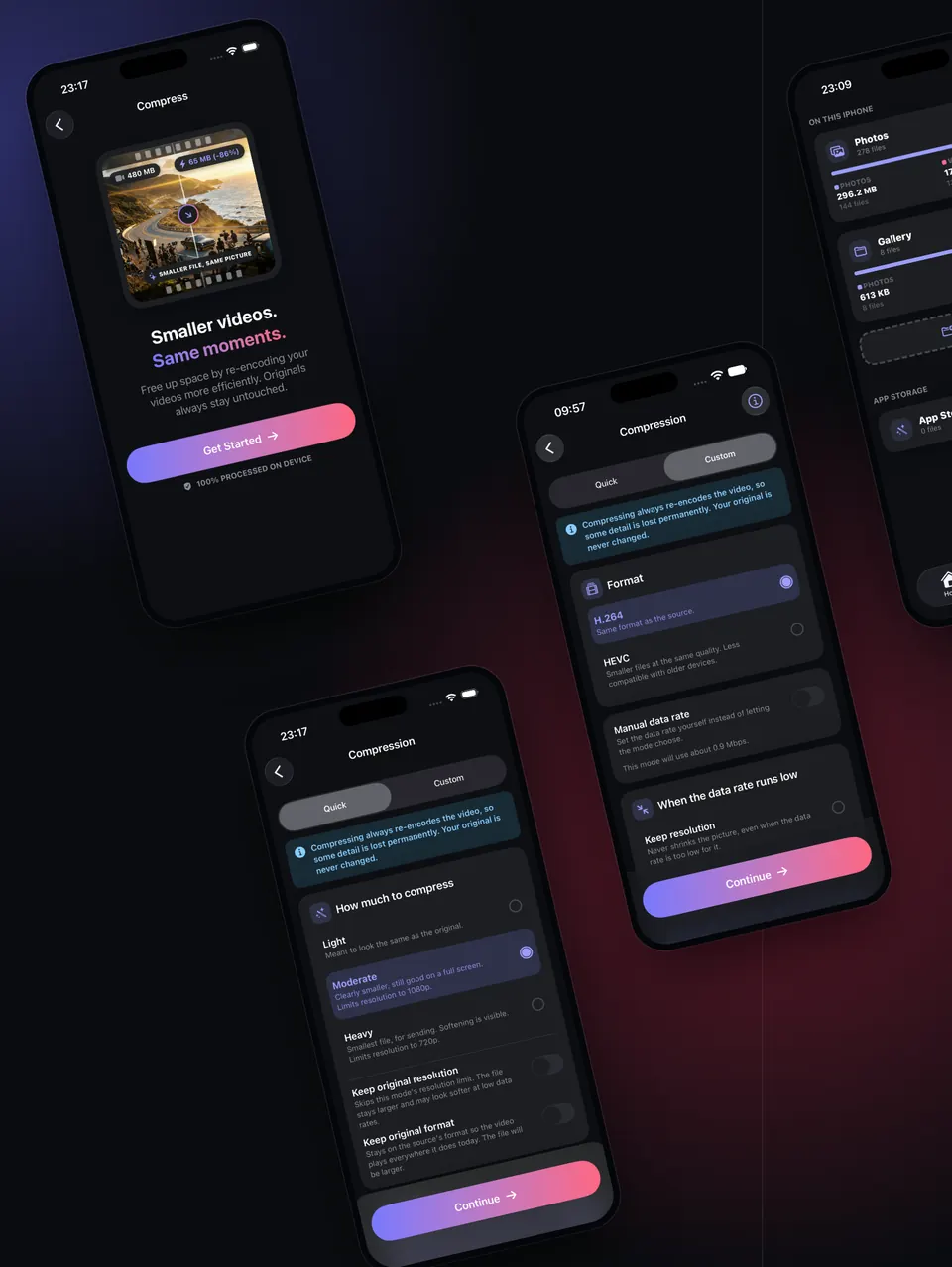
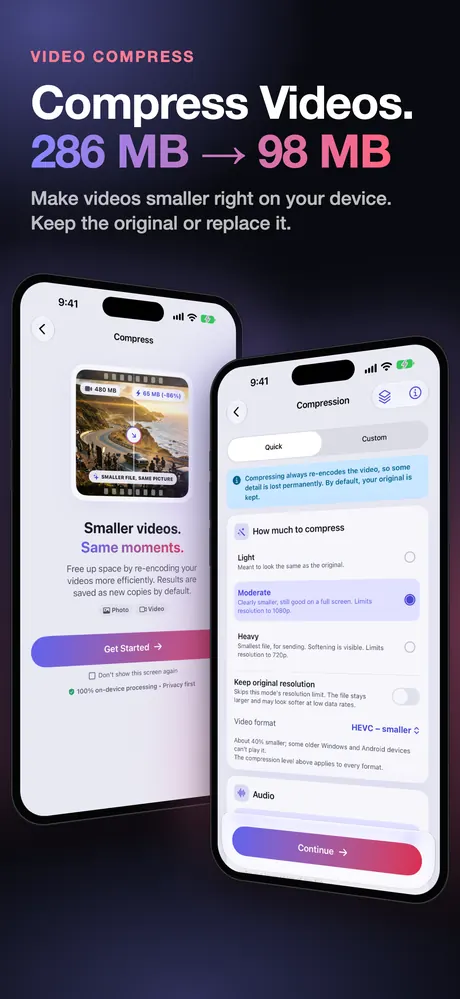
Shrink 4K videos and heavy photos to a fraction of their size before you share, upload or back them up — and stop hitting the "file too large" wall.

  • Photos: pick a quality, or a target size such as 20, 50, 100 or 200 KB
  • Videos: quick presets, or set the codec and resolution yourself, or fit under a size limit
  • Resize to exact pixels or a percentage
Read the guide
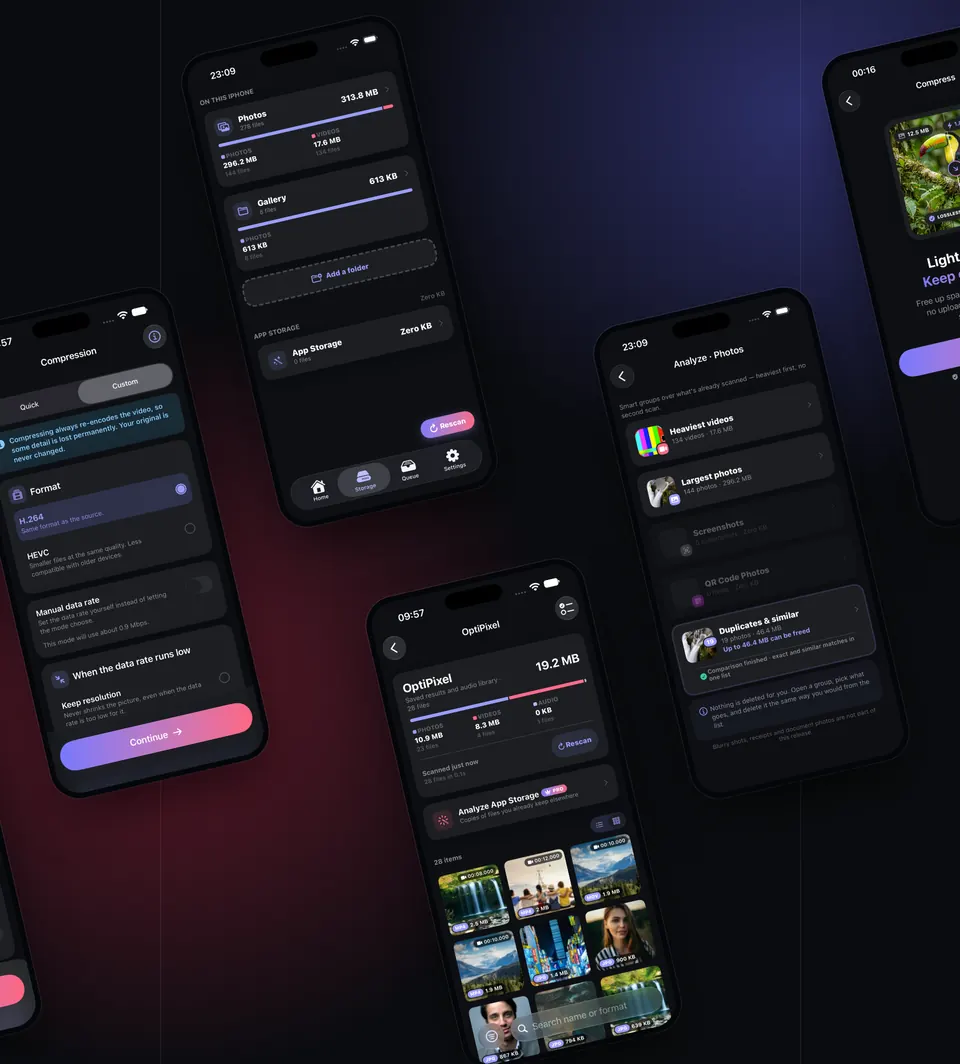
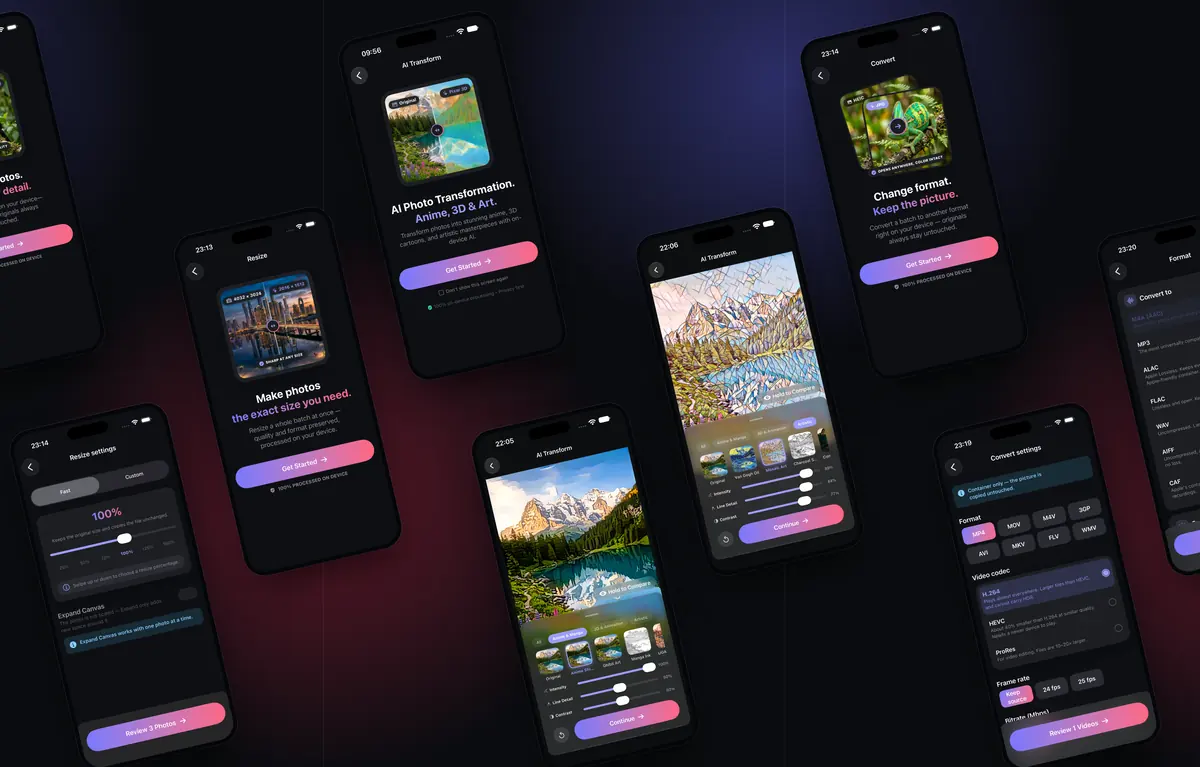
Compression and resize settings in OptiPixel

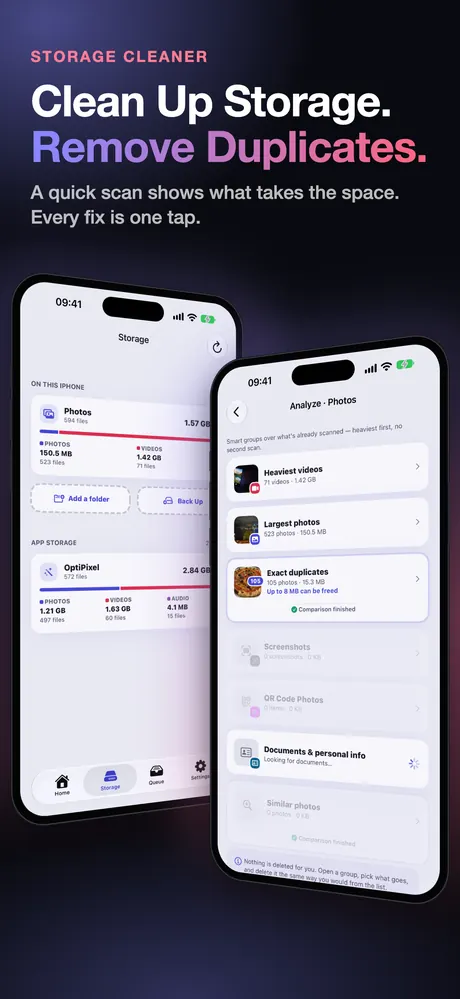
Storage

See what's filling your iPhone.

Storage sorts your library by what takes the most space: heaviest videos, largest photos, exact duplicates (free to find and clear), similar shots, screenshots and QR codes.

  • Review every group before anything is deleted
  • Compress a heavy video straight from the list
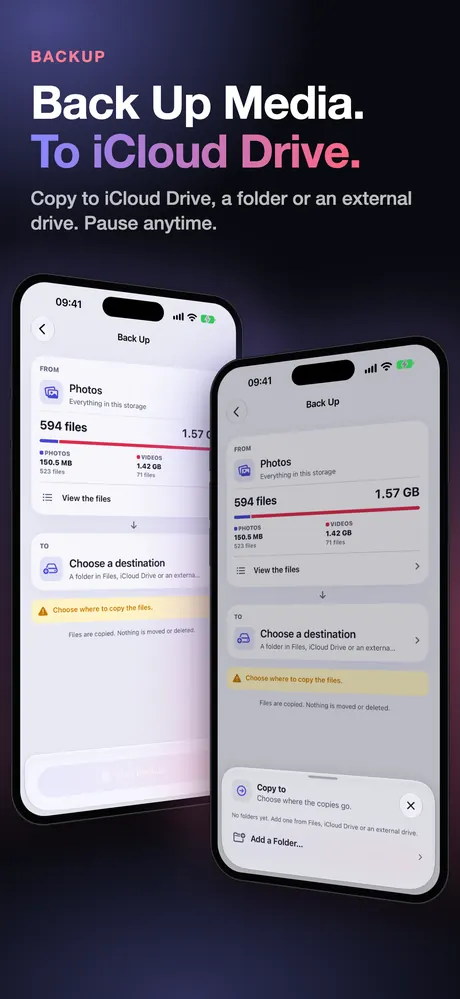
  • Back up photos and videos to a folder, iCloud Drive or an external drive
Read the guide
OptiPixel Storage listing the heaviest videos, largest photos and duplicates

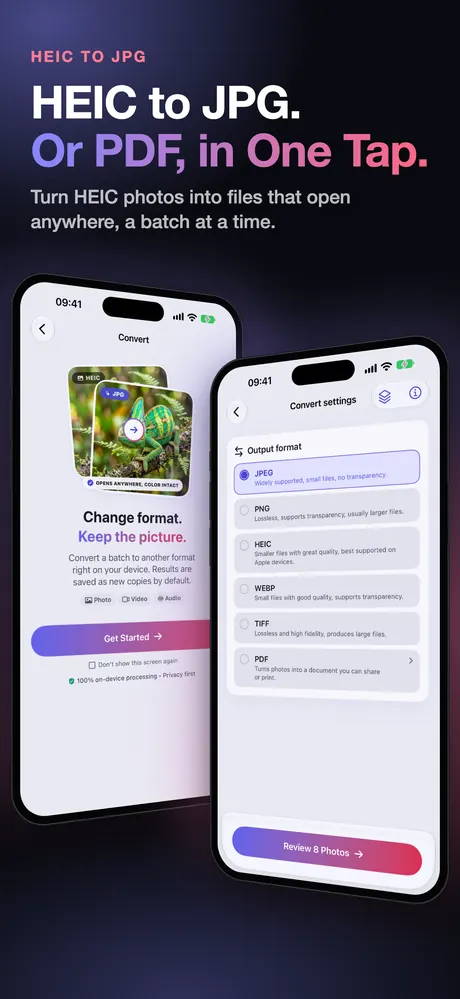
Convert

Change format. Keep the picture.

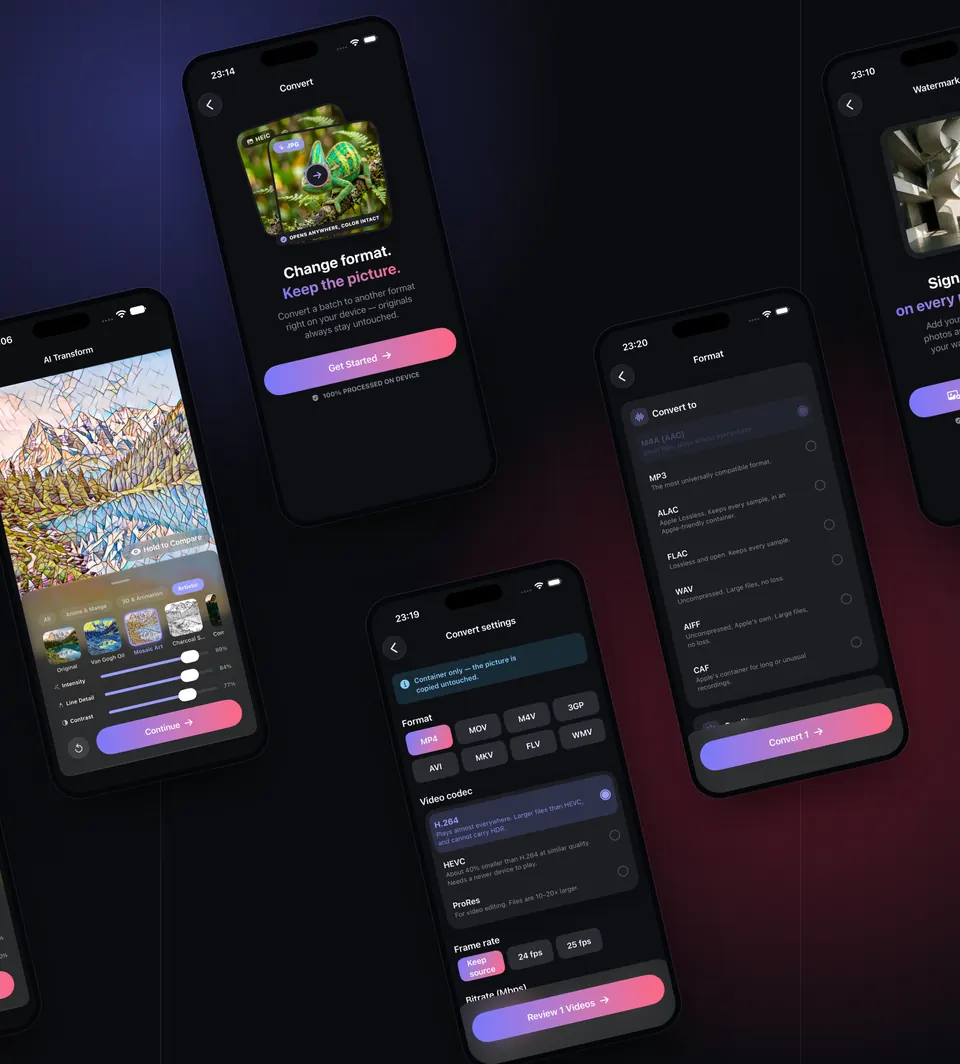
Convert HEIC to JPEG or PNG for any website, form or PC, and videos between MP4, MOV and other formats — in batches.

  • HEIC, JPEG, PNG and more
  • MP4, MOV, M4V and other video formats
  • Audio convert and trim are included too
Read the guide
Video format options in OptiPixel Convert

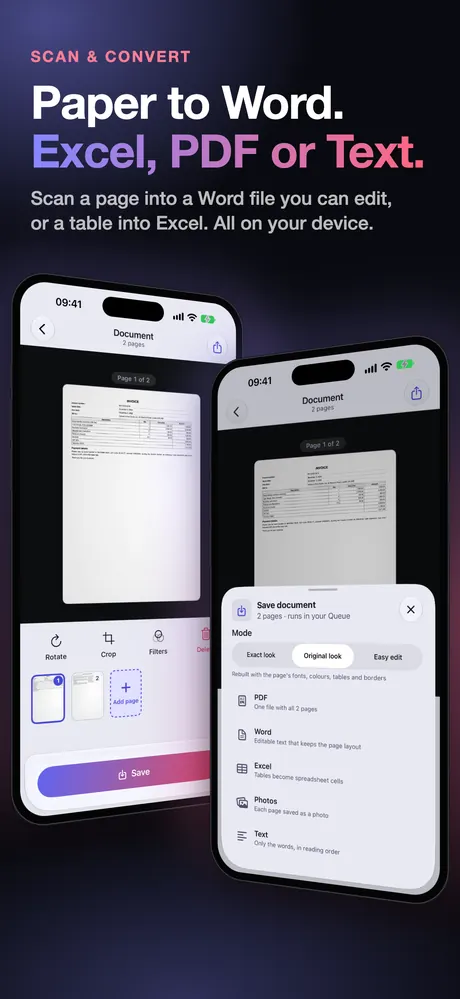
Scan & Convert

Paper in. An editable file out.

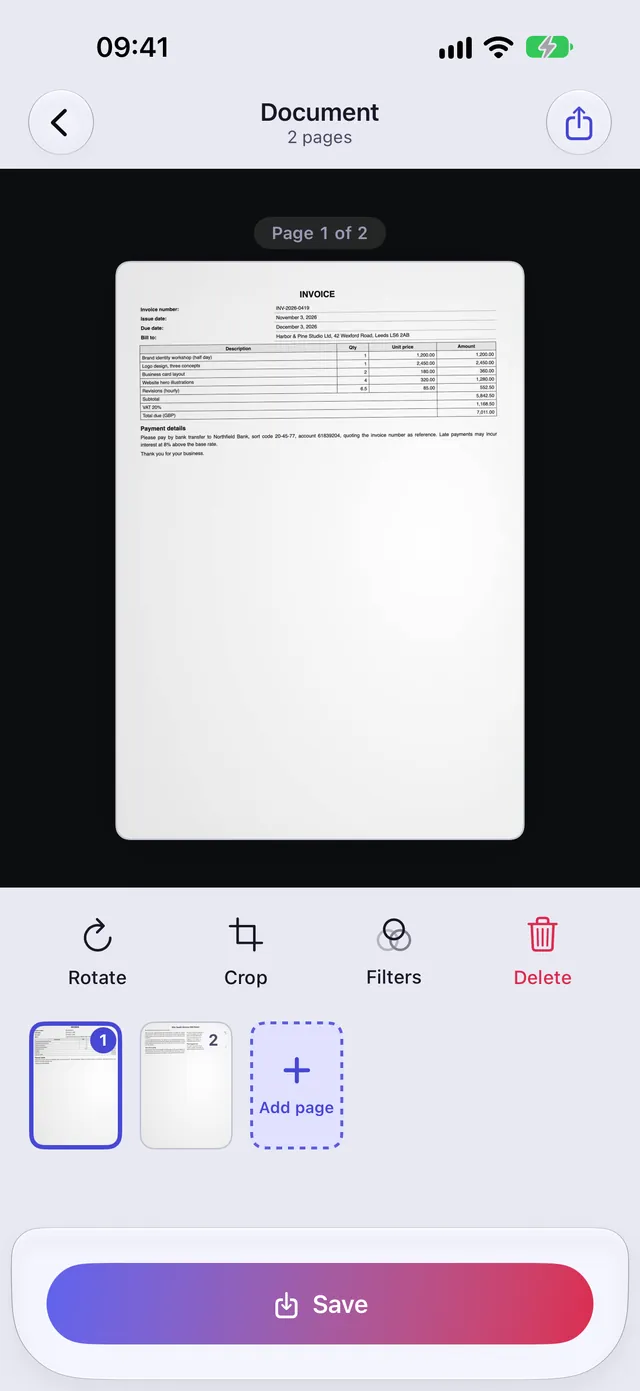
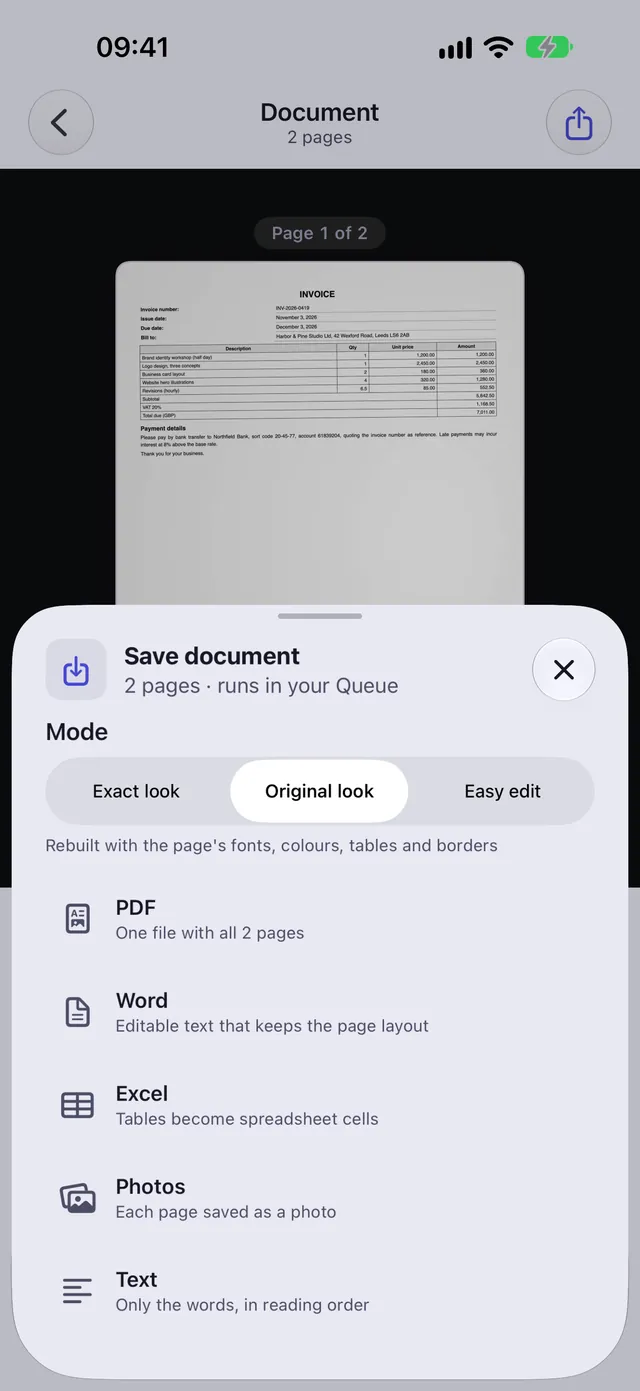
Scan pages with the camera or import photos and PDFs, then save them as a Word or Excel file, a searchable PDF, plain text or photos. The text is read on your iPhone; nothing is uploaded.

  • Choose Exact look, Original look or Easy edit for how close the file stays to the page
  • Tables become spreadsheet cells in Excel: see photo to Excel
  • Compare each page Before and after when the file is ready
  • Scan & Convert reads English and Vietnamese text today; more languages are coming in an update.
Read the guide
OptiPixel Scan & Convert: a scanned page and the Save document choices Word, Excel, PDF, Photos and Text

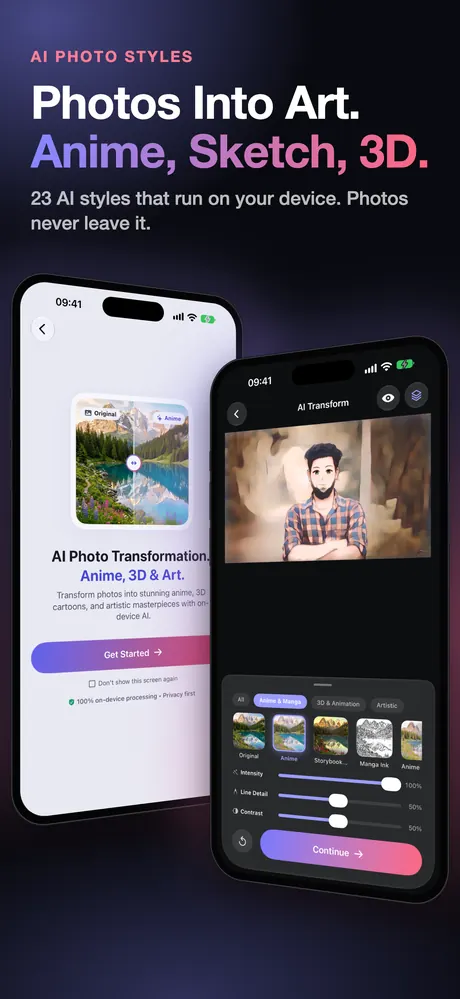
AI Transform

Turn any photo into a work of art.

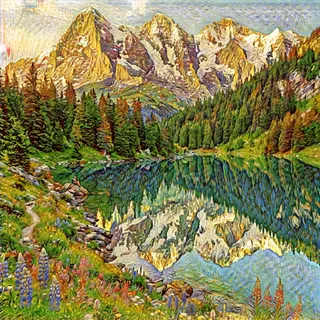
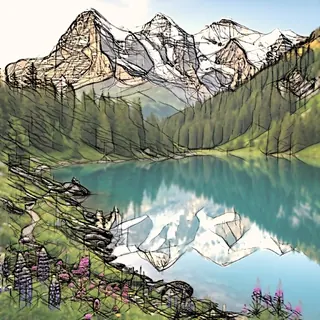
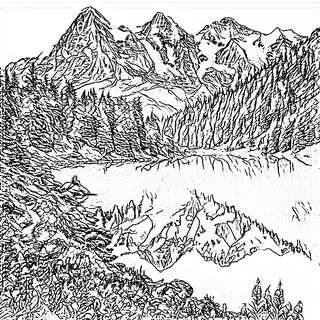
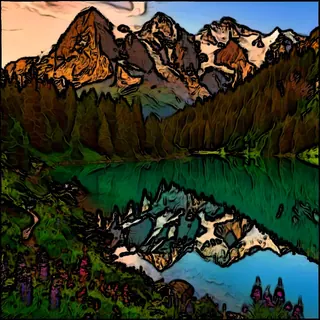
23 styles — watercolor, anime, 3D cartoon, comic, sketch and classic painting — drawn by AI models that run on your iPhone. Your photo never goes to a server.

  • Fine-tune intensity, line detail and contrast live
  • Hold to compare with the original at any time
  • Apply one style to many photos in the background
Read the guide
AI Transform in OptiPixel showing a photo restyled as a painting

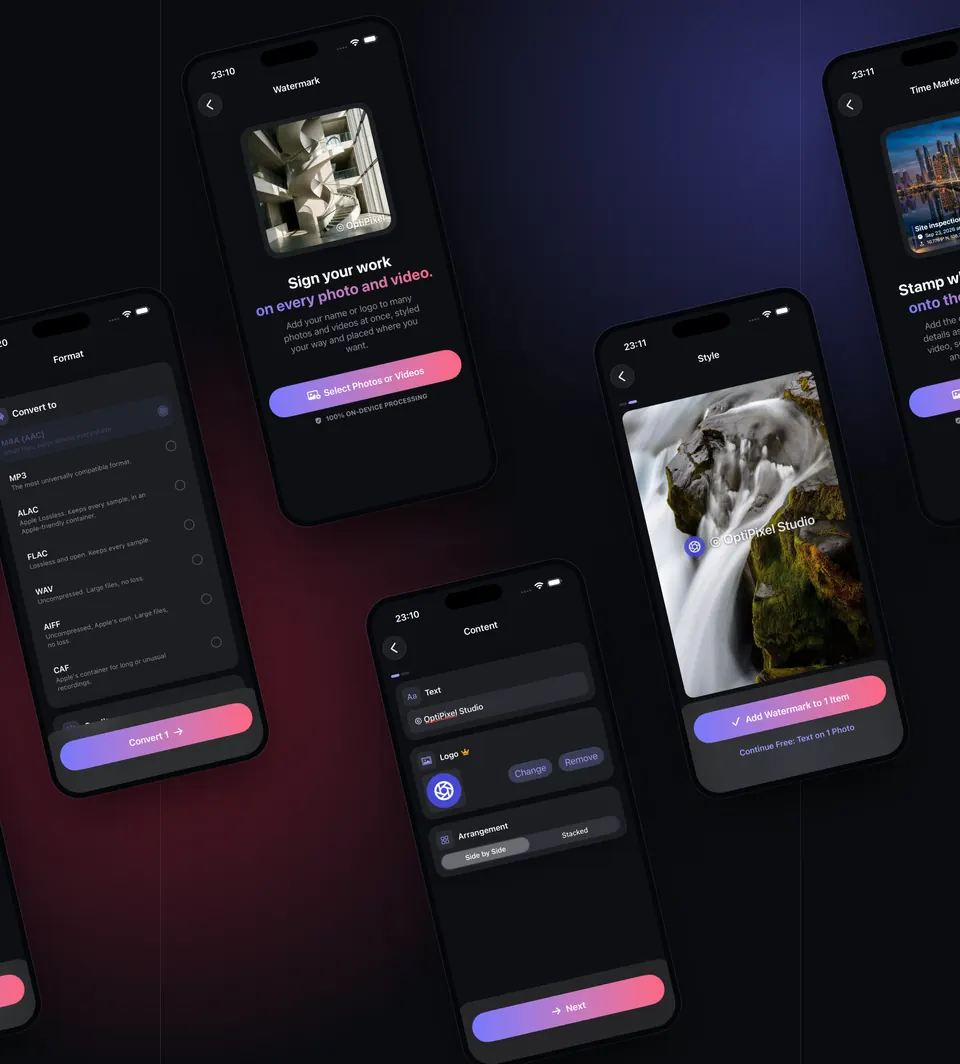
Watermark

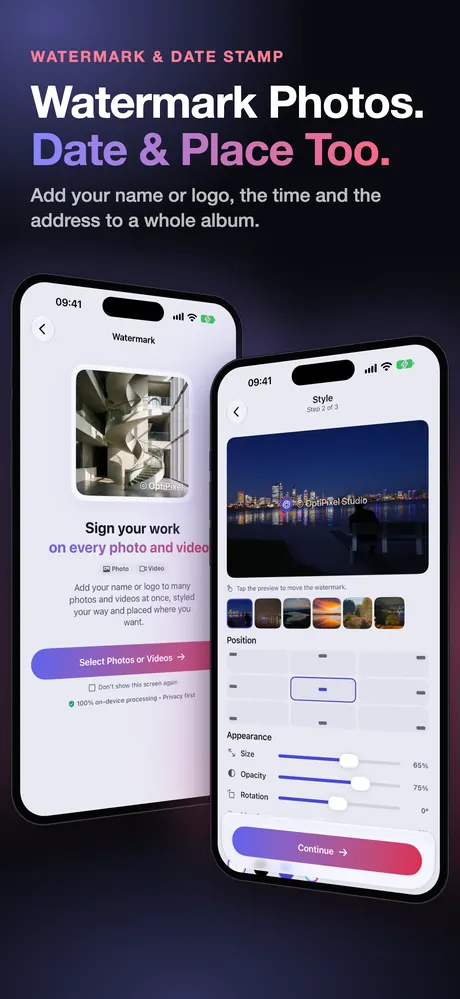
Sign your work on every photo and video.

Put your name, your logo or both on a whole batch in one go. The mark is burned into the pixels, so a re-upload or a screenshot can't strip it.

  • Text, a transparent PNG logo, or both
  • 9 positions plus size, opacity, rotation and font style
  • Photos and videos in the same run
Read the guide
Watermark in OptiPixel placing a text and logo watermark on a photo

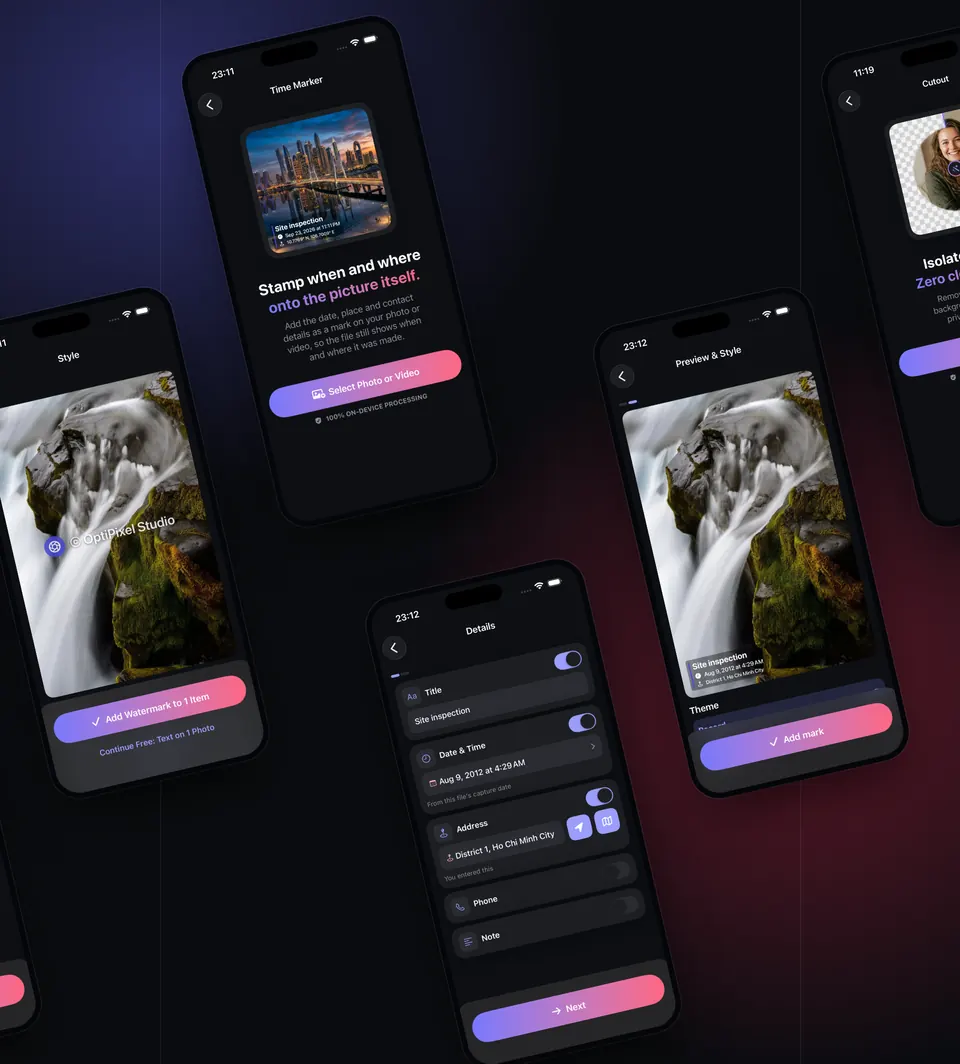
Time Marker

Stamp when and where, onto the picture itself.

Add the date, time, address and contact details to site photos, deliveries and handovers. It's burned in, so the proof travels with the file.

  • Every field is optional — empty ones don't show
  • Tap the preview to choose a corner
  • Works on photos and videos
Read the guide
Time Marker in OptiPixel stamping date and place on a photo

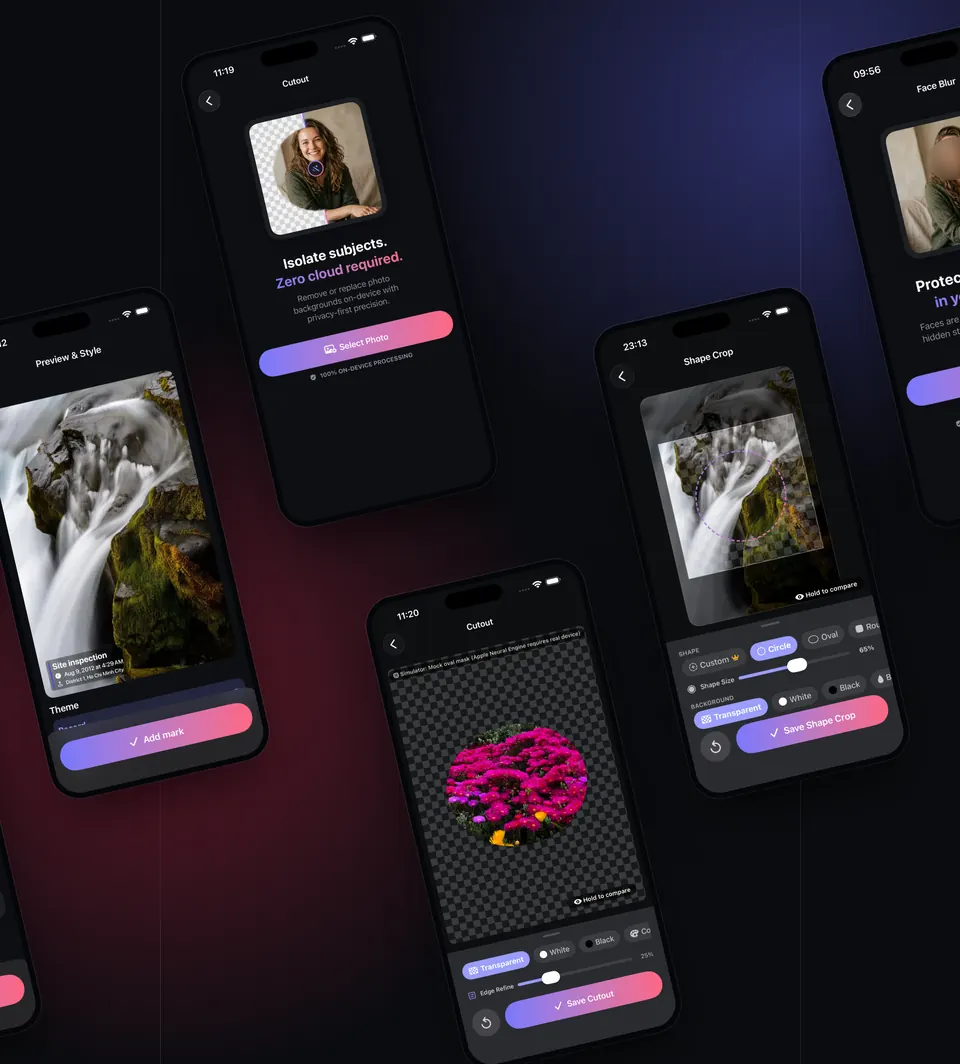
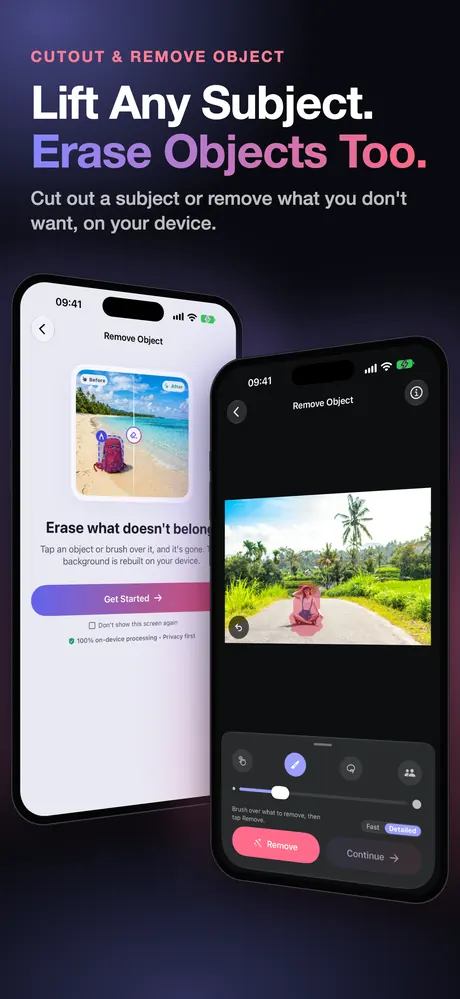
Cutout

Lift the subject off any background.

Cutout finds people, pets and products and removes the background in one tap — then gives you a transparent PNG, a clean colour, or a soft blur.

  • Tap a subject to keep it or drop it
  • Keep and Erase brushes for tricky edges
  • Batch many photos with one style
Read the guide
Cutout in OptiPixel showing a flower on a transparent background

Face Blur

Share the photo, not the private details.

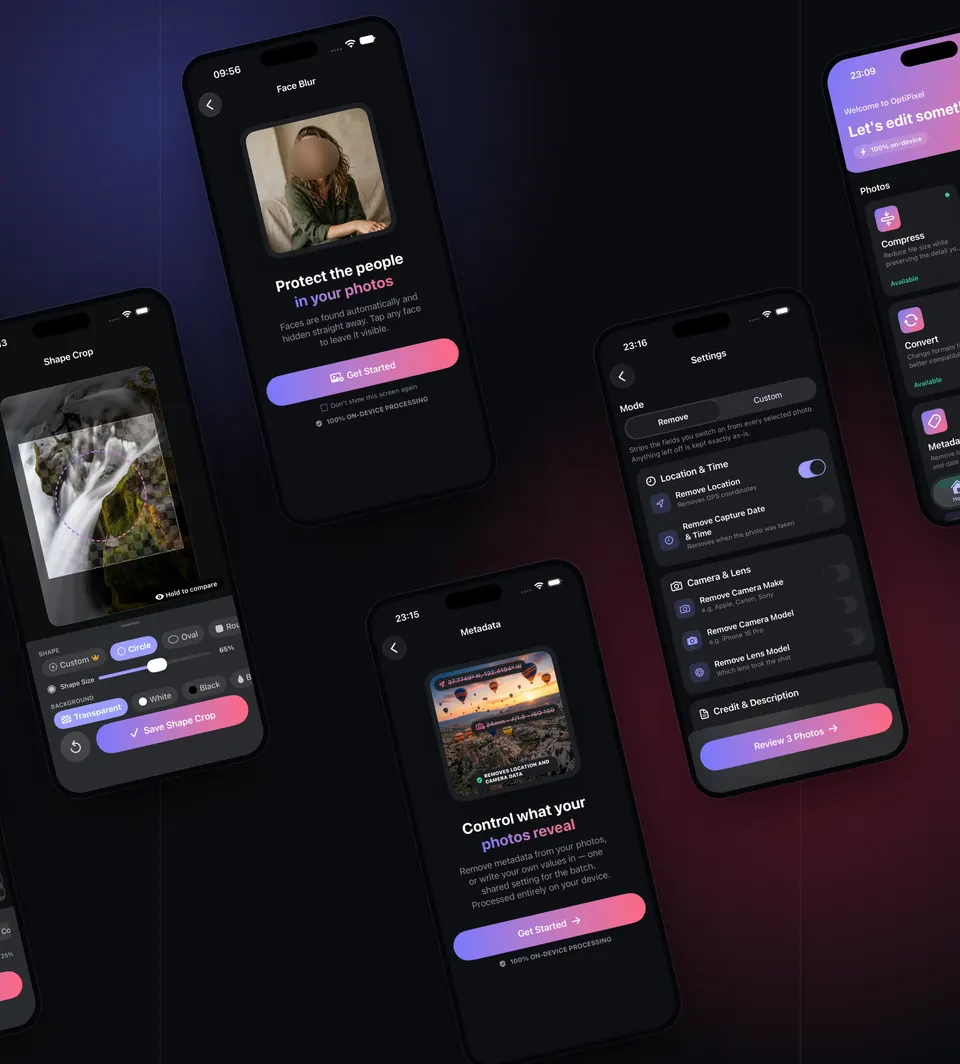
Blur faces automatically and remove the location and camera details hidden inside photos and videos before you post them.

  • Faces are found for you — tap one to leave it clear
  • Remove GPS location, capture date and device info
  • Clean a whole selection at once
Read the guide
Face Blur and Metadata in OptiPixel

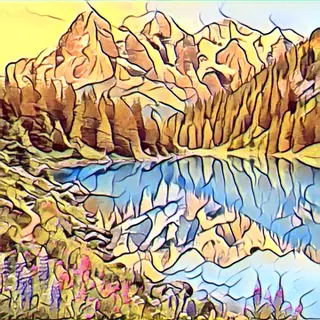
Same photo. A new world.

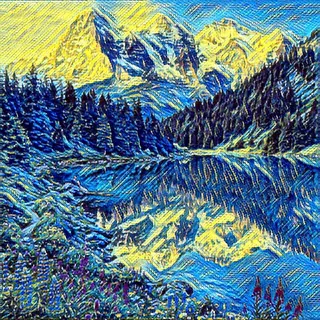
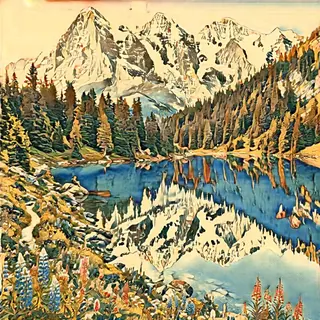
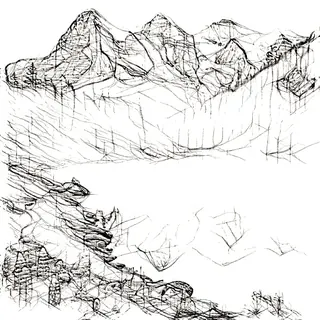
Drag across to compare a photo with its AI Transform result — made on an iPhone, not in the cloud.

Original AI Transform OriginalAI Transform

23 AI styles. Zero uploads.

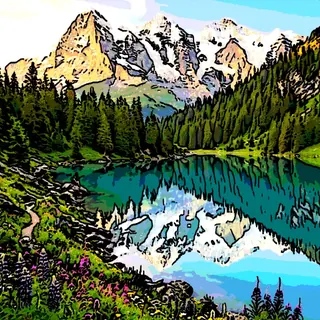
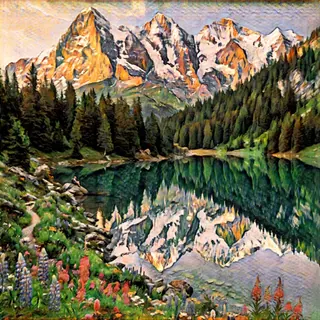
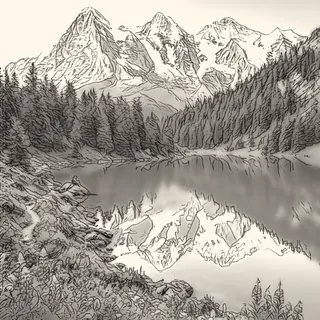
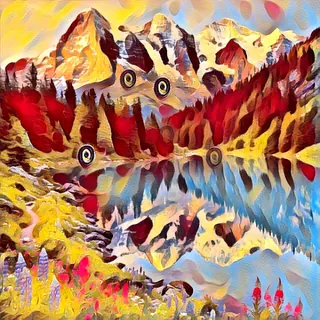
From soft watercolor to bold comic ink. Tune each style, then apply it to one photo or a whole album.

Watercolor
Watercolor
Monet
Monet
Van Gogh Oil
Van Gogh Oil
Ukiyo-e
Ukiyo-e
Anime
Anime
3D Cartoon
3D Cartoon
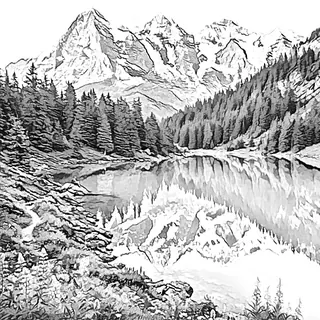
Pencil Sketch
Pencil Sketch
Comic Ink
Comic Ink
Storybook Anime
Storybook Anime
Cézanne
Cézanne
Ink Wash
Ink Wash
Candy Glass
Candy Glass
Impasto
Impasto
Colored Pencil
Colored Pencil
Manga Ink
Manga Ink
Comic Pop-Art
Comic Pop-Art
Cubist
Cubist
Charcoal Sketch
Charcoal Sketch
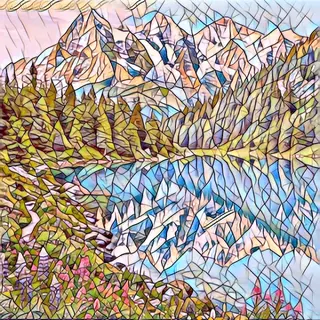
Mosaic Art
Mosaic Art
Glam Illustration
Glam Illustration
Cartoon Cinema
Cartoon Cinema
Anime Selfie
Anime Selfie
Vintage Cartoon
Vintage Cartoon
Everything you need. In one app.

16 tools for photos, video, audio and paper documents — and they all work the same way.

Create

  • AI Transform
  • Collage
  • Cutout
  • Remove Object
  • Shape Crop
  • Color Filter

Optimize

  • Compress
  • Resize
  • Convert
  • Trim
  • Crop

Protect & scan

  • Watermark
  • Time Marker
  • Metadata
  • Face Blur
  • Scan & Convert

Storage & Queue
  • Storage
  • Queue

Free to start. Premium when you need more.

Free

  • Every tool opens for free. Process up to 3 photos or 1 video per task, or watch a short video to unlock a bigger one (up to 10 photos or 3 videos, 3 times a day) or one Premium option. Premium options inside a tool are marked with a crown.

OptiPixel Premium

  • Unlimited batches, every Premium option and no ads. Choose monthly, yearly (with a free trial) or Lifetime, a one-time purchase.

Prices are shown in the app in your local currency. Subscriptions renew automatically and can be cancelled at any time in your Apple Account settings. Lifetime is paid once and never renews.

Private by design.

OptiPixel is built so your photos and videos never need to leave your device.

Privacy Policy

About Nightaris

Built and published by Nightaris

Nightaris is an independent software development team building and publishing consumer mobile applications. We focus on practical products that combine thoughtful user experiences, on-device technology, and privacy-first design. OptiPixel is our current product, developed and maintained by the Nightaris team.

Questions & answers

Support
Is OptiPixel free?

Yes. Every tool opens for free and handles up to 3 photos or 1 video per task. Watching a short video unlocks a bigger task, and OptiPixel Premium removes the limits and ads. Premium is a monthly or yearly subscription, or Lifetime, paid once.

Are my photos and videos uploaded?

No. Compressing, converting, AI Transform, Cutout, Face Blur and every other tool run on your iPhone or iPad. Your media is never sent to a server.

Does OptiPixel work offline?

Yes. A few AI styles and Remove Object use a larger model that downloads once (21–96 MB) after you agree. After that they work offline too.

Will it change my original photos?

Not unless you choose it. By default every result is saved as a new photo, video or file, and the original stays exactly as it was. If you want a result to take the original's place, choose Edit Original or Replace Original in Settings › Where results are saved. Replacing a photo or video moves the original to Recently Deleted, where it stays for 30 days; replacing a file from the Files app overwrites it for good, and the app asks you every time.

Can I back up my photos and videos?

Yes. In the Storage tab, Back Up copies photos, videos and files to a folder in Files, iCloud Drive or an external drive. It only copies: nothing is moved or deleted, and a repeat run copies only new files. Up to 500 MB per backup is free, one short video unlocks up to 2 GB, and Premium has no limit.

Which devices are supported?

iPhone and iPad running iOS 17 or later. The app is available in 20 languages.

How much space can video compression save?

It depends on the original resolution and bitrate. A long 4K clip often shrinks to half its size or less with no visible difference on a phone screen.

OptiPixel app icon

Try OptiPixel free.

Download it on the App Store for iPhone and iPad.

Download on theApp Store