Cutout
How to remove the background from a photo on iPhone
Make product shots on white, stickers with a transparent background or portraits with a soft blur — in one tap, on your iPhone.
Updated November 17, 2026 · Free on the App Store · iPhone & iPad, iOS 17+
Why local background isolation beats cloud cutout services
Online background removal websites typically enforce restrictive trade-offs: they limit export resolution to low-DPI previews unless paid, downscale 48 MP photos, and transmit your personal pictures to third-party cloud servers.
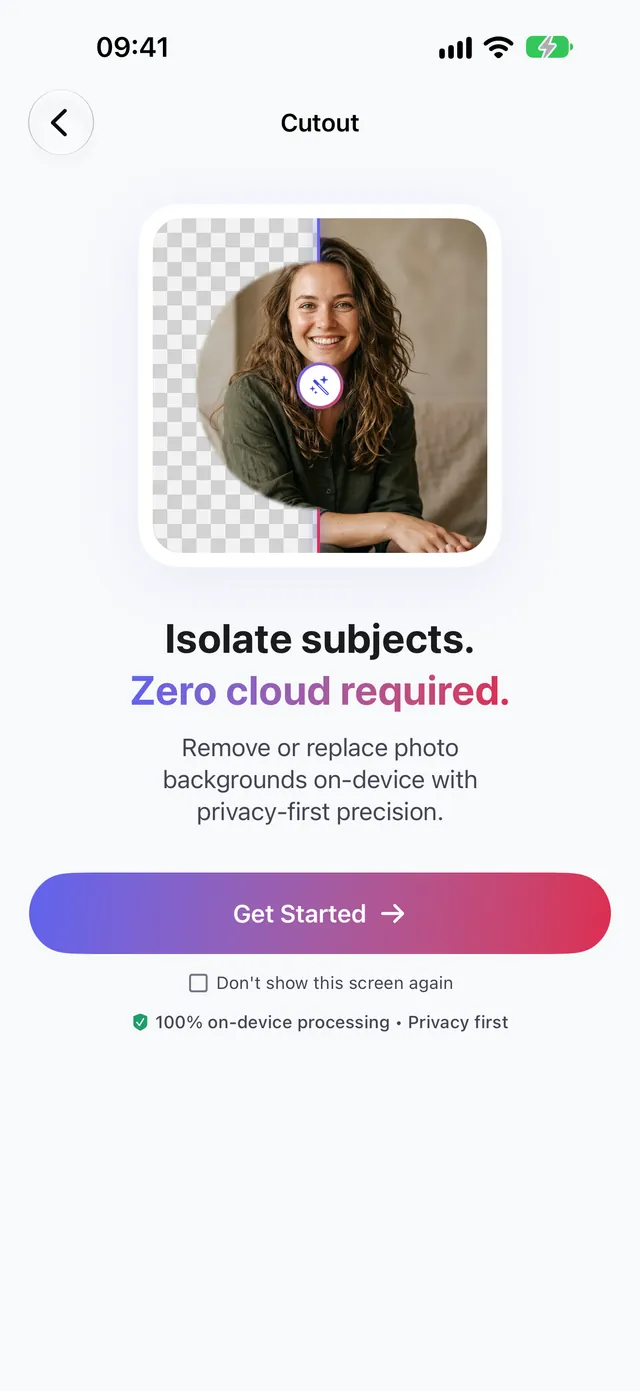
OptiPixel features a dedicated Cutout engine powered by Apple Vision neural instance segmentation. It isolates people, pets, and commercial products with clean edges directly on your iPhone. You can immediately replace backgrounds with transparent alpha channels, studio backdrops, or portrait blur without cloud latency.
Cutout background modes & export options
The table below outlines the background replacement modes supported in OptiPixel:
| Background Option | Output Format | Visual Characteristic | Optimal Commercial Use Case |
|---|---|---|---|
| Transparent Alpha | PNG (with 8-bit Alpha) | Completely transparent background | Digital stickers, UI assets, marketing collaterals |
| Studio Pure White | JPEG or PNG | Solid pure white (#FFFFFF) backdrop | Amazon, Shopify, eBay product catalog compliance |
| Studio Deep Black | JPEG or PNG | Deep black (#000000) backdrop | High-end luxury products, electronics, dramatic portraits |
| Custom Palette Color | JPEG or PNG | Solid user-selected brand color | YouTube video thumbnails, social media graphics |
| Portrait Depth Blur | JPEG or PNG | Realistic optical bokeh simulation | Professional LinkedIn avatars, outdoor portraits |
Remove photo backgrounds on iPhone, step by step
- Open OptiPixel and open Cutout on Home (tap See all if it is not pinned), then tap Get Started.
- Select one or more photos from Photos or the Files app.
- Choose your desired background mode at the bottom of the canvas (Transparent, White, Black, Color, or Blur).
- Refine edge masks if necessary:
- Tap individual detected subjects to toggle keeping or discarding them.
- Use the Keep and Erase brushes to clean tricky areas around hair strands, gaps between limbs, or product handles.
- Use Undo if an edit extends too far.
- Tap Save Cutout, verify the batch in the Review screen, and send it to the Queue.
- The Queue exports high-resolution output files to your library while keeping source photos untouched.
Need to resize or watermark your clean product cutouts for web stores? Use OptiPixel's Photo Resize or Watermark tools to complete the catalog workflow.

OptiPixel — Reduce Photo & Video File Size
Free · No account · Runs on your iPhone
Frequently asked questions
Does OptiPixel downscale or blur cutout edges?
No. OptiPixel works from your original photo and exports a full-size result, without the low-resolution downscaling typical of web-based background removers.
Is Cutout background removal free to use?
Mostly. Transparent PNG, pure white, pure black and custom solid color backdrops are free. The Blur background is a Premium option marked with a crown: saving it needs OptiPixel Premium or one short video. Free tasks take up to 3 photos.
Are my photos uploaded to an external server?
No. All subject segmentation algorithms run 100% on-device utilizing Apple Vision neural networks, ensuring complete privacy for sensitive product prototypes and family portraits.
Can I remove individual unwanted objects instead of the entire background?
Yes. If you wish to erase photobombers, trash cans, or power lines while keeping the rest of the background intact, use OptiPixel's dedicated Remove Object tool.
Are original photos modified during the cutout process?
Not by default: results are saved as new items, so your originals stay in your library. Only if you choose Edit Original or Replace Original in Settings › Where results are saved does a result take the original's place.