Resize
How to resize a photo on iPhone to the exact size you need
Need a 1080 × 1080 image, a 2000-pixel listing photo or a quarter-size copy? Resize one photo or a whole batch on your iPhone.
Updated November 17, 2026 · Free on the App Store · iPhone & iPad, iOS 17+
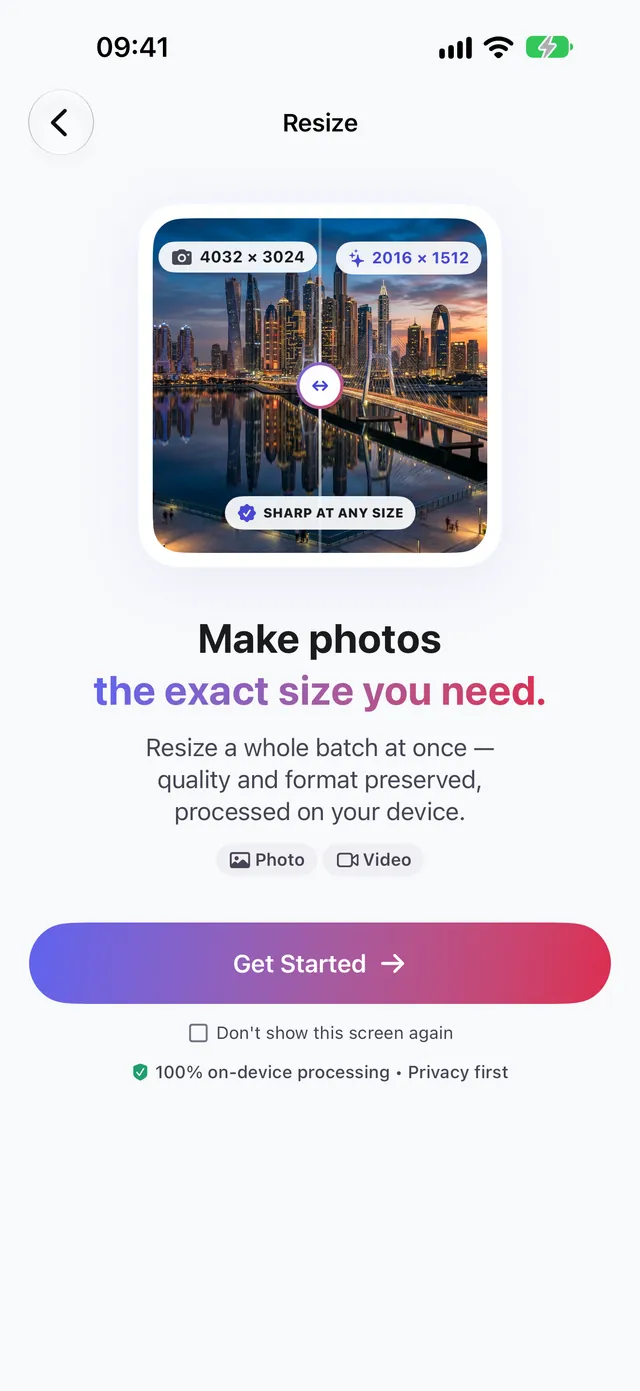
The difference between resizing pixels and compressing file size
It is common to confuse resizing with compressing, but they address distinct technical requirements: - Resizing (Pixel Dimensions): Changes the actual resolution—the physical grid of pixels (width × height). Online shops and social networks often ask for sizes like 1080 × 1080 px or 2048 px on the long edge. - Compressing (Byte Size): Re-encodes the image into fewer bytes (KB or MB) without necessarily reducing pixel dimensions. To hit target file size caps under 1 MB, use Photo Compress.
OptiPixel has a tool for each, and resizes a batch of photos right on your iPhone.
Standard pixel dimensions for web, e-commerce & social media
The table below lists common sizes you can type into the Custom width and height:
| Platform & Destination | Recommended Resolution (W × H) | Aspect Ratio | Primary Requirement |
|---|---|---|---|
| Instagram Square Feed | 1080 × 1080 px | 1:1 | Standard feed photography |
| Instagram Portrait Feed | 1080 × 1350 px | 4:5 | Maximum vertical mobile screen real estate |
| Instagram Stories & Reels Cover | 1080 × 1920 px | 9:16 | Full-screen vertical display |
| E-Commerce (Amazon, Shopify, eBay) | 2000 × 2000 px to 2048 × 2048 px | 1:1 | High-resolution product zoom |
| Professional Avatars (LinkedIn, X) | 400 × 400 px | 1:1 | High-DPI profile icon display |
| Web Blog & Email Banners | 1200 × 630 px or 1920 × 1080 px | 1.91:1 / 16:9 | Fast page loading with clear headers |
Real results on iPhone 17 Pro Max
Measured on 17 November 2026 on an iPhone 17 Pro Max with iOS 27.2 and OptiPixel 1.6.0, using the app's own Resize engine. The photos: 8 HEIC photos taken on an iPhone 17 Pro (3649 to 4032 px on the long side, 22.9 MB together). Time is per photo, on the phone; reading from and saving to Photos is not included. 1 MB = 1,000,000 bytes.
| Setting | Long side of the result | 8 photos together | Each photo | Smaller by | Time per photo |
|---|---|---|---|---|---|
| Fast 50% | 1825–2016 px | 12.2 MB | 0.74–2.18 MB | 47% | 0.07–0.13 s |
| Fast 25% | 912–1008 px | 2.9 MB | 0.20–0.52 MB | 87% | 0.06–0.08 s |
| Custom 1080 × 1080, Keep | 1080 px | 3.5 MB | 0.22–0.69 MB | 85% | 0.06–0.09 s |
| Custom 2048 × 2048, Keep | 2048 px | 12.8 MB | 0.83–2.42 MB | 44% | 0.07–0.12 s |
The resized photos stayed HEIC, the format of the originals, and each kept its own aspect ratio inside the box. Resizing alone already made the files much smaller; if you need a JPEG or a size in KB, use Photo Compress instead.
Resize photos on iPhone, step by step
- Open OptiPixel and open Resize on Home (tap See all if it is not pinned), then tap Get Started.
- Select your photos from Photos or the Files app — you can process single photos or large batches.
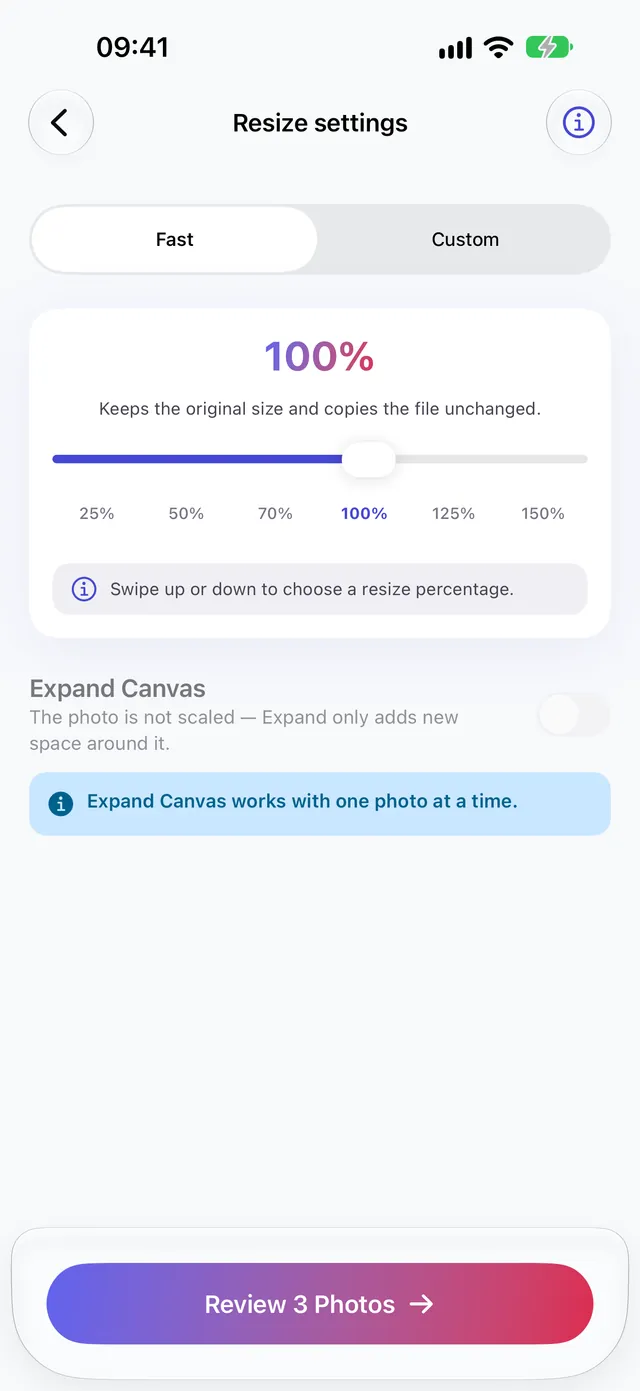
- Choose your scaling mode:
- Fast: Use the slider to scale by a percentage: 25%, 50%, 70%, 100%, 125% or 150% of the original size.
- Custom: Type the exact Width and Height, then choose the aspect ratio: Keep (each photo keeps its own ratio and fits inside the box), Free (exact size, photos may stretch) or Custom (a ratio you enter).
- Review the calculated dimensions in the Review list and tap Add to Queue.
- OptiPixel resamples the photos on your device in the background. The resized copies are saved as new assets while your original high-resolution captures remain untouched.
Need to brand your resized product pictures before listing them online? Add your text or logo in bulk using OptiPixel's Watermark tool.

OptiPixel — Reduce Photo & Video File Size
Free · No account · Runs on your iPhone
Frequently asked questions
Does resizing down reduce the visual sharpness of a photo?
Not when you make a photo smaller: a 12 MP or 48 MP photo resized to 1080 px or 2048 px stays sharp at that size. Enlarging a photo beyond its original dimensions, however, cannot add extra detail.
Can OptiPixel batch resize hundreds of photos at once?
Yes. The same size applies to every photo you select, and the batch runs in the background Queue. Free tasks take up to 3 photos. A short video unlocks up to 10 photos in one task, and OptiPixel Premium has no limit.
Does OptiPixel support video resizing?
Yes. Resize also takes videos and downscales their resolution (e.g., from 4K to 1080p or 720p) locally on iPhone.
Are original photos overwritten when resizing?
Not by default: results are saved as new items, so your originals stay in your library. Only if you choose Edit Original or Replace Original in Settings › Where results are saved does a result take the original's place.
Is any data sent to cloud servers during resizing?
No. OptiPixel resizes photos on your iPhone and does not upload them, so it also works offline. In our measurements a photo took about a tenth of a second.