AI Transform
How to turn a photo into anime or a cartoon on iPhone
Make an anime portrait, a 3D cartoon or a comic panel from any photo — with AI that runs on your iPhone, so the picture never leaves it.
Updated October 29, 2026 · Free on the App Store · iPhone & iPad, iOS 17+
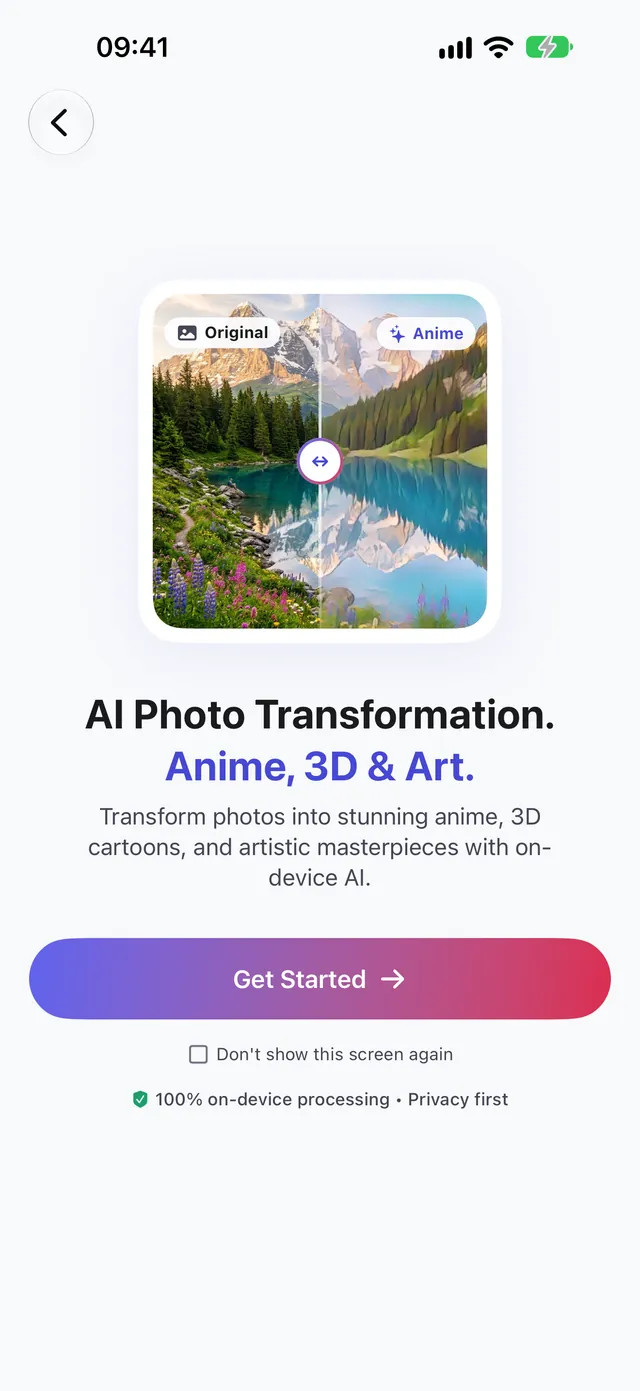
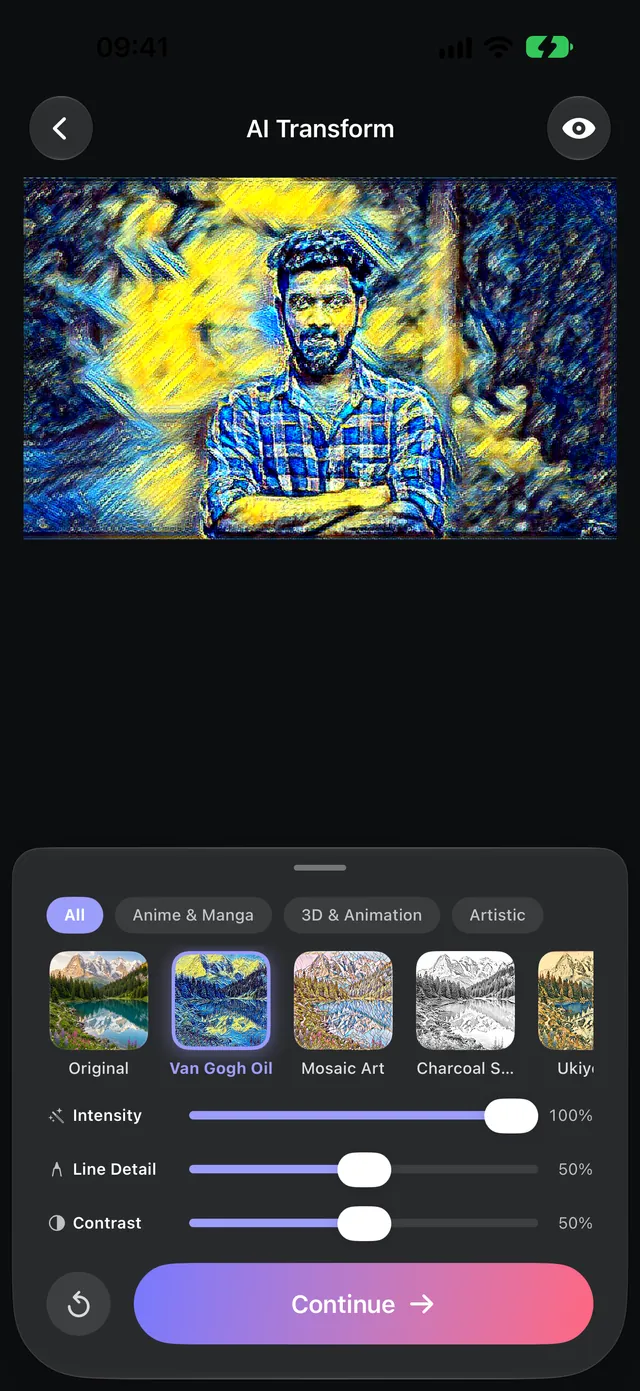
The problem with cloud-based anime filters
Most popular AI anime filters and generator apps upload your personal photos and selfies to third-party cloud servers. This introduces significant privacy liabilities: images are often retained for server-side model training, queue wait times can stretch to minutes during peak traffic, and connectivity drops break the workflow completely.
OptiPixel re-engineers anime and cartoon stylization through on-device neural execution. Leveraging Apple’s Neural Engine (ANE) and Metal CoreML pipelines, OptiPixel transforms photos into cel-shaded anime, manga ink, and 3D animated artwork directly on your iPhone without uploading your photo to a server.
On-device anime & cartoon style matrix
The table below outlines the specialized on-device styles available in OptiPixel's AI Transform suite:
| Anime & Cartoon Style | Visual Aesthetic | Optimal Subject |
|---|---|---|
| Anime (Classic Cel) | Crisp Japanese animation cel shading | Landscapes, travel photography, cities |
| Storybook Anime | Warm watercolor skies, soft hand-painted tones | Nature, scenic viewpoints, pet portraits |
| Anime Selfie | Emphasized facial landmarks, vibrant anime eyes | Close-up selfies, character headshots |
| Manga Ink | High-contrast black & white ink, screentone shading | Street scenes, dramatic high-contrast portraits |
| 3D Cartoon & Cinema | CGI-animated film lighting, volumetric shading | Cosplay, expressive family photos |
| Comic Pop-Art | Halftone dots, bold comic outlines, primary palettes | Urban architecture, casual snapshots |
On-device AI vs cloud-based filters
| Feature Comparison | OptiPixel (On-Device ANE) | Cloud Filter Services |
|---|---|---|
| Data Privacy | 100% private; photos never leave device | Photos uploaded to remote cloud servers |
| Server Queue Delays | No server queue; renders on your phone | Queued behind other network users |
| Offline Availability | Fully functional in Airplane Mode | Requires constant high-speed internet |
| Album Batch Processing | Background Queue processes entire albums | Typically restricted to single-image uploads |
Turn a photo into anime on iPhone, step by step
- Open OptiPixel and tap AI Transform on the Home screen, then tap Get Started.
- Select your photo or a multi-photo batch from Photos, the Files app, or the Camera.
- Open the Anime & Manga category and tap your desired style (such as Anime, Storybook Anime, or Manga Ink).
- Review the real-time render:
- Press and hold Hold to Compare to check the result against the original photograph.
- Adjust the Intensity slider to balance stylized art with original photographic detail.
- Fine-tune Line Detail and Contrast for bolder graphic contours.
- Tap Continue, choose the export quality on the Review screen and tap Add to Queue. OptiPixel renders the exports in the background.
Want classical oil, watercolor, or sketch aesthetics instead of anime? Check out OptiPixel's Fine Art Painting styles.

OptiPixel — Reduce Photo & Video File Size
Free · No account · Runs on your iPhone
Frequently asked questions
Does OptiPixel upload selfies or portraits to a server?
No. All AI Transform neural models run locally on your iPhone using Apple's Neural Engine and Metal GPU hardware acceleration. Your images never touch an external cloud server.
Can OptiPixel stylize an entire album of photos at once?
Yes. AI Transform supports batch processing via the background Queue. You can select several photos, apply one anime style, and let the device process them while you continue using other apps. Free tasks take up to 3 photos; a short video unlocks up to 10, and Premium has no limit.
Do I need an internet connection to generate anime art?
No. Once the local model package is downloaded, all stylization algorithms execute completely offline, allowing full creation even while in Airplane Mode.
Why does the result look too intense or stylized?
Every style features continuous parametric controls: simply drag the Intensity slider down to 50–70% to blend the stylized artwork with your original facial features naturally.
Are original photos modified or overwritten?
Not by default: results are saved as new items, so your originals stay in your library. Only if you choose Edit Original or Replace Original in Settings › Where results are saved does a result take the original's place.
Are the anime and cartoon styles free?
Every style can be previewed for free. The Anime & Manga and 3D & Animation styles are Premium options, marked with a crown: saving the result needs OptiPixel Premium. The Artistic styles built into the app save for free.