Compress
How to compress a video on iPhone without losing what matters
A minute of 4K video can take hundreds of megabytes. Shrink it on your iPhone — to email it, upload it or just get your storage back — with nothing uploaded.
Updated November 17, 2026 · Free on the App Store · iPhone & iPad, iOS 17+
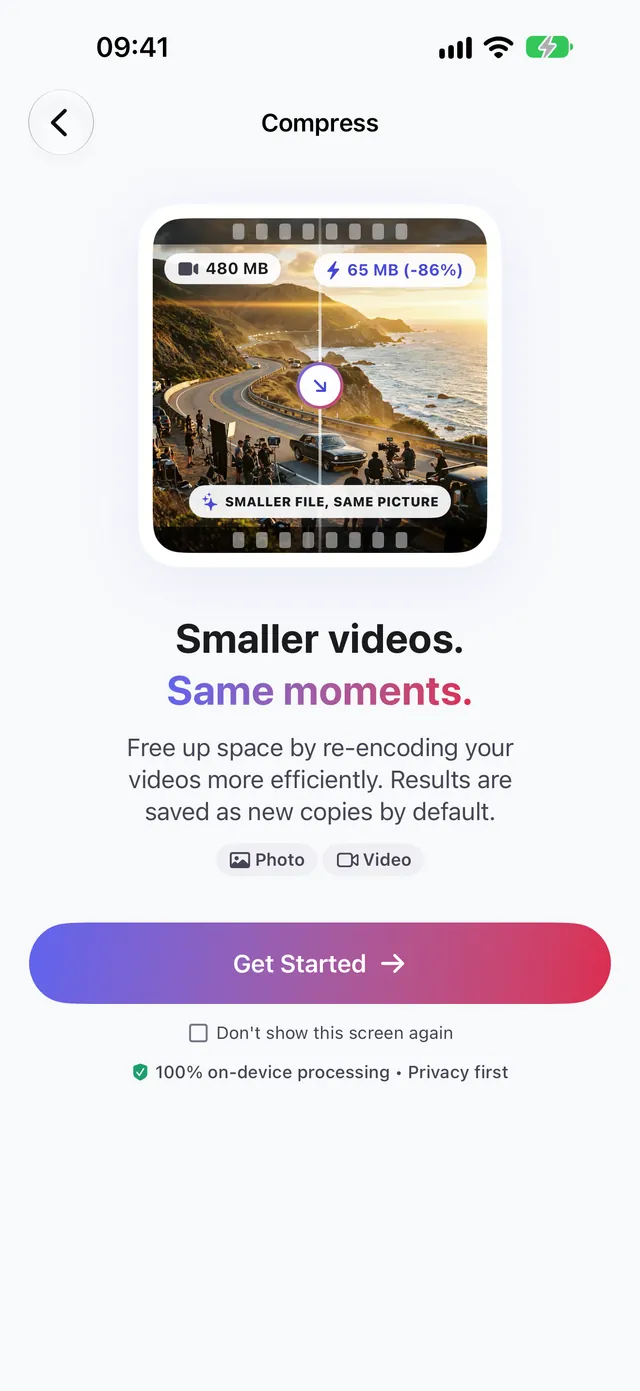
Why iPhone videos consume massive storage
The iPhone camera records video at a high data rate. The 4K 60 fps recording we measured below took 506 MB for 67 seconds, about 450 MB a minute. Files that size are too big for most email attachments and many upload forms, which usually allow a few tens of megabytes; check the limit of the service you use.
OptiPixel re-encodes the video on your iPhone with Apple's video encoder, and can lower the resolution, so the footage is not uploaded anywhere. How much smaller it gets depends on the video — the measurements below show the range.
Quick presets at a glance
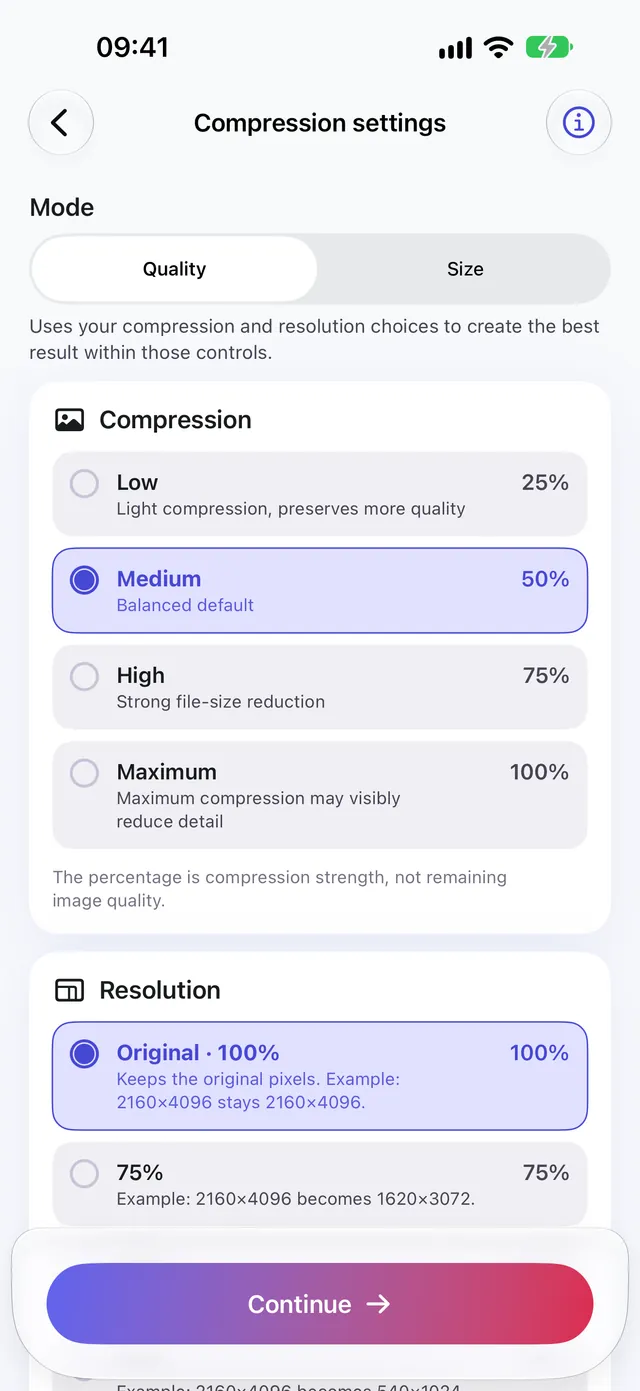
How much a video shrinks depends on how it was recorded, so OptiPixel shows an estimated size for each video before you start. These are the Quick presets:
| Preset | What it does |
|---|---|
| Light | Meant to look the same as the original. |
| Moderate | Clearly smaller, still good on a full screen. Limits resolution to 1080p. |
| Heavy | Smallest file, for sending. Softening is visible. Limits resolution to 720p. |
Real results on iPhone 17 Pro Max
Measured on 17 November 2026 on an iPhone 17 Pro Max with iOS 27.2 and OptiPixel 1.6.0, using the app's own compression engine. Time is the encoding on the phone; reading from and saving to Photos is not included. 1 MB = 1,000,000 bytes.
| Video | Setting | Result | Smaller by | Time |
|---|---|---|---|---|
| 4K 60 fps HEVC, 67 s, 506.1 MB (from the iPhone's Photos library) | Light | 427.7 MB | 15% | 63 s |
| Moderate | 278.1 MB | 45% | 22 s | |
| Heavy | 152.7 MB | 70% | 23 s | |
| Fit under a size 25 MB | 24.8 MB | 95% | 22 s | |
| 4K 60 fps H.264, 31 s, 218.0 MB | Light | 110.8 MB | 49% | 28 s |
| Moderate | 72.0 MB | 67% | 10 s | |
| Heavy | 39.8 MB | 82% | 10 s | |
| Fit under a size 25 MB | 23.5 MB | 89% | 32 s | |
| 1080p 60 fps H.264, 22 s, 46.2 MB | Light | 23.7 MB | 49% | 6 s |
| Moderate | 15.5 MB | 66% | 6 s | |
| Heavy | 8.7 MB | 81% | 4 s | |
| 1080p 30 fps H.264, 18 s, 21.5 MB | Light | 11.2 MB | 48% | 2 s |
| Moderate | 7.4 MB | 66% | 2 s | |
| Heavy | 4.2 MB | 81% | 1 s |
A video that is already HEVC, as the iPhone records by default, shrank least: Light saved 15% and Moderate 45%, while the H.264 videos roughly halved even with Light. To get under an email or upload limit, Fit under a size reached 24.8 MB from 506 MB by also lowering the resolution; Custom with HEVC at the original resolution left the HEVC recording unchanged, because there was nothing to gain.
Compress video on iPhone, step by step
- Open OptiPixel and open Compress on Home (tap See all if it is not pinned) — it takes photos and videos — then tap Get Started.
- Select one or more video clips from Photos, Files, or record one with the Camera.
- Select a preset or customize parameters:
- Quick Presets: Choose Light, Moderate or Heavy.
- Custom Mode: Manually choose between HEVC (H.265) or H.264, set the data rate yourself, and keep the original resolution or let the mode lower it.
- Fit under a size: Pick a size limit, like an email or chat upload limit. OptiPixel warns you if the size is too small for a clean picture.
- Review the estimated size reduction and add the task to the Queue.
- OptiPixel encodes the video in the background. The compressed copy is saved as a new file in your Photos library while keeping the source video intact.
Looking to reclaim gigabytes of storage across your entire video library? Use OptiPixel's Storage Cleanup tool to identify and rank your heaviest clips automatically.
Video on your computer or in a Drive link? See Send files over Wi-Fi or Add a file from a link.
How to choose between H.264 and HEVC codecs
- HEVC (H.265): Makes smaller files than H.264 at the same quality. In our measurements, re-encoding H.264 video to HEVC at the original resolution made it about 40% smaller. Apple devices play it.
- H.264 (AVC): Plays on more devices and websites. Choose it when the video goes to an older computer, TV or website that cannot play HEVC. Compressing a video that is already H.264 to H.264 at the original resolution gave no saving in our test: the original was kept.

OptiPixel — Reduce Photo & Video File Size
Free · No account · Runs on your iPhone
Frequently asked questions
Does video compression happen locally or on a remote server?
On your iPhone. OptiPixel compresses with Apple's video encoder on the device and does not upload your video to a server, so compressing uses no mobile data.
Can I compress an iPhone video under 25MB for Discord or email?
Yes. Use Fit under a size and pick the limit you need. If the size is too small for the length of the video to look clean, OptiPixel warns you and suggests a larger size or a lower resolution.
Will compressing a video delete or modify the original recording?
Not by default: results are saved as new items, so your originals stay in your library. Only if you choose Edit Original or Replace Original in Settings › Where results are saved does a result take the original's place.
Can 4K HDR and 60fps clips be compressed?
Yes. 4K and 60 fps clips can be compressed. HDR videos stay HDR, and the frame rate is never raised above the original's. You can also lower the resolution for a smaller file.
How much storage can be freed by compressing iPhone videos?
It depends on the video. In our measurements a 506 MB 4K HEVC recording became 278 MB with Moderate and 153 MB with Heavy, while H.264 videos lost about two thirds with Moderate. The settings screen shows an estimated size before you start, and the Queue shows the real size when the task is done.
How many videos can I compress at once?
Free tasks take 1 video. A short video unlocks 2 or 3 videos in one task, and OptiPixel Premium has no limit.