Storage
How to free up iPhone storage by finding what takes the most space
"Storage Almost Full" usually comes down to a few huge videos and thousands of duplicates and screenshots. Find them in minutes — the scan runs on your iPhone.
Updated November 17, 2026 · Free on the App Store · iPhone & iPad, iOS 17+
Why the "iPhone Storage Almost Full" warning appears
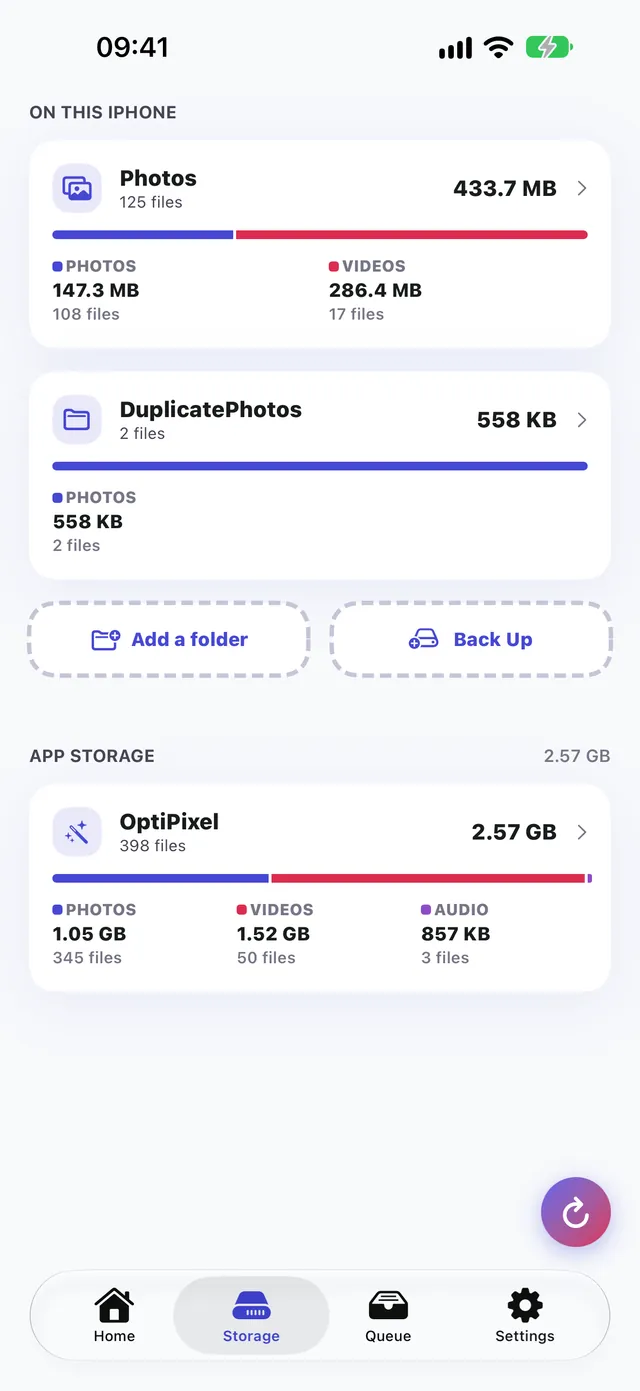
On modern iOS devices, the Photos and Videos library often takes up the largest share of internal storage. While standard iOS settings (Settings › General › iPhone Storage) display a general breakdown of storage by app, Apple does not provide a granular sorting of individual media items by file size.
Often a small number of files takes much of the space: - Heaviest 4K & High-Framerate Videos: A 67-second 4K 60 fps video we measured took 506 MB, so a few long clips can take gigabytes. - Byte-for-Byte Duplicates & Burst Retakes: The same photo saved twice from a chat, or several takes of one shot, take space for nothing. - Temporary Screenshots & QR Code Captures: Scanned menus and one-off receipts that remain forgotten in your camera roll.
OptiPixel solves this by performing an on-device scan of your media library, categorizing files into actionable cleanup groups ranked by byte size.
Storage cleanup categories & reclaimable space
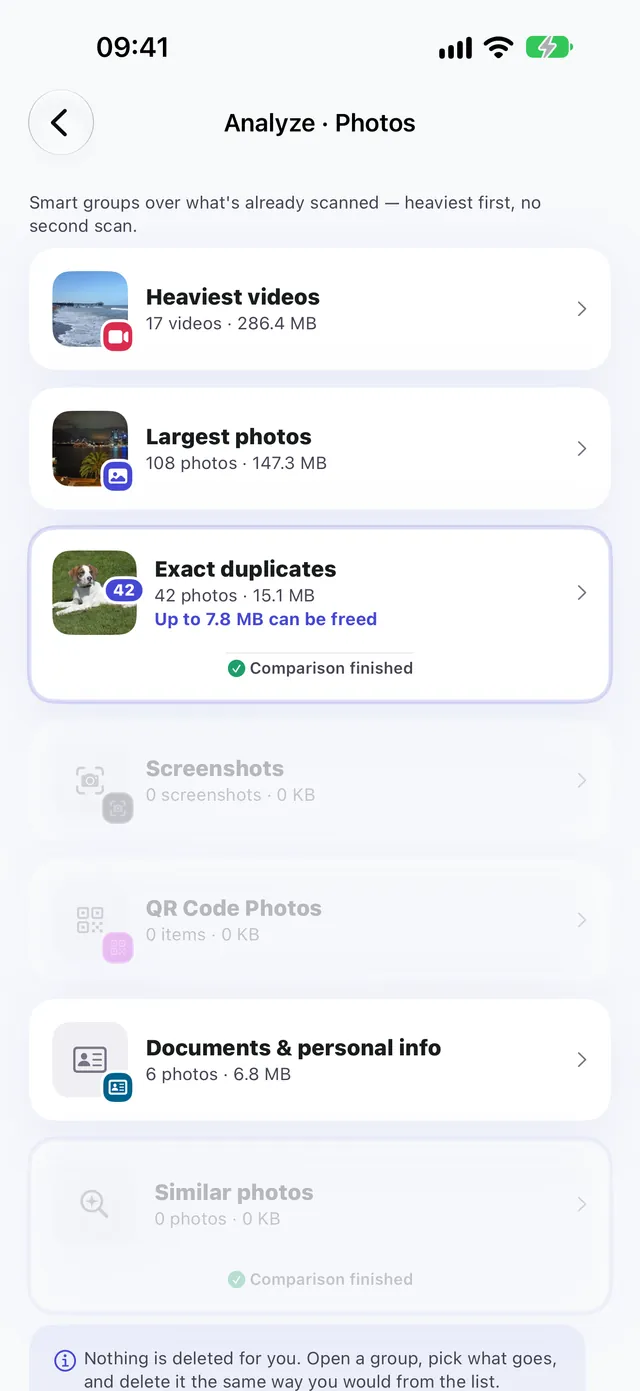
The table below outlines the cleanup categories OptiPixel finds:
| Cleanup Category | Detection Mechanism | Recommended Action |
|---|---|---|
| Heaviest 4K & 1080p Videos | Ranked by file size in bytes | Compress via Compress or delete |
| Exact Duplicates | Byte-level file comparison | Purge identical redundant copies |
| Similar Shots (Burst / Poses) | On-device perceptual image matching | Keep best shot, delete duplicates |
| Screenshots | iOS screenshot metadata tags | Bulk delete outdated screen captures |
| QR Code Photos | On-device Vision barcode detection | Delete single-use menu/link photos |
| Documents & personal info | On-device text recognition and card or page shape | Review photos of ID cards, bank cards, receipts and sensitive screenshots, and delete the ones you no longer need |
How to find and clean heavy media in OptiPixel
- Open OptiPixel and navigate to the Storage tab.
- Tap Analyze Photos to initiate the local library scan.
- Review the ranked groups:
- Heaviest videos: Shows video clips sorted strictly by megabytes or gigabytes. You can choose to delete clips or compress them directly without leaving the app.
- Largest photos: Displays ProRAW and high-resolution shots taking disproportionate space.
- Exact duplicates and Similar photos: Identifies exact byte duplicates as well as similar sequential takes with suggested keep badges.
- Screenshots and QR Code Photos: Isolates ephemeral reference photos that can be safely purged.
- Documents & personal info: Lists photos of ID cards, passports, bank cards, receipts and screenshots with codes or account numbers, in four sections, so you can delete what should not sit in your library. See Find ID cards, bank cards and receipts.
- Select redundant items and confirm deletion. Files are moved to the iOS Recently Deleted album for safety.
Want to preserve the memories in your heaviest videos without surrendering storage? Use Compress to shrink 4K footage and keep it looking good.
Real results on iPhone 17 Pro Max: what compressing gives back
Measured on 17 November 2026 on an iPhone 17 Pro Max with iOS 27.2 and OptiPixel 1.6.0, using the app's own engines. 1 MB = 1,000,000 bytes.
| What | Before | After | Difference |
|---|---|---|---|
| One 4K 60 fps HEVC video, 67 s, Compress Moderate | 506.1 MB | 278.1 MB | 228.0 MB |
| The same video, Compress Heavy | 506.1 MB | 152.7 MB | 353.4 MB |
| 8 HEIC photos from an iPhone 17 Pro, Compress Balanced | 22.9 MB | 10.0 MB | 12.9 MB |
| The same 8 photos, Resize Fast 50% | 22.9 MB | 12.2 MB | 10.7 MB |
Compressing that one video gave back about 17 times as much as compressing the eight photos, so start with Heaviest videos. The result is saved as a new item: the space comes back once the original is deleted — by you, or by Replace Original in Settings › Where results are saved — and removed from Recently Deleted. The full measurements are in Compress a video and Compress photos.
How OptiPixel compares exact vs similar duplicates
OptiPixel differentiates between two types of redundant media: - Exact Duplicates: Files that are 100% byte-for-byte identical (often created when importing from multiple chats, AirDrop, or backup restores). You can keep one copy and delete the rest. - Similar Shots: Consecutive photos taken seconds apart with slight framing differences. OptiPixel highlights these clusters side-by-side so you can keep the sharpest shot and discard the rest.

OptiPixel — Reduce Photo & Video File Size
Free · No account · Runs on your iPhone
Frequently asked questions
Does OptiPixel delete any photos automatically without asking?
No. OptiPixel never deletes files autonomously. It groups and ranks items by size, allowing you to review selections and confirm every deletion through native iOS security dialogs.
Is my personal photo library uploaded to a cloud server during analysis?
No. Scanning, duplicate comparison and barcode detection run on your iPhone; OptiPixel does not upload your photos or their details.
Why does iPhone storage not decrease immediately after deleting photos?
When photos or videos are deleted, iOS moves them to the Recently Deleted album for 30 days. To reclaim storage immediately, open the Apple Photos app, go to Albums › Recently Deleted, and tap Delete All.
Can I compress large photos instead of deleting them?
Yes. If you want to keep photos but reduce their footprint, select them and use the Photo Compress tool to downscale resolution or set a target file size in KB/MB.
Is Storage Analyze free?
Finding is free: Analyze shows the count and size of every group. Heaviest videos, Largest photos and Exact duplicates open for free. Similar photos, Screenshots, QR Code Photos and Documents & personal info are Premium options marked with a crown: they open with OptiPixel Premium or one short video.