Storage
How to find ID cards, bank cards and receipts in your iPhone photos
Photos of an ID card, a bank card or a screenshot with a code can sit in your library for years. Analyze lists them in one place so you can decide what to keep.
Updated November 6, 2026 · Free on the App Store · iPhone & iPad, iOS 17+
Why sensitive photos pile up in your library
People photograph an ID card for a form, a bank card to pay later, a receipt for an expense, or screenshot a verification code. The picture is useful for a day and then stays in the library, backed up and shared along with everything else.
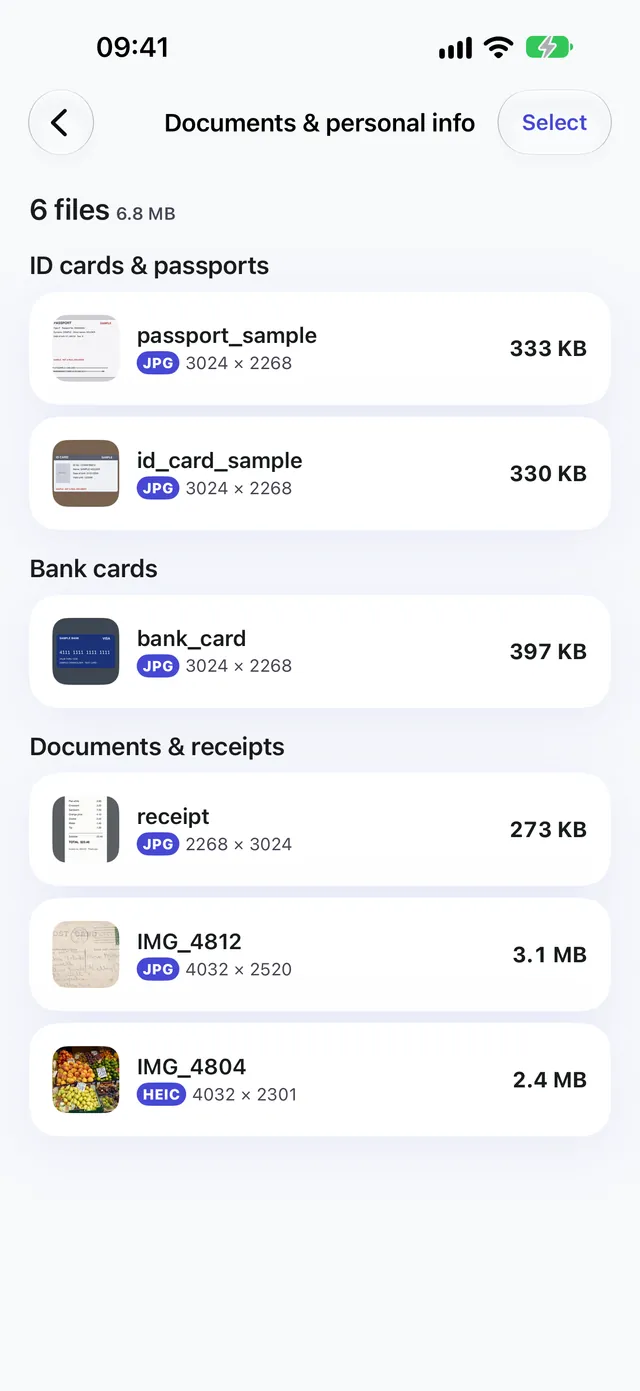
The Documents & personal info group in Storage's Analyze finds these photos for you. It lists them; it does not delete, hide or blur anything by itself. You review the list and decide.
What it looks for
The group has four sections:
| Section | What puts a photo there |
|---|---|
| ID cards & passports | A passport machine-readable line, or an ID word such as passport or licence next to a card or page shape or an ID-length number |
| Bank cards | A 13 to 19 digit number that passes the card-number check, written like a card number or next to a card word |
| Screenshots with sensitive info | A screenshot with a password, recovery phrase, card security code, account number or IBAN, or a code word next to a 4 to 8 digit code |
| Documents & receipts | A page shape with several lines of text, or a receipt word next to an amount |
It is a guess from what the phone can read in the picture, so expect some misses and some extras. Look at the list yourself before you delete.
Find them step by step
- Open OptiPixel and open the Storage tab.
- Tap Analyze Photos to start the scan of your library on the iPhone.
- Open the Documents & personal info card. While it works, it reads Looking for documents…. Its count and size show right away, and the list opens with OptiPixel Premium or one short video (see the FAQ).
- Browse the four sections. Tap a photo to see it in full and its details.
- Choose Select, tick the photos you want to act on, and use the bar at the bottom: delete them, or hand them to another tool. A deleted photo goes to the Recently Deleted album first, and iOS asks you to confirm.
A photo you want to keep but share safely? Remove its location first with Metadata, or hide faces with Face Blur.
Tips
- Run it after a trip, a house move or a job application, when you have photographed many documents.
- Delete the photo, then also empty Recently Deleted in the Photos app if the picture must be gone now.
- A second visit reads only the photos added since the last one, so it is quicker.
- For duplicates and heavy videos, see Free up iPhone storage.

OptiPixel — Reduce Photo & Video File Size
Free · No account · Runs on your iPhone
Frequently asked questions
Does OptiPixel upload my photos to read them?
No. The scan runs on your iPhone with Apple's text recognition. Nothing is uploaded, and the text it reads is not saved: only the kind it decided on, such as bank card, is remembered for the next visit.
Does it delete anything by itself?
No. It only lists. You select photos and confirm each deletion in the iOS dialog.
Is this free?
Scanning and the count are free, and the card shows how many photos it found. Opening the list is a Premium option marked with a crown: it needs OptiPixel Premium or one short video, which covers that visit to Analyze.
Can it find ID cards from my country?
It reads ID words in the languages the app supports, including Vietnam's citizen ID card, and it also uses the shape of a card or page and machine-readable lines. A card it does not recognise may not be listed.
Will it find a PDF of a bill?
No. The group reads photos and screenshots in your Photos library, not PDF files.