Metadata
How to remove location and EXIF data from photos on iPhone
Every iPhone photo can carry your exact location, the time it was taken and your device model. Remove them before you post or send — in a batch, on your iPhone.
Updated November 17, 2026 · Free on the App Store · iPhone & iPad, iOS 17+
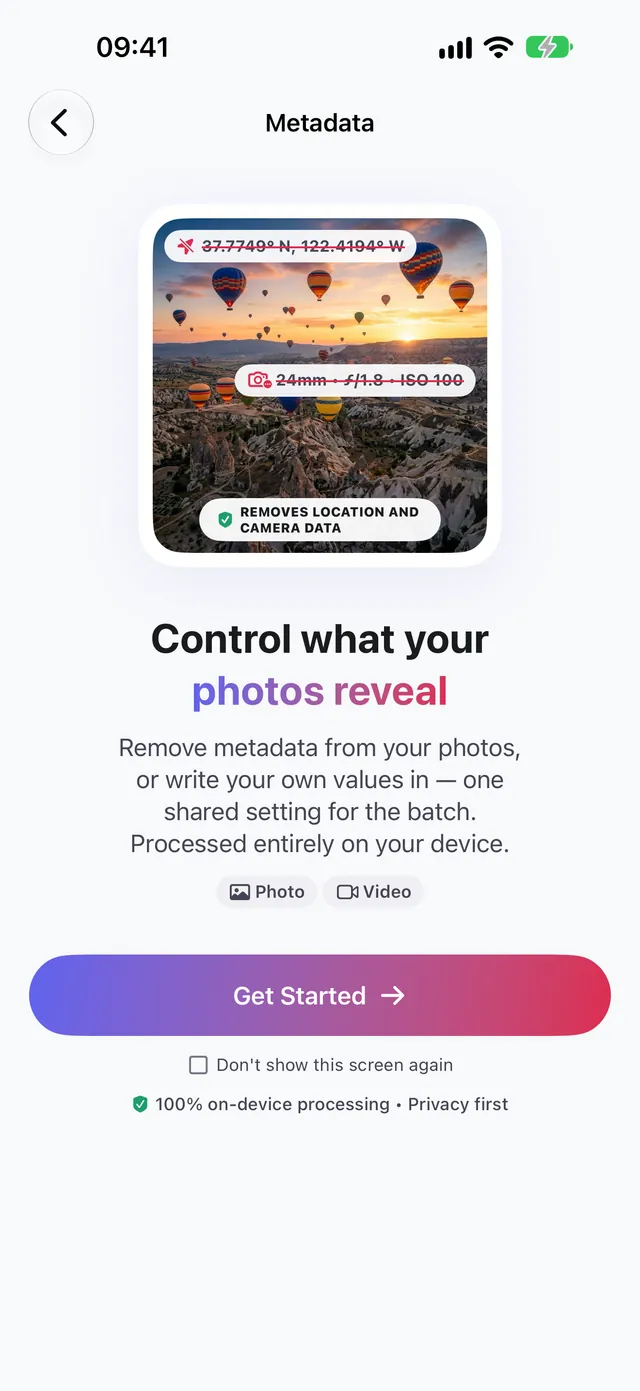
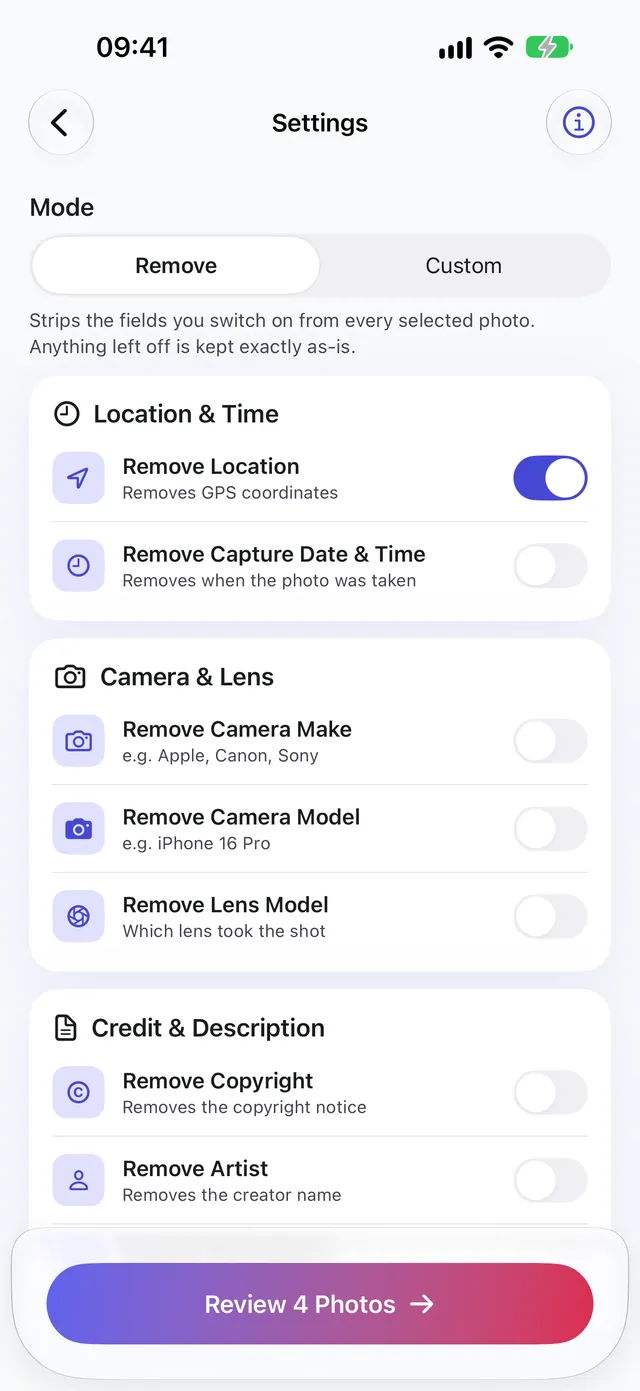
What hidden EXIF metadata iPhone photos contain
When you capture a photo or video on an iPhone, iOS automatically records a rich metadata payload inside the image file called EXIF (Exchangeable Image File Format) and TIFF metadata. This header is embedded directly into the file container alongside the visual pixels.
While EXIF metadata helps the iOS Photos app organize memories by location and date, it creates serious privacy vulnerabilities when sharing files:
- Unintended Location Leaks: AirDrop, email attachments, cloud links, and direct file uploads preserve raw EXIF headers. Anyone inspecting the image details can view your exact GPS coordinates on a map, revealing residential addresses, workplaces, or children's school locations.
- Doxxing & Stalking Risks: Posting raw photos to forums, community marketplaces, or decentralized networks exposes exact timestamps and location history.
OptiPixel provides an on-device metadata scrubbing tool that removes location tags, camera details and capture dates in bulk without altering image sharpness.
Sensitive metadata tags stripped by OptiPixel
The table below breaks down the primary metadata categories stored in iPhone photos and their associated security risks:
| Metadata Category | Common Embedded Tags | Security & Privacy Risk | OptiPixel Scrubbing |
|---|---|---|---|
| GPS Coordinates | Latitude, Longitude, Altitude, GPS Speed | Can pinpoint where the photo was taken | Completely removed |
| Temporal Data | DateTimeOriginal, SubSecTime, OffsetTime | Reveals personal schedules and exact activity timing | Can wipe or spoof timestamp |
| Hardware Identifiers | LensModel, Camera Make, Device Model | Exposes the phone and lens model | Completely removed |
Remove metadata from photos and videos, step by step
- Open OptiPixel and open Metadata on Home (tap See all if it is not pinned) — it takes photos and videos — then tap Get Started.
- Select photos or videos from Photos or the Files app — select a single file or a batch of hundreds.
- In Remove mode, switch on what to remove: Location, Capture Date & Time, Camera Make, Camera Model, Lens Model, Copyright, Artist or Description. Anything left off is kept as it is.
- Tap Add to Queue to process the batch.
- For videos, pick Video Metadata instead and choose Remove or Custom, then turn on the details to strip or write. Both modes work on MOV and MP4 files.
- OptiPixel rewrites the image headers in the background without re-compressing the visual pixels. Sanitized copies are saved as new files while your originals remain safely intact in your personal library.
For a video, removing the location from the new file does not remove it from the video in your Photos library, which keeps its own location. Share the new file.
Want to hide personal identities in group pictures as well as location? Pair metadata scrubbing with OptiPixel's Face Blur tool to detect and obscure faces automatically.
How OptiPixel compares to Apple's native Share Sheet toggle
Apple includes an "Options" toggle in the native iOS Share Sheet where users can disable location before sharing a single photo. However:
- Only works per-share: The native toggle does not create a permanent, sanitized file saved to your storage for future use.
- No batch queue or folder support: The native toggle cannot process whole photo albums or files stored in external directories.
- OptiPixel scrubs permanently: OptiPixel saves a new file with the fields you chose removed, ready for safer uploads on any platform.

OptiPixel — Reduce Photo & Video File Size
Free · No account · Runs on your iPhone
Frequently asked questions
Does removing EXIF metadata reduce the image quality?
No. OptiPixel sanitizes the metadata header at the container level using Apple's ImageIO frameworks without re-encoding the compressed pixel data. The visual resolution, colors, and sharpness remain 100% identical to the source image.
Can I edit or spoof the date and location instead of deleting it?
Yes. In OptiPixel's Custom mode, you can adjust the capture timestamp or assign a different location, in photos and in MOV and MP4 videos. This is useful for correcting camera clocks or standardizing project archives.
Does metadata scrubbing work on iPhone videos?
Yes. Video Metadata works on MOV and MP4 videos, in Remove mode and in Custom mode. It can remove or change the Location, Creation Date & Time, Description, Copyright and Title. Device Make, Device Model, Software and Artist can be changed in MOV files only, so they are hidden when your selection includes an MP4.
Are my photos or videos uploaded to a server to clean metadata?
No. All EXIF scrubbing executes entirely on your device with local Apple APIs. No images or metadata ever leave your iPhone or iPad.
If I need a burned-in timestamp for work, what should I use?
If you require verifiable proof for construction sites, deliveries, or inspection records, use OptiPixel's Time Marker tool to burn the timestamp and address directly into the image pixels so it cannot be stripped.