
iPhone photo & video guides
Step-by-step guides for everyday photo and video jobs on iPhone and iPad — done on the device, with nothing uploaded.
30 Guides · Updated November 17, 2026
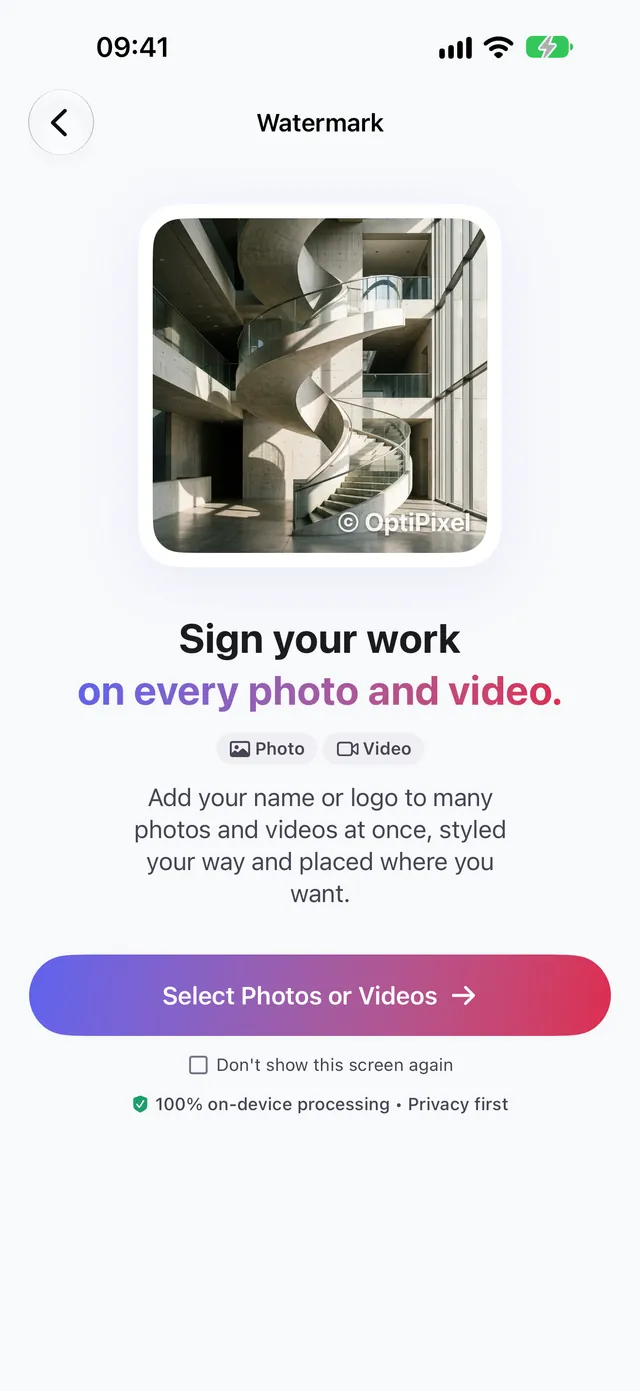
- WatermarkAdd a watermark in batchesAdd a text or logo watermark to many photos and videos at once on iPhone. Choose position, size, opacity and font — burned into the pixels, done on-device.Updated November 17, 2026
- CompressCompress video on iPhoneCompress 4K and 1080p iPhone videos to send, upload or free up space. Pick a preset or set codec, resolution and bitrate — on-device, originals untouched.Updated November 17, 2026
- CompressCompress photos on iPhoneReduce iPhone photo file size for email, web forms and storage. Batch compress by quality or to a target size in KB/MB — on-device, originals kept.Updated November 17, 2026
- ResizeResize photos to exact pixelsResize photos on iPhone to exact pixel dimensions or a percentage — for profile pictures, listings and websites. Batch resize, on-device, originals kept.Updated November 17, 2026
- StorageFree up iPhone storageiPhone storage full? Find heaviest videos, largest photos, duplicates, screenshots, QR codes and photos of ID cards and receipts, then clean up — on-device.Updated November 17, 2026
- ConvertConvert HEIC to JPEGConvert iPhone HEIC photos to JPEG or PNG in bulk for Windows, websites and upload forms. Also convert video and audio formats — on-device, originals kept.Updated November 17, 2026
- CutoutRemove a photo backgroundRemove photo backgrounds on iPhone in one tap. Export a transparent PNG or a white, black, colour or blurred background — batch photos, all on-device.Updated November 17, 2026
- Time MarkerTimestamp photos on iPhoneStamp the date, time, address and contact details onto iPhone photos and videos — burned into the picture as proof for site, delivery and inspection photos.Updated November 17, 2026
- MetadataRemove photo location & EXIFRemove GPS location, capture date and camera details from iPhone photos and videos before sharing. Batch remove EXIF metadata on-device, originals kept.Updated November 17, 2026
- Face BlurBlur faces in photosBlur faces in iPhone photos automatically before you post. Faces are detected on-device; tap to keep any face clear. Batch photos, nothing uploaded.Updated November 17, 2026
- CompressCompress photo to KBCompress photos to an exact target size in KB on iPhone for job, application and school upload forms. Quick picks for 20, 50, 100 or 200 KB — on-device and private.Updated November 17, 2026
- Scan & ConvertPhoto or scan to WordScan a page or pick a photo or PDF, then save it as an editable Word file on iPhone. Three looks to choose from, read on the device, nothing uploaded.Updated November 17, 2026
- Scan & ConvertPhoto of a table to ExcelTake a photo or scan of a printed table, invoice or price list and save it as an Excel file on iPhone. Numbers and dates become real cells. Nothing uploaded.Updated November 17, 2026
- Scan & ConvertExtract text from a photoGet the text out of photos, scans and many-page PDFs on iPhone as one text file to copy, paste or share. Live Text does one photo; this does whole documents.Updated November 17, 2026
- From a computerComputer to iPhone over Wi-FiSend photos, videos and audio from a Mac or PC browser into an OptiPixel tool on your iPhone over Wi-Fi to compress or convert them. No cable, no cloud upload.Updated November 17, 2026
- From a linkAdd a file from a linkPaste a Google Drive or Dropbox share link or a direct file link, and the photo, video or audio downloads into an OptiPixel tool to compress or convert.Updated November 17, 2026
- iPhone DuoOptiPixel on iPhone DuoHow OptiPixel uses the iPhone Duo inner screen: two-column Home, tools and settings side by side, options beside the photo, and folding without losing work.Updated November 17, 2026
- ConvertExtract audio from a videoPull the sound out of a video on iPhone as an audio file. Pick MP3, M4A, FLAC, WAV, ALAC, AIFF or CAF, set the quality and save to Files. On-device.Updated November 6, 2026
- Time MarkerTime stamp cameraTake photos and videos with the date, time and place stamped on them as you shoot. The mark is burned in at capture, saved to Photos, and nothing is uploaded.Updated November 6, 2026
- StorageFind ID cards & sensitive photosScan your iPhone photos on-device for ID cards, passports, bank cards, receipts and screenshots with sensitive info, then review and delete them. Nothing is uploaded.Updated November 6, 2026
- Video ConvertConvert video formatConvert iPhone video to MP4, MOV, M4V, MKV, FLV, 3GP, AVI or WMV. Pick H.264 or HEVC, lower the frame rate, set the bitrate. On-device, originals kept.Updated November 6, 2026
- Audio ConvertConvert audio formatConvert audio files on iPhone to MP3, FLAC, M4A, ALAC, WAV, AIFF or CAF. Pick the quality, see the size first. On-device, free, originals kept.Updated November 6, 2026
- Video TrimRemove sound from videoRemove the audio from a video on iPhone with Video Trim: switch on Mute Audio and save a silent copy. Keep the whole clip or trim it. On-device, original kept.Updated November 6, 2026
- AI TransformTurn a photo into animeTurn any photo into anime, 3D cartoon or comic art on iPhone with AI that runs on the device. Pick a style, fine-tune it, and save in seconds.Updated October 29, 2026
- AI TransformTurn a photo into a paintingTurn photos into watercolor, oil painting, Monet-style or pencil sketch art on iPhone. AI runs on the device — no upload, no account. Batch whole albums.Updated October 29, 2026
- BackupBack up photos to drive or folderBack up iPhone photos and videos to an external drive, folder or iCloud Drive without moving or deleting originals. Incremental copies, entirely on-device.Updated October 29, 2026
- Remove ObjectRemove an object from a photoRemove a person or an object from a photo on iPhone. Tap it, brush it or draw around it, tap Remove, undo or compare. On-device, free, best on small objects.Updated October 29, 2026
- StorageFind and delete duplicate photosFind exact duplicate photos on your iPhone for free, review similar shots, and delete the extras. Deleted photos stay in Recently Deleted for 30 days. Scanned on-device.Updated October 29, 2026
- SettingsWhere results are saved, Replace OriginalChoose where OptiPixel saves results: Photo Library, the OptiPixel folder or Files. See what Edit Original and Replace Original do to your original photo.Updated October 29, 2026
- Shape CropCrop a photo into a shapeCrop a photo into a circle, oval, star, cloud, flower or a frame on iPhone. Pick a shape, size it, choose a transparent, white, black or blurred background. On-device.Updated October 29, 2026