Convert
How to extract the audio from a video on iPhone
Keep the music, the lecture or the voice and drop the picture. OptiPixel takes the sound track out of a video in your library and saves it as an audio file, on your iPhone.
Updated November 6, 2026 · Free on the App Store · iPhone & iPad, iOS 17+
Take the sound out of a video, and what to expect
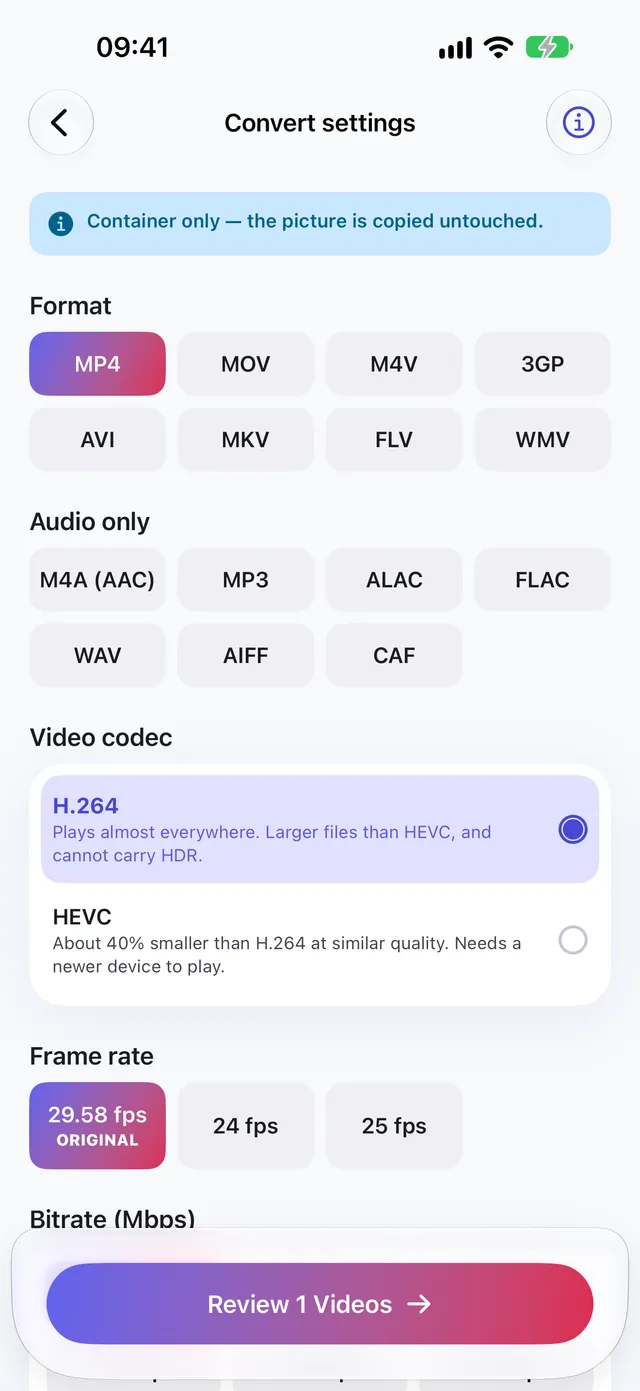
Sometimes you only need the sound: a recorded lecture, a concert clip, a voice message filmed as a video. Convert handles this in the same place as photo and video conversion. When your selection is videos, the Audio only group appears next to the video formats. Choose one of its formats and OptiPixel writes an audio file for each video; the picture settings no longer apply.
Two things to know before you start:
- MP3 and FLAC are available. Choose MP3 for the most compatible file: The most universally compatible format. Choose FLAC for a lossless, open format.
- The sound is re-encoded. A video's audio is already compressed, so converting it to another lossy format adds a little more loss, and converting it to a lossless format makes the file bigger without bringing back any detail. When you convert an audio file, the format screen tells you which case you are in.
Audio formats you can choose
These are the formats you can write from a video's sound, with the app's own description of each:
| Format | What the app says | Use it when |
|---|---|---|
| MP3 | The most universally compatible format. | A player, a car stereo or a site asks for MP3 |
| M4A (AAC) | Small files, plays almost everywhere. | You want a small file that plays on most devices |
| FLAC | Lossless and open. Keeps every sample. | You want every sample in an open lossless file |
| ALAC | Apple Lossless. Keeps every sample, in an Apple-friendly container. | You want to keep every sample in an Apple-friendly file |
| WAV | Uncompressed. Large files, no loss. | An editor or tool asks for WAV |
| AIFF | Uncompressed, Apple's own. Large files, no loss. | You work with Apple audio software |
| CAF | Apple's container for long or unusual recordings. | You need Apple's container for long recordings |
For a lossy format such as M4A or MP3, a video's sound is written at 192 kbps, and never above the video's own audio rate, since a higher rate would only make the file larger. Review shows the rate under Quality. Lossless formats have no rate, since they keep every sample. If you start from an audio file instead, the format screen also lets you pick 96, 128, 192 or 256 kbps (a rate above the file's own is greyed out).
Extract audio from a video on iPhone, step by step
- Open OptiPixel and open Convert on Home.
- Tap Get Started, then pick your videos from Photos. The app reads each video and shows its progress.
- On the settings screen, find the Audio only group under the video formats and tap MP3 or M4A (AAC) (or another format from the table).
- Tap the button at the bottom (it reads Review, with the number of videos) to open Review. It lists each file with its format and an estimated size, and a settings card with the format and the quality.
- Tap Add to Queue. The conversion runs in the Queue while you do something else.
- When it finishes, your audio files are in the OptiPixel folder in the Files app, on your iPhone, with the video's name and the new extension. A file that already exists is never overwritten: a number is added to the name.
If you start from an audio file instead, use Audio Convert, which takes it from Files and converts it between the same formats.
Want a shorter or smaller video rather than its sound? Use Compress.
What OptiPixel will refuse
- A video with no sound. There is nothing to extract: the app reports "This video has no audio to extract."
- Protected audio. Music bought or streamed from Apple Music cannot be converted: "This track is protected and cannot be exported. Music bought or streamed from Apple Music cannot be converted."
- A file that is already in the target format. Converting an audio file to the format it is already in is refused, since there is nothing to change. A video's sound is the exception, because extracting it gives you a file you did not have.
- A file it cannot read. The app reports "This audio file could not be read." and carries on with the others.

OptiPixel — Reduce Photo & Video File Size
Free · No account · Runs on your iPhone
Frequently asked questions
Can OptiPixel convert a video to MP3?
Yes. Choose MP3 under Audio only and the app writes an .mp3 file for each video. FLAC, M4A (AAC), WAV, ALAC, AIFF and CAF are also available.
Is extracting audio free?
Yes. None of the audio formats or settings is a Premium option.
Where is the audio file saved?
In the OptiPixel folder in the Files app. The screen says so before you start. You can open it from Files, share it, or move it elsewhere.
Does the video get uploaded or changed?
No. The conversion runs on your iPhone and nothing is uploaded. The original video stays in your library untouched; the audio is a new file.
Will the audio sound worse?
A video's sound is already compressed. Writing it to M4A re-encodes it, which adds a small amount of loss; a video's sound is written at 192 kbps at most, and never above its own rate. Writing it to WAV, FLAC, ALAC or AIFF keeps what is there but does not improve it, and the file gets much bigger.
Can I convert several videos at once?
Yes. Pick several videos and they go into one run with the same format and quality. The Queue shows each file's progress and result.