Audio Convert
How to convert audio to MP3, FLAC, M4A or WAV on iPhone
A recording that will not open in your player, an editor or a car stereo needs another format. Convert it on your iPhone, and see what it will cost in size before you start.
Updated November 6, 2026 · Free on the App Store · iPhone & iPad, iOS 17+
When you need to change an audio format
Voice memos arrive as M4A, a podcast editor asks for WAV, a car stereo wants MP3, and an archive is better in a lossless format. Audio Convert writes your audio file as another format, and always makes a new file.
Formats you can convert to
| Format | What the app says | Lossless |
|---|---|---|
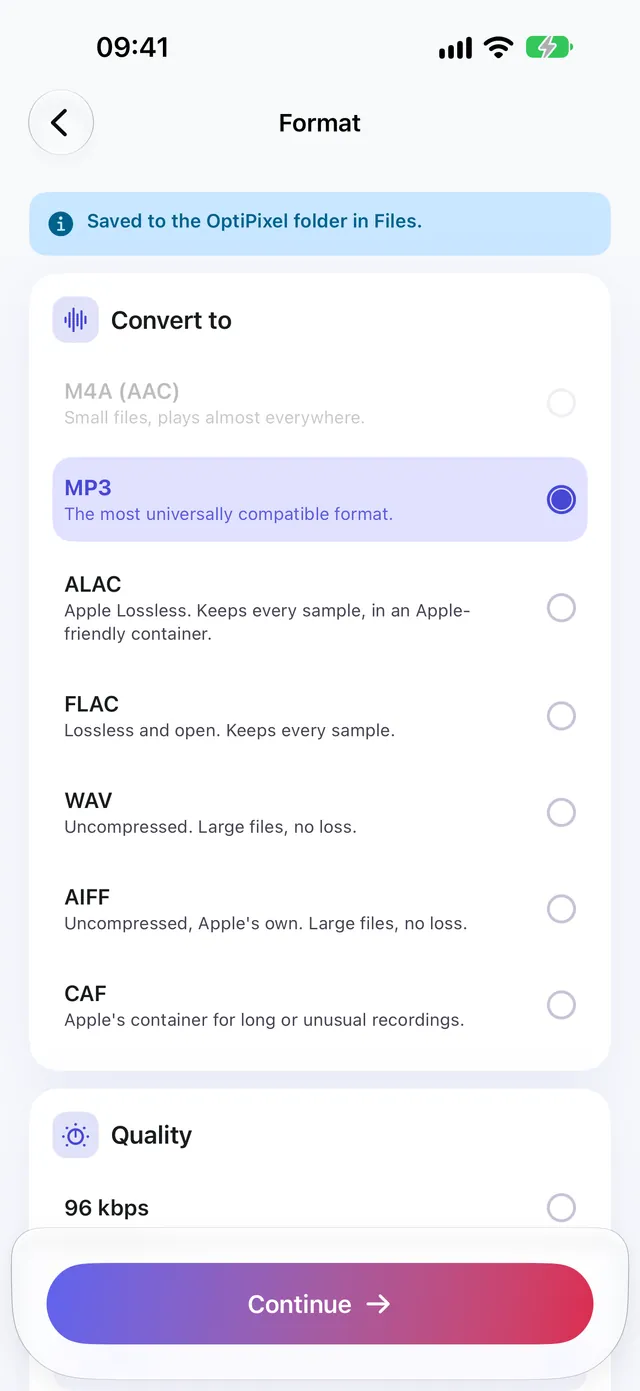
| MP3 | The most universally compatible format. | No |
| M4A (AAC) | Small files, plays almost everywhere. | No |
| FLAC | Lossless and open. Keeps every sample. | Yes |
| ALAC | Apple Lossless. Keeps every sample, in an Apple-friendly container. | Yes |
| WAV | Uncompressed. Large files, no loss. | Yes |
| AIFF | Uncompressed, Apple's own. Large files, no loss. | Yes |
| CAF | Apple's container for long or unusual recordings. | Yes |
OptiPixel can also read OGG, Opus, WMA, AMR and raw AAC files, but it cannot write them, so they are not in the list of targets.
Convert audio on iPhone, step by step
- Open OptiPixel, open Audio Convert and tap Get Started.
- Choose your audio files from Files. Audio lives in Files, not in Photos.
- Under Convert to, tap the format you want.
- For MP3 and M4A (AAC), choose a quality under Quality: 96, 128, 192 or 256 kbps. A lossless format has no quality setting, because it keeps every sample.
- Read the Result: it shows the estimated size and tells you whether the conversion loses detail.
- Tap Continue, check the list, then tap Add to Queue. The conversion runs in the Queue.
- When it finishes, the new file is in the OptiPixel folder in the Files app, with the original name and the new extension. A file that already exists is not overwritten.
Lossy and lossless, in plain words
- MP3 and M4A (AAC) are lossy. They make small files by discarding detail. Converting one lossy file to another loses a little more each time: "Re-encoding adds to the detail the first encode already discarded."
- FLAC, ALAC, WAV, AIFF and CAF are lossless. Converting a lossy file to one of them restores nothing and only makes the file bigger: "This will not improve the audio. The detail was discarded when the file was first compressed and cannot be recovered — only the file size grows."
- A lossy format never gets a higher bitrate than the file it came from, because that would only add size.
Tips
- For a voice memo to share, M4A at 128 kbps is a good small file. For an editor, WAV. To keep a recording as it is, FLAC or ALAC.
- Starting from a video? Choose Audio only in Video Convert. See Extract audio from a video.
What OptiPixel will refuse
- Protected audio. Music bought or streamed from Apple Music cannot be converted: "This track is protected and cannot be exported. Music bought or streamed from Apple Music cannot be converted."
- A file already in that format. "This file is already in that format."
- A file it cannot read. "This audio file could not be read."

OptiPixel — Reduce Photo & Video File Size
Free · No account · Runs on your iPhone
Frequently asked questions
Can OptiPixel convert audio to MP3?
Yes. MP3 is written at a constant bitrate of 96, 128, 192 or 256 kbps, as an ordinary .mp3 file.
Can it convert to FLAC?
Yes. FLAC is written as a real .flac file, lossless.
Is Audio Convert free?
Yes. None of the formats or settings is a Premium option.
Does it upload my audio?
No. The conversion runs on your iPhone, and the original stays untouched.
Can I convert Apple Music songs?
No. Songs bought or streamed from Apple Music are protected, and the app refuses them before you choose anything.
Can I convert several files at once?
Yes. Pick several files and they run in one task with the same format and quality, and the Queue shows each one's progress.