Scan & Convert
How to copy text from photos, scans and PDFs on iPhone
Need the words from a printed page, a screenshot or a PDF of scans? Get them as plain text you can copy, paste and search, with nothing uploaded.
Updated November 17, 2026 · Free on the App Store · iPhone & iPad, iOS 17+
Why copying text from a picture is hard
Text in a photo, a scan or a PDF made of scanned pages cannot be selected like normal text. For one photo, iOS Live Text works: touch and hold the text in Photos. OptiPixel is for many pages at once, PDFs of scans, a file you can keep, and tables that keep their rows as tab-separated lines.
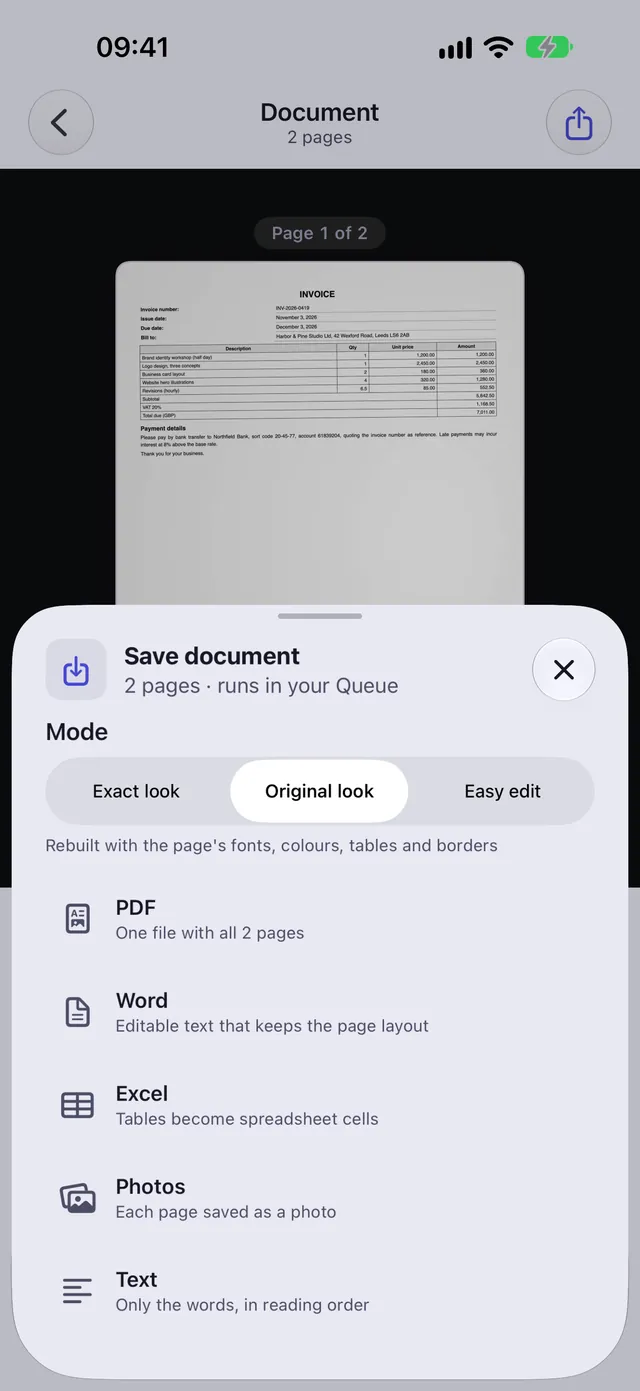
In OptiPixel this is the Text output of Scan & Convert (it replaced the separate Text Extractor tool in version 1.6). It reads every page and writes the words to a plain text file (.txt): Only the words, in reading order. The reading runs on your iPhone.
Scan & Convert reads English and Vietnamese text today; more languages are coming in an update.
What the text file contains
- The words of every page, one page after the other, in reading order.
- List items keep their bullets or numbers.
- Table rows are written one per line, with a tab between the cells, so they paste into a spreadsheet.
- No pictures, fonts or layout. For those, choose Word instead: see Convert a scan or photo to Word.
Extract the text step by step
- Open OptiPixel and open Scan & Convert on Home (tap See all if it is not pinned), then tap Get Started.
- Tap Choose photos and choose Scan Document, Photos (photos and screenshots) or Files (photos and PDFs).
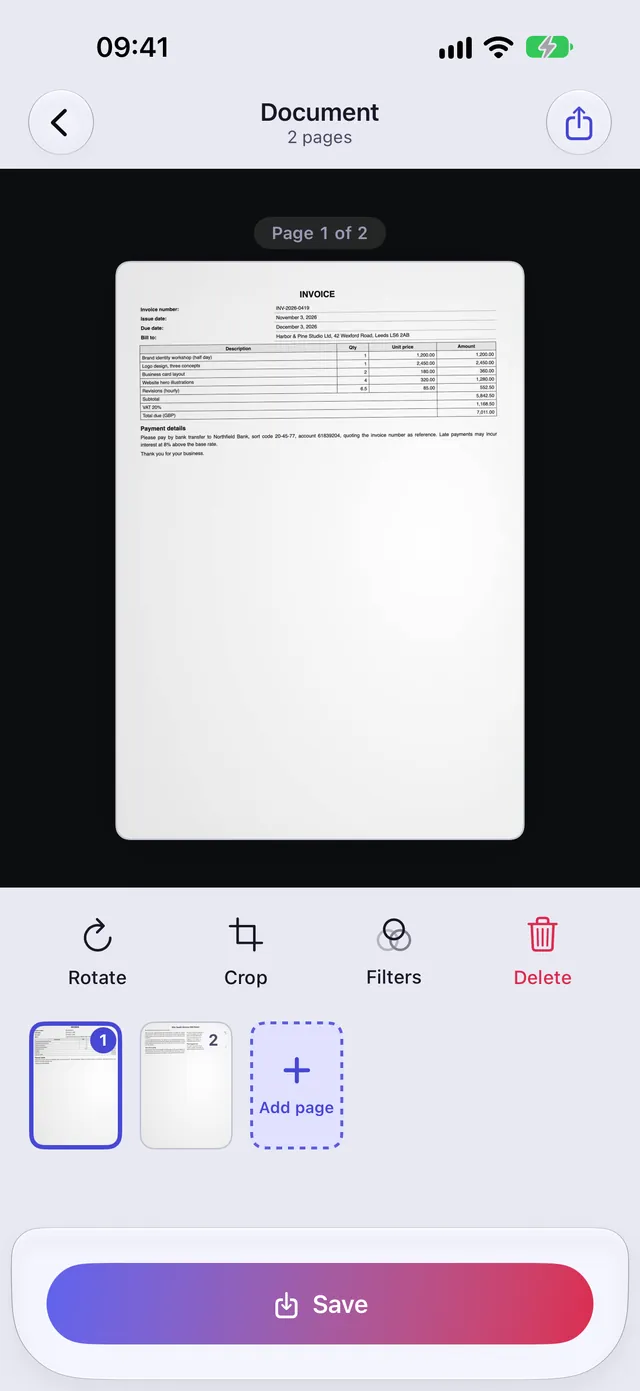
- Tap Continue, check the pages on the Document screen, and remove any you do not need with Delete.
- Tap Save, then Text. Text has no mode to choose.
- The task runs in the Queue. When it is done, open it and tap Open to read the text, then select and copy it.
- Or tap Share to send the text file to Notes, Mail or another app, or Save to Files to keep it in a folder.
Tips
- Sharp, flat, well-lit pages give the best text. Scan Document straightens the page for you.
- A searchable PDF keeps the page as it looks and lets you search and copy its text: tap PDF with Exact look instead of Text.
- Tables you want as real cells belong in Excel: see Turn a photo of a table into Excel.
- Check names, numbers and accents before you use the text: a reader can make mistakes.

OptiPixel — Reduce Photo & Video File Size
Free · No account · Runs on your iPhone
Frequently asked questions
Where did Text Extractor go?
Since version 1.6 it is part of Scan & Convert. Choose Text on the Save screen to get the same result, now for many pages at once.
Which languages can it read?
English and Vietnamese today; more languages are coming in an update. Until then, the letters, accents or characters of other languages may be read wrong or not at all.
Is a "Copy" button available?
Not in the task itself. Open the file and select the text to copy it, or share the file to an app such as Notes.
Is my photo uploaded to read it?
No. The text is read on your iPhone, and the text file stays on your device until you save or share it.
Is it free?
Yes. Scan & Convert needs no Premium, for any number of pages.