Scan & Convert
How to convert a scan or photo to an editable Word file on iPhone
A letter, a form or a printed page you need to change? Scan it or pick a photo, and get a Word file you can edit, made on your iPhone.
Updated November 17, 2026 · Free on the App Store · iPhone & iPad, iOS 17+
Why a photo of a page is not enough
A photo or a scan of a page is a picture: you cannot fix a typo, change a date or reuse a paragraph. Typing it again takes time and brings new mistakes.
Scan & Convert reads the text on each page and writes a Word file (.docx) with that text in it. You choose how close the file stays to the paper. The reading runs on your iPhone; the pages are not uploaded.
Scan & Convert reads English and Vietnamese text today; more languages are coming in an update.
Choose how the Word file looks
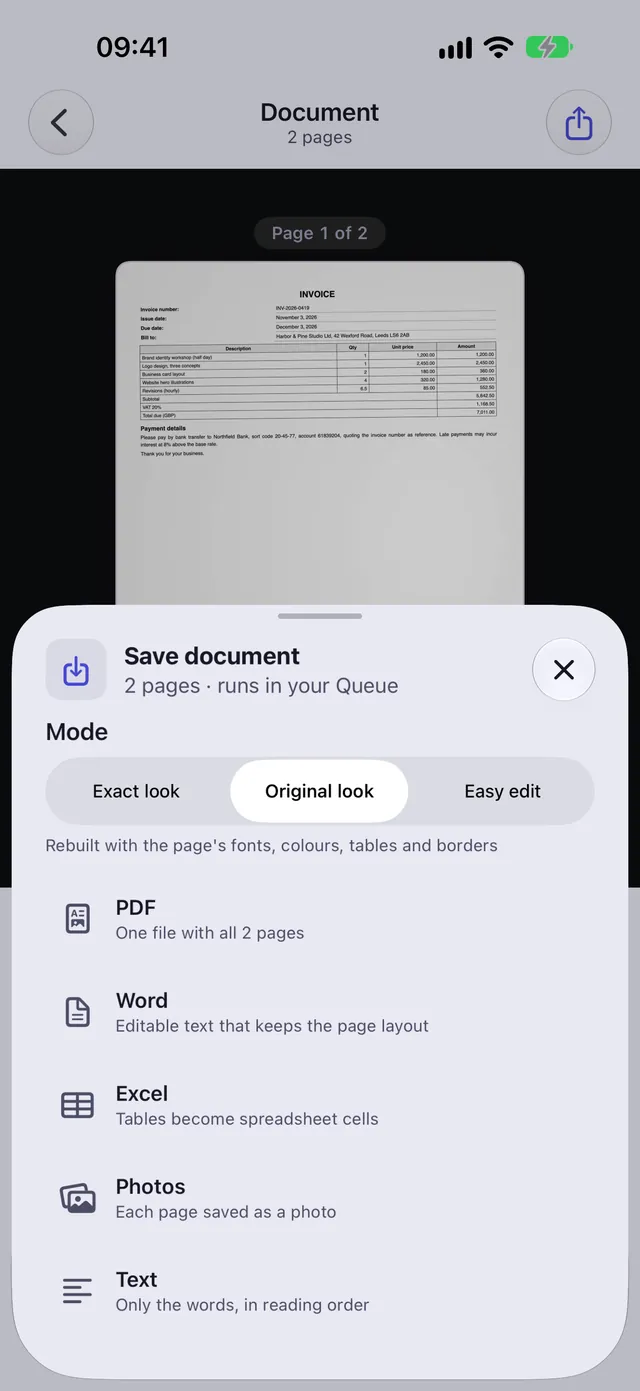
The Mode choice on the Save screen decides what the Word file is made of:
| Mode | What you get in Word |
|---|---|
| Exact look | The page itself as the background, with editable text on top. The page looks like the paper; each line is a text box you can edit. |
| Original look | Rebuilt with the page's fonts, colours, tables and borders. Headings, paragraphs, lists and tables are real Word text and tables. |
| Easy edit | Plain paragraphs, lists and tables that are easy to edit. One standard font, no colours or fixed widths. |
Signatures, stamps and logos that are not text become separate pictures in the file, so you can move, replace or delete them.
Convert to Word step by step
- Open OptiPixel and open Scan & Convert on Home (tap See all if it is not pinned), then tap Get Started.
- Tap Choose photos, then choose where the pages come from: Scan Document to scan paper with the camera, Photos for photos, or Files for photos and PDF files.
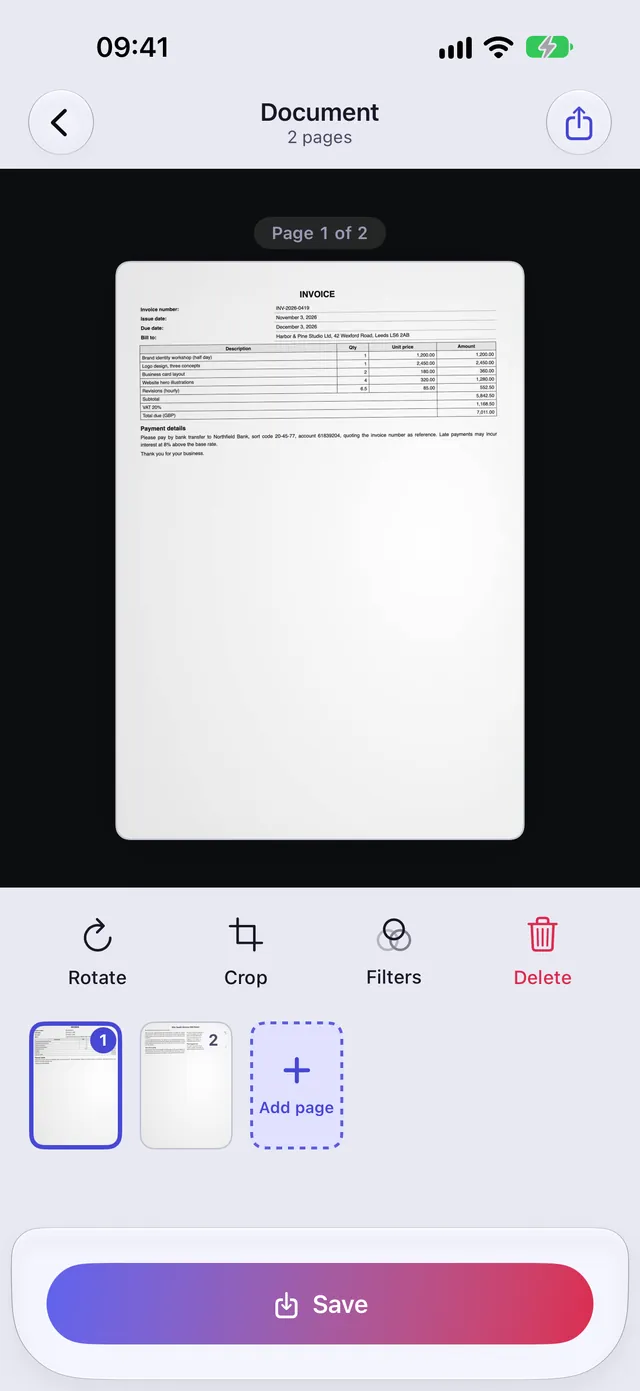
- Tap Continue. The Document screen shows each page.
- Fix a page if you need to: Rotate, Crop (drag the four corners), Filters or Delete. Add page adds more pages from the camera, Photos or Files.
- Tap Save. Under Mode, choose Exact look, Original look or Easy edit.
- Tap Word. The conversion runs in the Queue, so you can keep using the app.
- When the task is done, open it in the Queue tab and tap Open to read the file, or Save to Files or Share to send it to Word, Pages, Mail or another app.
Tips for a clean Word file
- Lay the page flat in good light. Scan Document finds the edges and straightens the page for you.
- A photo of a page taken at an angle is usually flattened before it is read; Crop lets you set the corners yourself when the edges are hard to see.
- Filters (Enhance, B&W, Gray) change the page picture in an Exact look file. The text is always read from the page as you gave it.
- Tap Before and after in the finished task to see each page next to the result, and check names and numbers before you send the file.
- Need the numbers in a spreadsheet instead? See Turn a photo of a table into Excel.

OptiPixel — Reduce Photo & Video File Size
Free · No account · Runs on your iPhone
Frequently asked questions
Is my document uploaded to convert it?
No. The pages are read and the Word file is written on your iPhone. Nothing is sent to a server.
Which languages can it read?
English and Vietnamese today; more languages are coming in an update. Until then, the letters, accents or characters of other languages may be read wrong or not at all.
Can it read handwriting?
It is made for printed text. Handwriting may be read wrong or left out, so check the result.
What if one page cannot be read?
That page fails on its own with its reason, and the Word file is made from the other pages. The task says how many pages went in.
Where is the Word file saved?
It stays with the task on your iPhone. Use Save to Files to put it in a folder, or Share to open it in another app.
Is Scan & Convert free?
Yes. Every page count and every file type can be used without Premium.