From a computer
How to send files from a computer to iPhone over Wi-Fi
The photos or videos you want to edit are on your computer? Send them from a web browser straight into an OptiPixel tool on your iPhone, over your own Wi-Fi.
Updated November 17, 2026 · Free on the App Store · iPhone & iPad, iOS 17+
Why send files over Wi-Fi
Moving a video from a computer to an iPhone usually means a cable, AirDrop (Mac only) or uploading it to a cloud and downloading it again. That is slow for large files and does not work the same on every computer.
To copy files into Photos or Files only, use AirDrop or iCloud Drive instead. This feature is for files you want to edit in OptiPixel.
Computer (Wi-Fi) in OptiPixel turns your iPhone into a receiver on your Wi-Fi network. Any computer on the same network opens a page in its browser and sends files to the tool you are using. The files go from the computer to the iPhone directly; they are not uploaded to the internet or to an OptiPixel server.
Before you start
- The iPhone and the computer are on the same Wi-Fi network.
- OptiPixel asks for Local Network access the first time; allow it. If you said no, the app shows Local Network is off with a button to open Settings.
- Computer (Wi-Fi) is a Premium feature. Without Premium, one short video opens it for that visit to the tool; when no video is left for the day, it needs Premium.
- It sends files the tool can open: photos, videos or audio, depending on the tool. PDF and other documents are not accepted.
Send files step by step
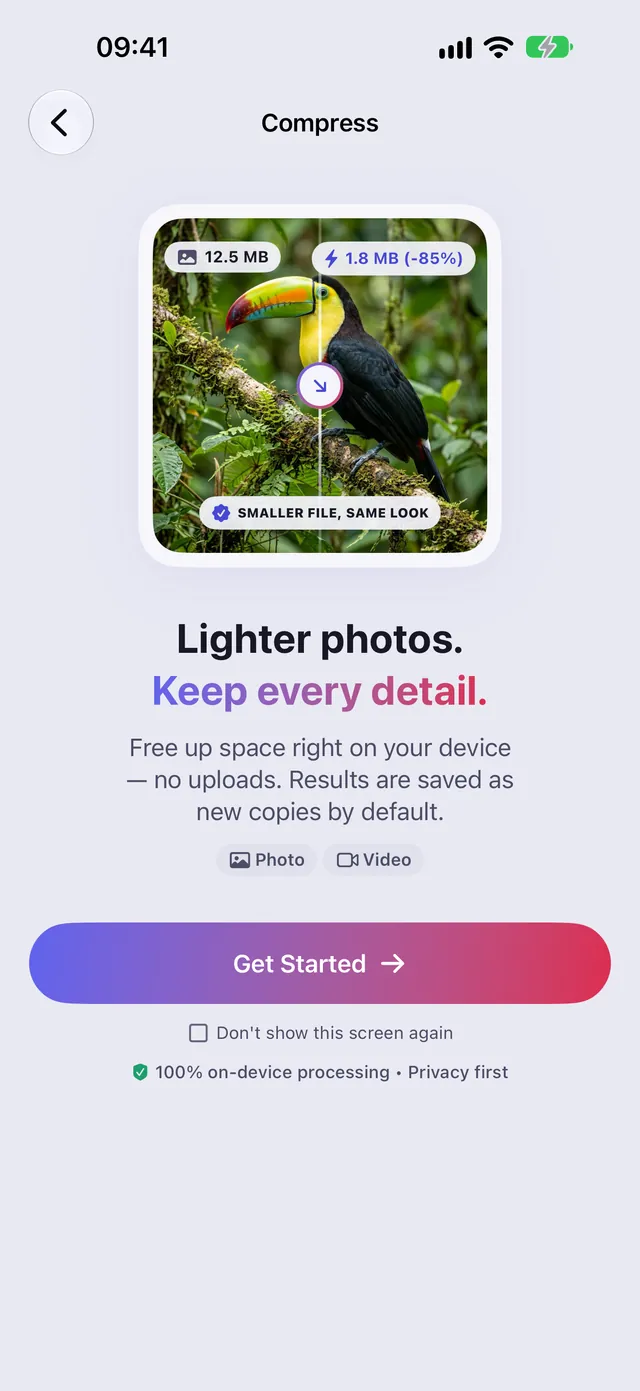
- On the iPhone, open the tool you need (for example Compress) and tap Get Started on its first screen to reach the Select screen.
- Tap the card that chooses files, then Computer (Wi-Fi).
- The iPhone shows an address, a QR code and a 6-digit code. On the computer, open that address in a web browser.
- On the computer, enter the 6-digit code and click Connect.
- Drag files onto the page, or click Choose files. Each file appears on the iPhone's Select screen as it arrives, with its progress.
- When everything has arrived, tap Done on the iPhone and Continue to use the files in the tool.
Tips
- Keep the iPhone unlocked and OptiPixel open while files arrive. You can close the panel: You can close this panel: files keep arriving in {0}. Keep your iPhone unlocked.
- If the iPhone locks or you switch apps, sending stops and Select shows Disconnected. Come back within 10 minutes and the open page reconnects by itself with the same code; after that, open the panel again for a new code.
- The panel lists every connected browser. Do not recognize one? Tap Disconnect next to it.
- The session ends when you tap Disconnect all, leave the tool, or add the task to the Queue.
- The file is on the web instead, in Google Drive or Dropbox? See Add a file from a Google Drive or Dropbox link.

OptiPixel — Reduce Photo & Video File Size
Free · No account · Runs on your iPhone
Frequently asked questions
Do I need to install anything on the computer?
No. Any web browser on the same Wi-Fi opens the page. The page is in English.
Are my files uploaded to the internet?
No. They travel over your local network from the computer to the iPhone. Nothing goes through an OptiPixel server.
Is there a size limit?
Large videos are fine. The iPhone refuses a file when it would leave less than 200 MB free, and a tool that takes one file at a time accepts only one.
Why does the page say my file was not sent?
The tool does not take that kind of file, for example a video sent to a photo-only tool, or a PDF. Send a file the tool supports.
Can I send files from the iPhone to the computer?
No. The page only sends files to the iPhone; it never lists or downloads what is on your phone.
Is it free?
It is a Premium feature. Without Premium, one short video opens it for one visit to a tool.