Scan & Convert
How to turn a photo of a table into an Excel spreadsheet on iPhone
An invoice, a price list or a printed report full of numbers? Turn the photo into an Excel file with real cells, instead of typing every figure again.
Updated November 17, 2026 · Free on the App Store · iPhone & iPad, iOS 17+
Why retyping a table is the slow way
A table on paper or in a photo cannot be sorted, added up or pasted into your own sheet. Typing it again row by row is slow, and one wrong digit changes a total.
Scan & Convert finds the tables on each page and writes an Excel file (.xlsx) with them as cells. The reading runs on your iPhone; nothing is uploaded.
Scan & Convert reads English and Vietnamese text today; more languages are coming in an update.
Two ways to lay out the sheet
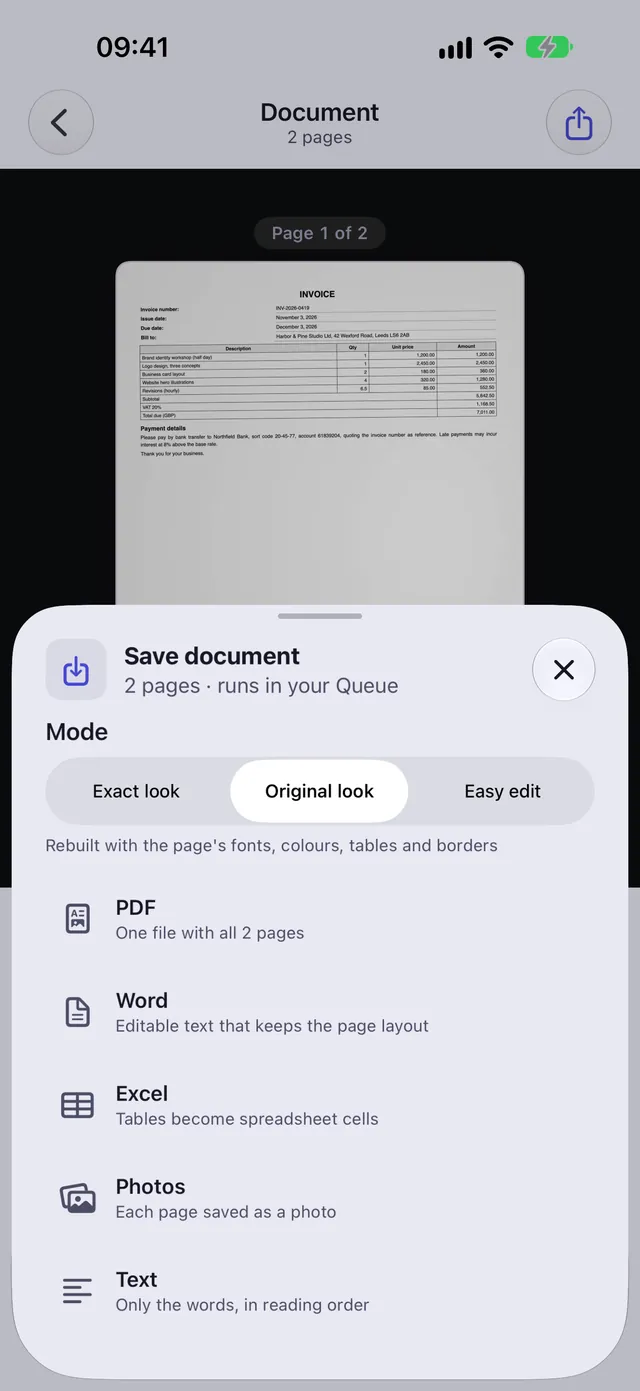
Excel needs Original look or Easy edit. With Exact look chosen, the Excel row is greyed and says why: Not for Excel: a page picture can't go into cells.
| Mode | What the Excel file holds |
|---|---|
| Original look | One sheet per page, laid out like the page: column widths, row heights, fills, borders, fonts and merged cells, with the text around the table too |
| Easy edit | One plain sheet per table, ready to sort and filter. A page with no table gives its text in one column |
Numbers written the English or the Vietnamese way, percentages and dates written as day/month/year become real numbers and dates, so formulas work on them. Codes that start with a zero, such as a customer number, stay text so the zero is kept.
Convert a table to Excel step by step
- Open OptiPixel and open Scan & Convert on Home (tap See all if it is not pinned), then tap Get Started.
- Tap Choose photos, then Scan Document to scan the paper, or Photos or Files for a photo or a PDF.
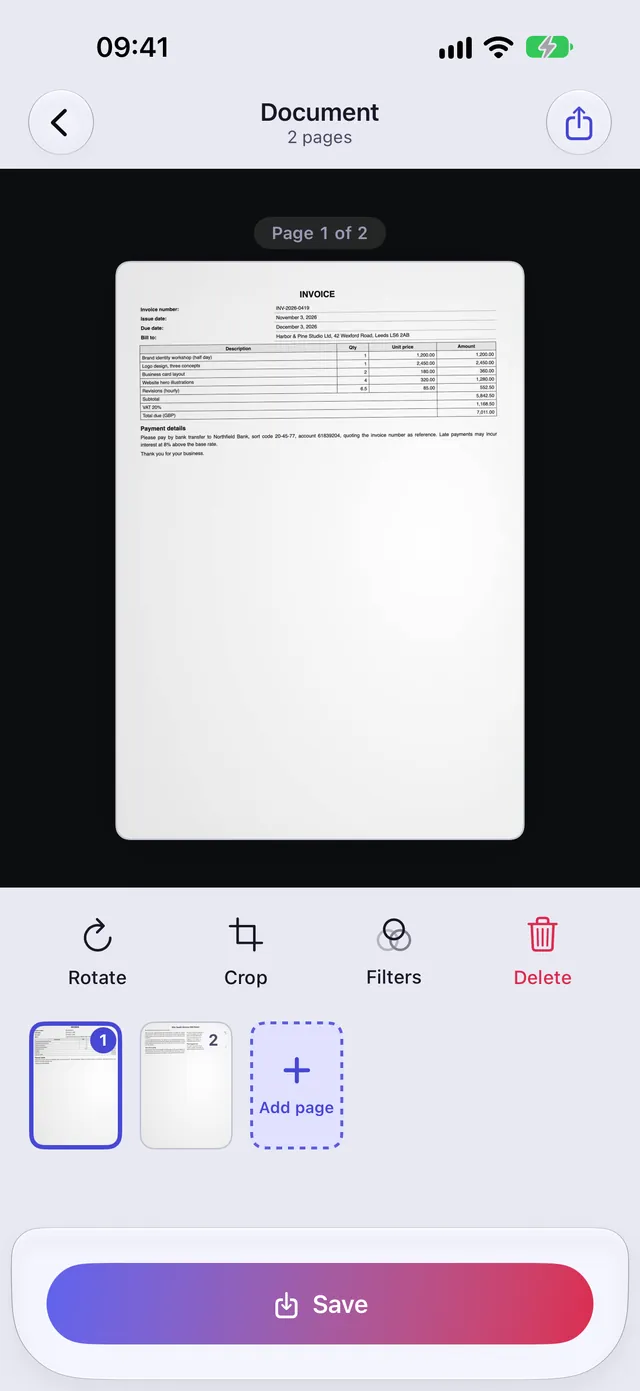
- Tap Continue. On the Document screen, use Crop to keep only the page if the photo shows more.
- Tap Save, then under Mode choose Original look or Easy edit.
- Tap Excel. The task runs in the Queue.
- When it is done, open the task and tap Open to check the sheet, then Save to Files or Share to open it in Excel, Numbers or Google Sheets.
Tips for tables that convert well
- A table with ruled lines converts best; columns that are only lined up by spaces are found too, but check them.
- Take the photo straight on, with the whole table in the frame and no fingers over the edges.
- Several pages become several sheets in Original look, named Page 1, Page 2 and so on.
- Tap Before and after in the finished task to compare the result with the page.
- Excel's own Data from Picture reads one table at a time. Use OptiPixel when you have many pages or a PDF, want the cell fills, borders and merged cells of the page kept (Original look), or want the pages read on the device.
- Need the whole page as a document instead? See Convert a scan or photo to Word.

OptiPixel — Reduce Photo & Video File Size
Free · No account · Runs on your iPhone
Frequently asked questions
Are the totals and formulas kept?
The values are kept, not the formulas: a total on paper becomes a number in its cell. Add your own formulas in Excel.
Which languages can it read?
English and Vietnamese today; more languages are coming in an update. Until then, other languages may be read wrong.
Can it read a handwritten table?
It is made for printed tables. Handwritten figures may be read wrong, so check every number before you use the file.
Does it work with a PDF?
Yes. Pick the PDF in Files; each page of the PDF becomes a page on the document screen.
Is my invoice uploaded?
No. The pages are read and the Excel file is written on your iPhone.