Shape Crop
How to crop a photo into a circle, star or other shape on iPhone
Make a round profile picture, a star-shaped sticker or a framed portrait. Pick a shape, move the photo inside it and choose what goes around it, all on your iPhone.
Updated October 29, 2026 · Free on the App Store · iPhone & iPad, iOS 17+
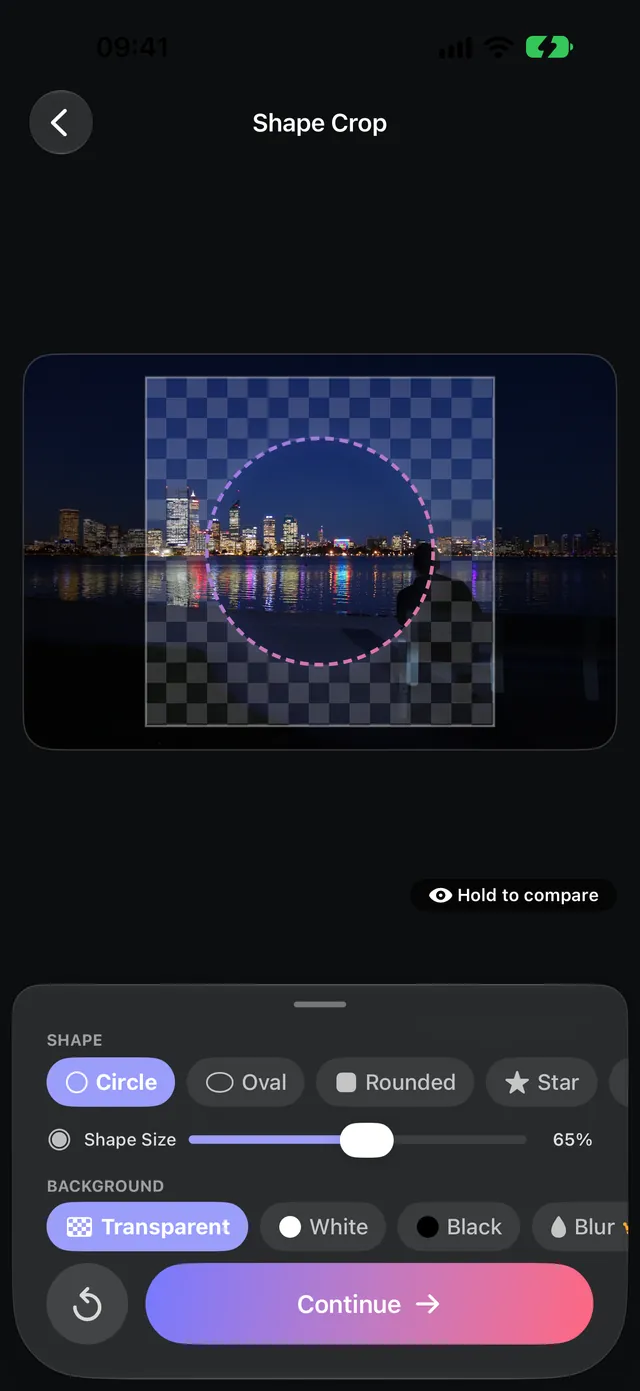
What Shape Crop does
Shape Crop cuts a photo to the outline of a shape. You choose the shape, how large it sits in the frame, how the photo is positioned inside it, and what fills the area around the shape. It works on photos only and runs on your iPhone, so nothing is uploaded.
Shapes and backgrounds
The shape list has 18 shapes in three kinds:
| Kind | Shapes in the app |
|---|---|
| Geometric | Circle, Oval, Rounded, Star, Hexagon, Diamond, Triangle |
| Frames | Bow Frame, Stamp, Arch, Bear Ears |
| Playful | Bow, Clover, Flower, Cloud, Paw, Scallop, Shield |
The area around the shape has four choices:
| Background | What you get | Saved as | Free or Premium |
|---|---|---|---|
| Transparent | Only the shape, with the rest see-through | PNG | Free |
| White | The shape on plain white | JPEG | Free |
| Black | The shape on plain black | JPEG | Free |
| Blur | The shape sharp, with a blurred copy of the same photo around it | JPEG | Premium option (crown) |
Every shape and the Transparent, White and Black backgrounds are free. Blur is a Premium option: you can choose it and preview it for free, and saving with it needs OptiPixel Premium or one short video, which covers that task.
Crop a photo into a shape on iPhone, step by step
- Open OptiPixel and open Shape Crop on Home (tap See all if it is not pinned).
- Tap Get Started and pick your photo from Photos or Files. You can pick several photos for one run.
- In the Shape panel, scroll the shapes and tap one, for example Circle. The frame on the photo takes the shape's natural proportions.
- Drag the photo to move it inside the shape and pinch to zoom, until the face or the subject sits where you want.
- Use the Shape Size slider to make the shape larger or smaller inside the frame, from 25% to 100%. For the straight-edged shapes (Rounded, Triangle, Diamond, Hexagon and Star) a Corner Radius slider rounds the corners.
- Under Background, tap Transparent, White, Black or Blur. With Blur, a slider sets how strong the blur is.
- Press and hold Hold to compare to see the original, or tap Reset to start the framing again.
- Tap Continue. Review shows each photo cropped with your settings and a card with the shape and background. Tap the button at the bottom, which reads Shape Crop with the number of photos, and the task goes to the Queue.
The same shape, size and background apply to every photo in the run. Results are saved as new files by default; see where OptiPixel saves results.
Tips for good shapes
- Use Transparent for avatars and stickers. It saves a PNG, which keeps the see-through area for chat apps and design tools. White, Black and Blur save a JPEG, which has no transparency.
- Pick a frame for portraits. The frames (Bow Frame, Stamp, Arch and Bear Ears) are built so a face in the middle stays clear.
- Match the shape to the photo. The frame follows the shape's proportions, so an Oval or Arch suits a portrait and a Cloud suits a wide scene.
- Zoom in a little. A subject that fills the shape looks stronger than one with a lot of empty space around it.
- Need the background gone first? Use Cutout to isolate the subject, or Resize to set an exact pixel size.

OptiPixel — Reduce Photo & Video File Size
Free · No account · Runs on your iPhone
Frequently asked questions
Is Shape Crop free?
Mostly. Every shape and the Transparent, White and Black backgrounds are free. The Blur background is a Premium option marked with a crown: saving it needs OptiPixel Premium or one short video. Free runs take up to 3 photos; a short video unlocks up to 10, and more than that needs Premium.
Can I get a circle with a transparent background?
Yes. Pick Circle and Transparent. The result is a PNG with a see-through area outside the circle.
Why is my result a JPEG?
Only Transparent can save a PNG. White, Black and Blur have a solid background, so they are saved as JPEG.
Can I move the photo inside the shape?
Yes. Drag to move and pinch to zoom before you continue. The canvas shows the whole photo with the crop frame on top, and what lies outside the frame is dimmed.
Does Shape Crop change my original photo?
Not by default: the result is saved as a new photo. Only if you choose Edit Original or Replace Original in Settings › Where results are saved does a result take the original's place.
Are my photos uploaded anywhere?
No. The cropping runs on your iPhone, and the original photo never leaves your device.