Settings
Where OptiPixel saves your results, and how Replace Original works
By default every result is a new file and your original stays as it was. Here is where results go, and what the two options that touch the original really do, before you turn one on.
Updated October 29, 2026 · Free on the App Store · iPhone & iPad, iOS 17+
By default, your original is not touched
Every OptiPixel tool saves its result as a new photo, video or file. The original stays where it is, unless you choose one of two options that deliberately act on it: Edit Original or Replace Original for photos and videos from your library, or Replace Original for files from the Files app.
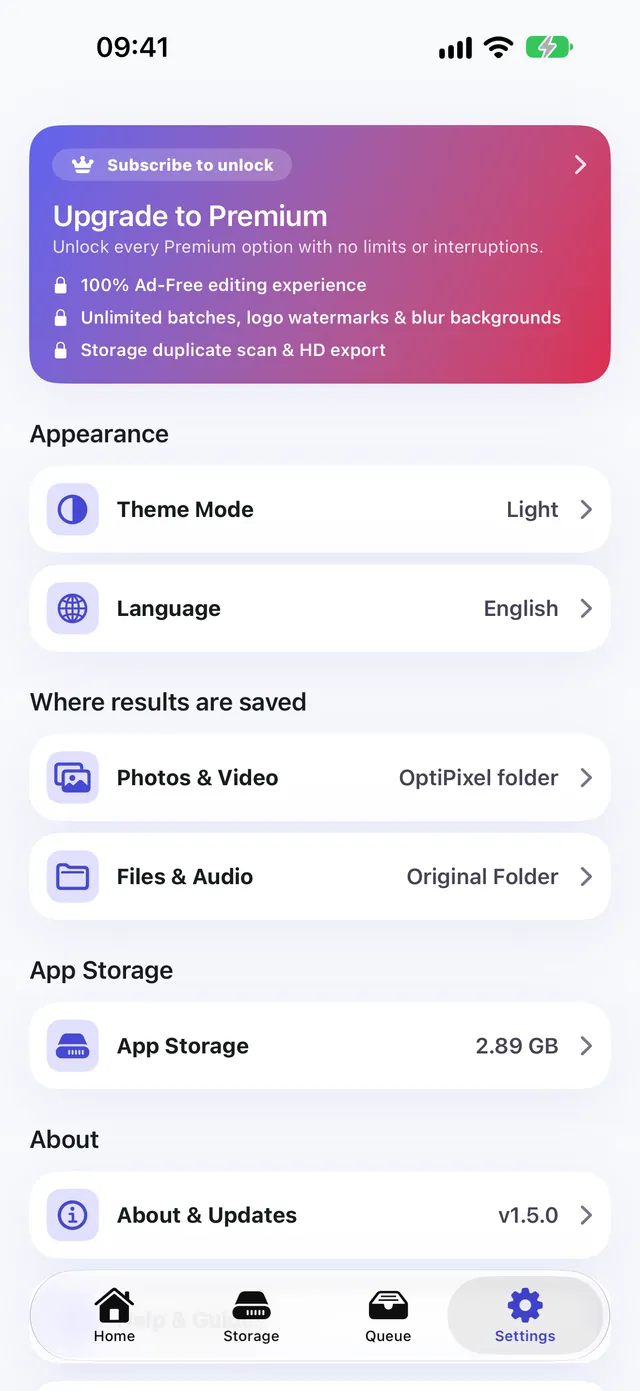
You choose in Settings › Where results are saved. It has two rows, one for each kind of source, and each shows its current choice and opens a list of options:
- Photos & Video is for photos and videos you picked from your Photos library.
- Files & Audio is for files you picked from the Files app or took from a folder you added in Storage.
Most tools also show the choice on their Review screen, with a row to change it for that one run without touching Settings.
Options for photos and videos
| Option | What it does | What happens to the original |
|---|---|---|
| Photo Library (default) | Saved to your library and added to the OptiPixel album. | Untouched |
| OptiPixel folder | Saved inside the app, browsable at Storage › App Storage. | Untouched |
| Edit Original | Saves the result as an edit of the original. Photos keeps Revert to Original, so no space is freed. | Edited in place, and Photos can revert it |
| Replace Original | Saves the result to your library, then moves the original to Recently Deleted once you confirm. The space comes back when Recently Deleted is emptied, or after 30 days. | Moved to Recently Deleted after you confirm |
Options for files
| Option | What it does | What happens to the original |
|---|---|---|
| Original Folder (default) | Saved as a new file in the same folder as the original. | Untouched |
| OptiPixel folder | Saved inside the app, browsable at Storage › App Storage. | Untouched |
| Replace Original | Permanently overwrites the original file. This can't be undone. | Overwritten, with no way back |
How Replace Original works for photos
This is the option to pick when you compress a photo or video to free space and want the big original gone.
- OptiPixel saves the result as a new photo in your library first. It keeps the original's date, place and favourite, so the new photo sits where the original sat.
- Only if that save worked, OptiPixel asks Photos to delete the original. iOS shows its own confirmation, and nothing is deleted unless you confirm. If the save failed, your original is left alone.
- If you confirm, the original moves to the Recently Deleted album, where it stays for 30 days. If you decline, the original stays and you are not asked about it again.
- The space comes back when Recently Deleted is emptied, or after 30 days.
iOS refuses to ask while the app is in the background, so OptiPixel gathers the originals and asks together when a task finishes, after a manual save, or the next time you open the app.
A photo you take with the Camera inside a tool has no original to edit or replace, so it is saved as a new photo.
How Edit Original works for photos
Edit Original does not create a second photo. It saves the result as an edit of the original, the way an edit in the Photos app is stored, so the photo in your library shows the new version. Photos keeps Revert to Original, so you can go back, and for that reason no space is freed.
How Replace Original works for files
For a file from Files, Replace Original overwrites the file itself. Unlike photos there is no Recently Deleted to fall back on, so the option is marked PERMANENT and states its own rule:
Every run that would overwrite a file asks you to confirm first. The answer is never remembered.
Every time a run would overwrite a file, a dialog titled "Replace the original?" says: This permanently overwrites the original file. It can't be undone. You choose Replace, or Save copies instead to keep the original, or cancel. This applies even when Replace Original is your Settings default, and the answer is never remembered.
Step by step: change where results go
- Open OptiPixel and tap the Settings tab.
- Under Where results are saved, tap Photos & Video or Files & Audio.
- Tap the option you want. The choice is saved at once and applies to every new task.
- To use a different option for one task only, change it on that task's Review screen, in the row for the same choice, before you add it to the Queue.
Replacing originals frees space only when the result is smaller. To shrink photos first, see Compress photos on iPhone, and to keep a copy before you delete anything, use Backup.

OptiPixel — Reduce Photo & Video File Size
Free · No account · Runs on your iPhone
Frequently asked questions
Does OptiPixel overwrite my photos by default?
No. By default the result is saved as a new photo (Photo Library) or, for a file from Files, as a new file next to the original (Original Folder). The original changes only if you choose Edit Original, Replace Original or, for files, the overwrite option.
Can I get my photo back after Replace Original?
Yes, for 30 days. The original goes to Recently Deleted in the Photos app and can be recovered from there until it is removed. The new photo from OptiPixel stays in your library either way.
What is the difference between Edit Original and Replace Original?
Edit Original saves the result as an edit of the same photo, and Photos can revert it, so no space is freed. Replace Original saves the result as a new photo and then deletes the original, which frees space once Recently Deleted is emptied.
Why does iOS ask me to confirm?
Deleting a photo always needs your confirmation on iOS. OptiPixel asks Photos to delete the original only after the result was saved, and iOS shows its own prompt. If you decline, nothing is deleted.
Is overwriting a file from Files reversible?
No. It permanently replaces the file, and that is why the app warns you every time and never remembers the answer. Choose Save copies instead if you want a copy instead.
Where do I find results saved to the OptiPixel folder?
In the app: the Storage tab lists them under OptiPixel. They are not added to your Photos library.