Backup
How to back up iPhone photos to an external drive, folder or iCloud Drive
Copy your photos and videos to an external drive, iCloud Drive or a local folder. Keep your originals safe, pause anytime, and back up only new files on repeat runs.
Updated October 29, 2026 · Free on the App Store · iPhone & iPad, iOS 17+
Why back up iPhone photos to external storage or folders
Your iPhone photo and video library captures irreplaceable memories, important documents, and work projects. While Apple's iCloud Photos keeps devices synchronized, synchronization is not a true standalone backup: if you accidentally delete a photo, an edit goes wrong, or your cloud storage quota runs out, changes mirror across every connected device.
Creating an independent physical or secondary archive—on an external SSD, a USB-C flash drive, a local folder in the Files app, or a dedicated folder in iCloud Drive—ensures your media remains safe and accessible regardless of device status or internet connectivity. It also gives you a second copy of heavy 4K clips before you decide what to clean up on the iPhone yourself.
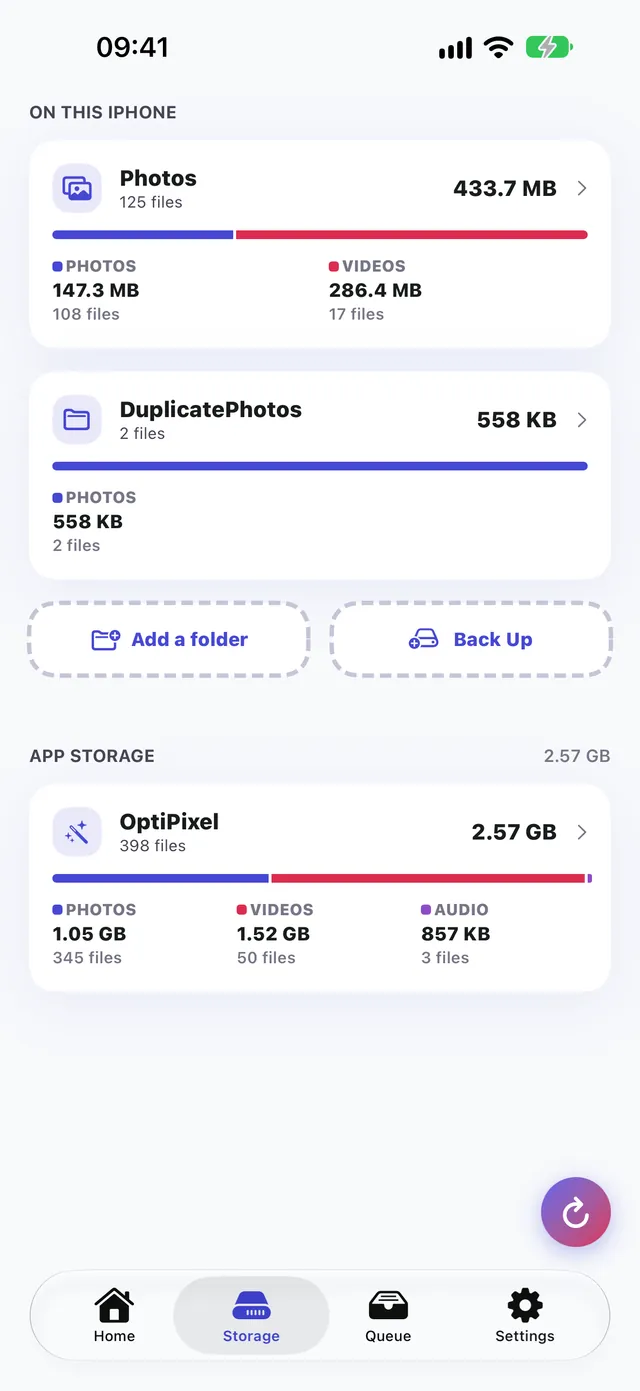
OptiPixel provides an integrated, offline Backup tool on the Storage tab. Built on strict non-destructive principles, it copies your files without moving or deleting originals, supports resume and pause, and tracks every backed-up file so future runs copy only new items.
Backup destinations & size band overview
The table below compares the supported backup destinations and transfer characteristics:
| Destination Type | Connection Method | Best Use Case | Transfer Characteristics |
|---|---|---|---|
| External USB Drive or SSD | USB-C cable or Lightning-to-USB adapter | Complete offline archive, offloading 4K videos | High-speed direct hardware transfer, 100% offline |
| iCloud Drive Folder | Added via the iOS Files folder picker | Secondary cloud backup accessible on Mac and iPad | Syncs via your Apple account across devices |
| Local Folder (On My iPhone) | Added via Files app on internal storage | Organizing local folders before AirDrop or file sharing | Instant local copy on device, 100% offline |
OptiPixel uses clear, honest size bands per backup run based on the actual bytes copied:
- Free up to 500 MB per backup: Starts immediately with zero ads and no account required.
- Up to 2 GB per backup: Unlocked by watching one short rewarded ad.
- Above 2 GB: Unlimited backup with OptiPixel Premium for large libraries.
- Retrying any failed files from an unlocked run is always free.
How OptiPixel protects your files during backup
OptiPixel's Backup architecture is designed for safety, transparency, and data integrity:
- Copy only, never move or delete: Source files stay exactly where they are in your Photos library or folders. OptiPixel creates clean copies organized as
OptiPixel Backup/<Source>/<filename>at your destination. - Incremental second runs: OptiPixel maintains an on-device ledger of confirmed copies per destination. If you run backup again later, it checks the destination, skips already copied files, and transfers only newly added or modified photos and videos.
- Collision-safe naming: If a file with the same name already exists at the destination, OptiPixel renames the new copy to
name (2).extinstead of overwriting existing data. - Pause, cancel, and interruption recovery: You can pause or cancel a backup at any time. Completed copies remain safely at the destination. If an external drive is unplugged mid-transfer, the task waits for reconnection and resumes rather than failing your batch.
- Full iCloud downloads: Photos whose full-resolution originals reside in iCloud Photos are automatically downloaded in full fidelity before copying.
Back up iPhone photos and videos, step by step
- Connect your external drive (via USB-C or Lightning adapter) if backing up to external storage, or prepare your target folder in the Files app.
- Open OptiPixel and tap the Storage tab.
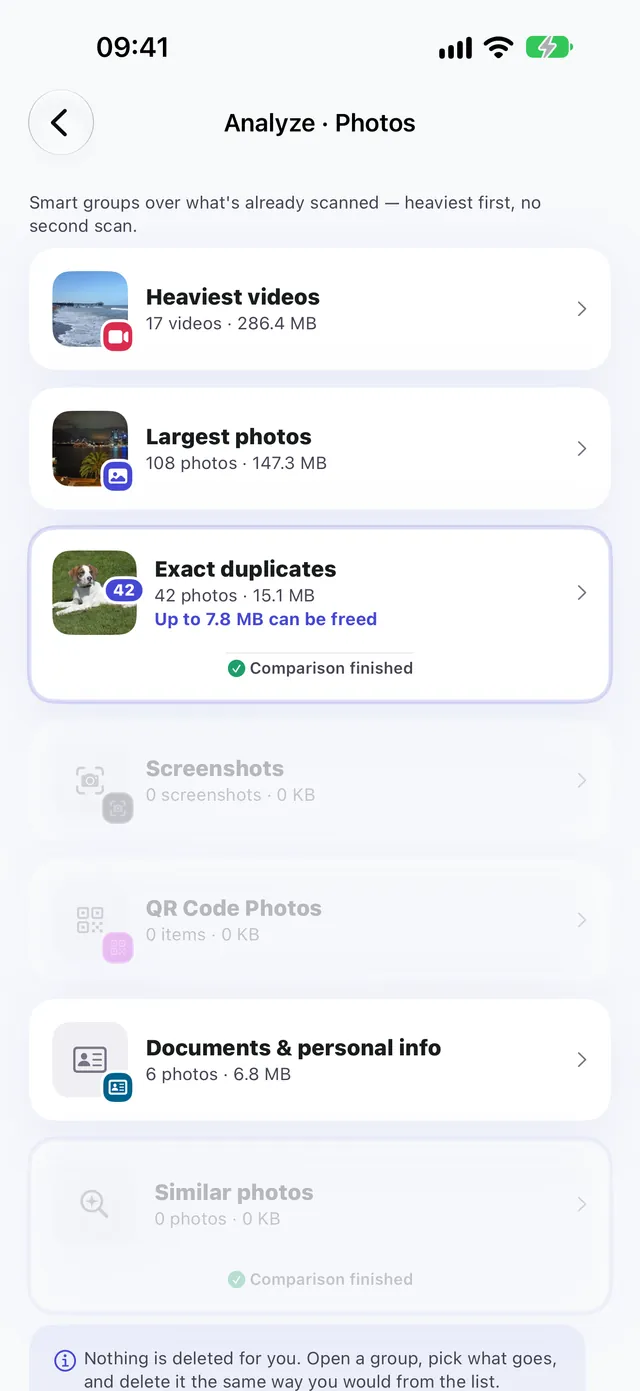
- Tap the Back Up button next to Add a folder under the storage cards (or open a storage such as Photos and tap its Back Up row under Analyze).
- In the source sheet ("What do you want to back up?"), choose what to copy: Photos, a folder from Files, or OptiPixel saved files.
- In the Backup review screen, tap Choose a destination (or Change) and select your external drive, a folder in Files, or iCloud Drive. Tap Add a Folder… to select any folder from the iOS system picker.
- Check the transfer summary showing file count, total size, and free space available at the destination.
- Tap Start Backup. The task moves to the Queue, where you can monitor real-time copy speed, per-file progress, and completed files in the background.
Ready to reclaim space after completing your backup? Use OptiPixel's Storage Cleanup tool to safely find and remove redundant duplicate photos, heavy 4K videos, and old screenshots.
Tips for smooth backups to external drives
- Format drives for iOS compatibility: For best performance and reliability on iPhone and iPad, format external flash drives and portable SSDs as APFS or ExFAT using a Mac or PC.
- Check available destination space: OptiPixel automatically reads free space at the destination before starting and alerts you if the selected files exceed the available storage.
- Keep the screen on during massive initial backups: While OptiPixel handles transfers gracefully in the Queue, iOS limits background processing time when transferring tens of gigabytes. Keeping the app in the foreground ensures maximum transfer speed.
- Run periodic incremental backups: Because OptiPixel skips previously backed-up files, running a quick backup once a week takes only seconds to copy your latest shots.

OptiPixel — Reduce Photo & Video File Size
Free · No account · Runs on your iPhone
Frequently asked questions
Does backing up delete or move photos from my iPhone?
No. OptiPixel strictly copies your files. Every original photo, video, and album remains untouched in your Photos library. OptiPixel never moves, alters, or deletes your originals during a backup.
Can I back up directly to a USB-C flash drive or portable SSD?
Yes. On iPhone 15 and newer with USB-C, or earlier models using a Lightning-to-USB camera adapter, connect your drive, tap "Add a Folder…" on the Backup destination sheet, and select your external drive in the Files picker.
What happens if I disconnect the drive or cancel mid-backup?
Files that finished copying remain safely on the destination drive. Unfinished temporary files are cleaned up so no broken files are left behind. When you reconnect the drive and start backup again, OptiPixel skips finished files and resumes where it left off.
Are photos compressed or reduced in quality during backup?
No. Backup creates exact, byte-for-byte copies of your original image, video, and audio files. Full resolution, EXIF capture metadata, color profiles, and timestamps are completely preserved.
Is an internet connection required to back up to an external drive?
No. Backing up to an external drive or a local folder runs 100% offline. An internet connection is only needed if your source photos must first be downloaded from iCloud Photos, or if you choose an iCloud Drive folder as your destination.