Face Blur
How to blur faces in photos on iPhone, automatically
Protect the people in your photos — strangers in the background, children, customers — by blurring their faces before you share. Faces are found for you, on your iPhone.
Updated November 17, 2026 · Free on the App Store · iPhone & iPad, iOS 17+
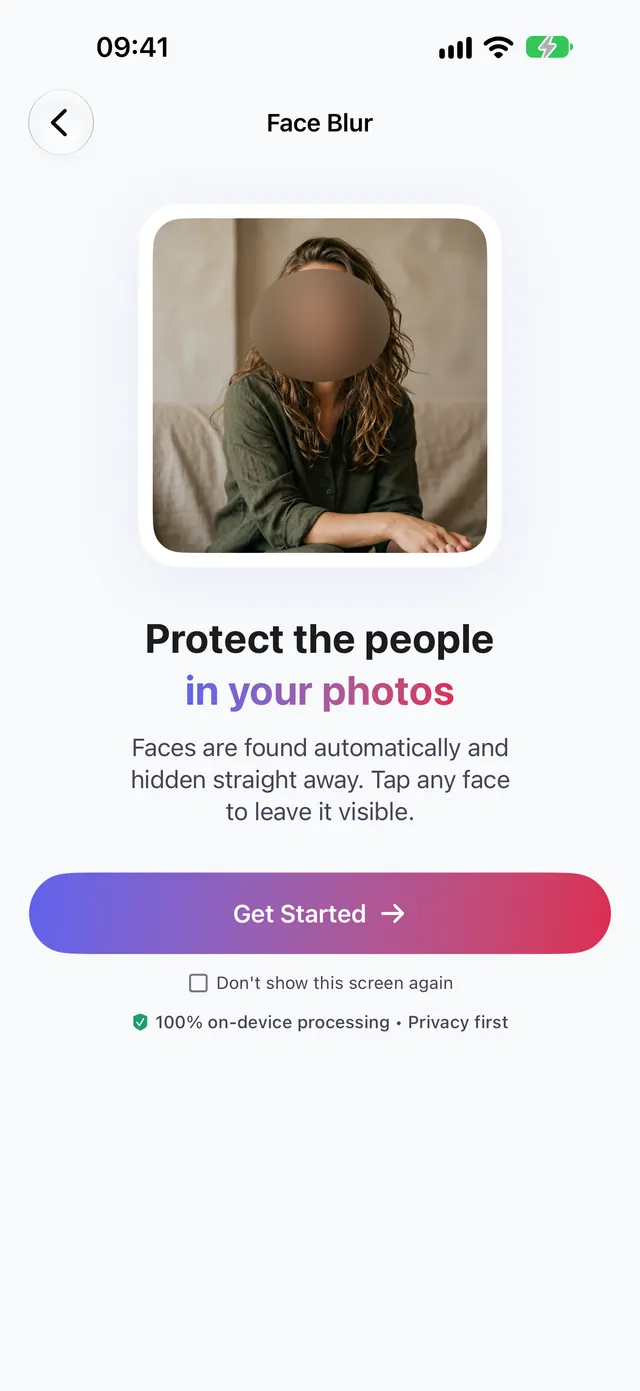
Why anonymizing faces protects privacy and legal rights
Posting street photography, school events, or workplace media online often exposes innocent bystanders, minors, and customers to unwanted facial recognition scraping. In many places, privacy rules also limit publishing identifiable faces without consent.
Manual editing tools require painstakingly drawing stickers or mosaic boxes over every face one by one. OptiPixel features an automated, on-device Face Blur engine powered by Apple Vision frameworks that detects and obscures all human faces in a single tap—completely offline without cloud biometrics.
Face anonymization scenarios & privacy standards
The table below outlines common privacy scenarios and recommended anonymization practices supported by OptiPixel:
| Photography Scenario | Subjects to Anonymize | OptiPixel Workflow |
|---|---|---|
| School & Youth Sports | Minors, students, spectators | Automated batch face detection and obscuration |
| Street & Travel Photography | Background pedestrians, bystanders | All faces auto-blurred; tap to unblur creator |
| Commercial & Healthcare Media | Patients, clients, unconsenting staff | Permanent face obscuration across portfolio |
| Incident & Insurance Reports | Unrelated witnesses, bystanders | Permanent non-reversible blurring |
Blur faces in photos on iPhone, step by step
- Open OptiPixel and open Face Blur on Home (tap See all if it is not pinned), then tap Get Started.
- Select one or more photos from Photos or the Files app.
- OptiPixel automatically scans the image and highlights all detected face landmarks.
- Customize face visibility:
- All faces are blurred by default for safety.
- Simply tap any face to toggle it clear (e.g., leaving yourself clear while keeping bystanders obscured).
- Tap again to re-blur.
- Add the task to the Queue.
- OptiPixel renders the blurred effect permanently into the output file at full resolution, exporting a brand-new asset while keeping your original unedited photo safe.
Want to remove hidden GPS coordinates along with facial identities? Pair face blurring with OptiPixel's Metadata Scrubbing tool to wipe location tags completely.

OptiPixel — Reduce Photo & Video File Size
Free · No account · Runs on your iPhone
Frequently asked questions
Does OptiPixel store facial biometric templates or identify who people are?
No. OptiPixel uses local geometric face bounding box detection via Apple Vision. It does not perform facial recognition, does not identity names or demographics, and never stores or uploads biometric data.
Is the blur effect reversible by third parties?
No. OptiPixel irreversibly rasterizes the blurred pixels into the exported image file. Once saved, original facial features cannot be recovered or reversed using filters or editing software.
Does Face Blur upload photos to external servers?
No. All neural face detection and pixel scrambling execute 100% on-device utilizing local Apple silicon, ensuring complete privacy even when operating in Airplane Mode.
Can I batch blur faces across multiple photos?
Yes. OptiPixel allows you to select photo batches and apply consistent automated face obscuration across albums in the background Queue.
Are original unblurred photos preserved?
Yes, by default: results are saved as new items, so your originals stay in your library. Only if you choose Edit Original or Replace Original in Settings › Where results are saved does a result take the original's place.
Is Face Blur free?
Yes, for up to 2 faces in a photo. Hiding a third face or more, or turning on Custom size to move and resize a blur area, is a Premium option: saving needs OptiPixel Premium or one short video.