iPhone Duo
Using OptiPixel on iPhone Duo
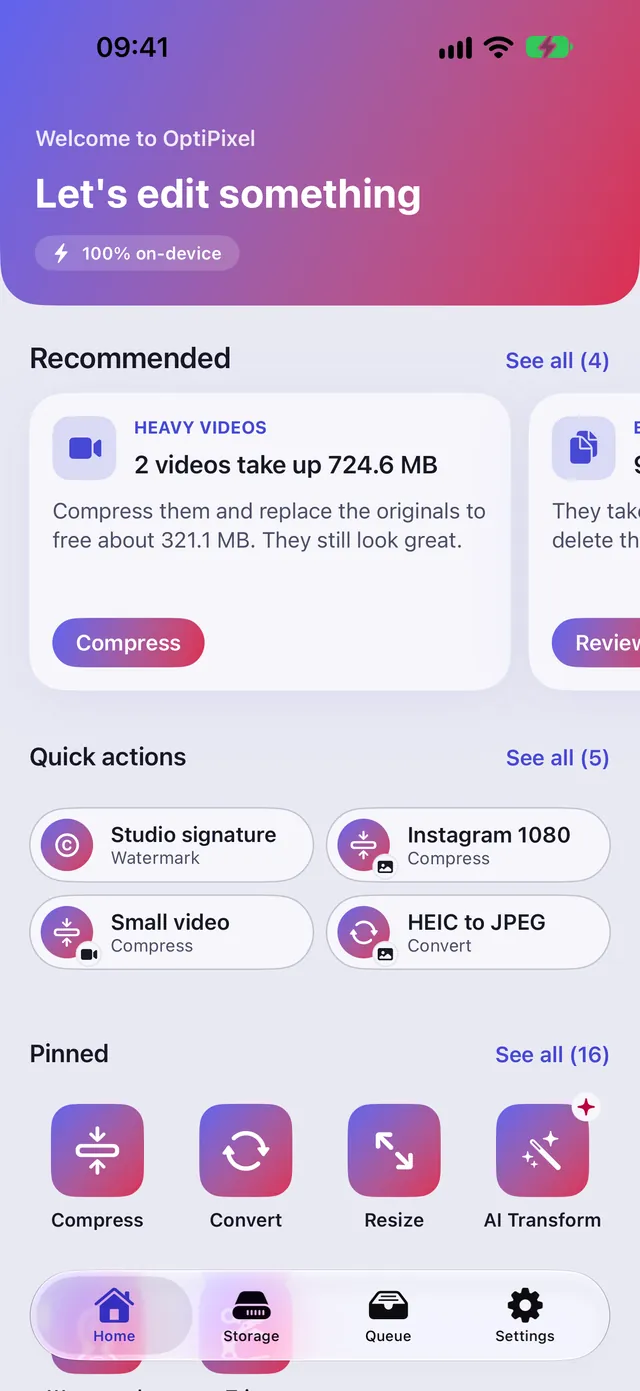
Folded, OptiPixel looks like it does on any iPhone. Unfold the iPhone Duo and the wide screen is used for two columns, so you see more and tap less.
Updated November 17, 2026 · Free on the App Store · iPhone & iPad, iOS 17+
Why the unfolded screen needs its own layout
The iPhone Duo's inner screen is wider than it is tall. An iPhone layout stretched across it leaves one long column with a few rows on screen and a button bar that takes much of the short height.
OptiPixel chooses its layout from the width of the screen, not from the device. When the screen is wide enough, screens split into two columns; below that width you get the iPhone layout. This is the same layout an iPad uses, and an iPhone held sideways when it is wide enough.
What changes when you unfold
| Screen | Folded (outer screen) | Unfolded (inner screen) |
|---|---|---|
| Home | One column, as on iPhone | Quick actions and Pinned on the left (more per row), Recommended on the right |
| Opening a tool | The tool's introduction, then Get Started to choose files | One screen: the introduction on the left, the list of files on the right |
| Tool settings and Review | Options, with the main button in a bar at the bottom | Options on the left; on the right a panel with your files, their count and size, the chosen settings and the main button |
| Editors such as Watermark, AI Transform or Remove Object | The photo with a panel at the bottom | The photo in the middle, the options on the right, the main button at the top |
| Storage, Queue, Settings | A list; tapping an item opens it | The list on the left, the chosen item on the right |
| Added to Queue | The confirmation and its buttons | The confirmation on the left, the task's live details on the right |
| Scan & Convert's Document screen | The page with its tools below | The page on the left, page and filter options on the right, Save at the top |
| Before and after | One picture; hold to see the other | Before and after side by side |
The four tabs (Home, Storage, Queue, Settings) stay the same on both screens.
What happens when you fold or unfold
- Fold or unfold at any time, also in the middle of a task.
- The screen you are on stays open with what you chose; only its layout is drawn again.
- Tasks in the Queue keep running.
- In the Time Marker camera, the screen reshapes at once. A video that is recording goes on with the frame it started with.
Tips
- In lists such as Storage's photos, touch and hold an item on the unfolded screen to see its menu, with Select first. Folded, touch and hold starts selecting, as on iPhone.
- With very large text sizes, Home goes back to one column so nothing is cut off.
- On the free plan, ads on the unfolded screen sit only in the right-hand column, never between your tools or next to the main button.
- Two columns make a good place to check a document: see Convert a scan or photo to Word and compare the pages side by side.

OptiPixel — Reduce Photo & Video File Size
Free · No account · Runs on your iPhone
Frequently asked questions
Which version of OptiPixel supports iPhone Duo?
Version 1.6 and later uses two columns on the unfolded screen.
Will I lose my edits if I fold the phone?
No. The open screen, the files you picked and the settings you chose stay as they were.
Does the iPad look the same?
Yes. The layout follows the width of the screen, so an iPad, an unfolded iPhone Duo and a large iPhone held sideways get the same two-column screens.
Can I keep the iPhone layout on the unfolded screen?
No. The layout follows the screen's width and cannot be set by hand.