Storage
How to find and delete duplicate photos on iPhone
Identical copies from chats, AirDrop and retakes quietly take up space. Scan your library on the iPhone, see which photos are copies, and delete the extras yourself.
Updated October 29, 2026 · Free on the App Store · iPhone & iPad, iOS 17+
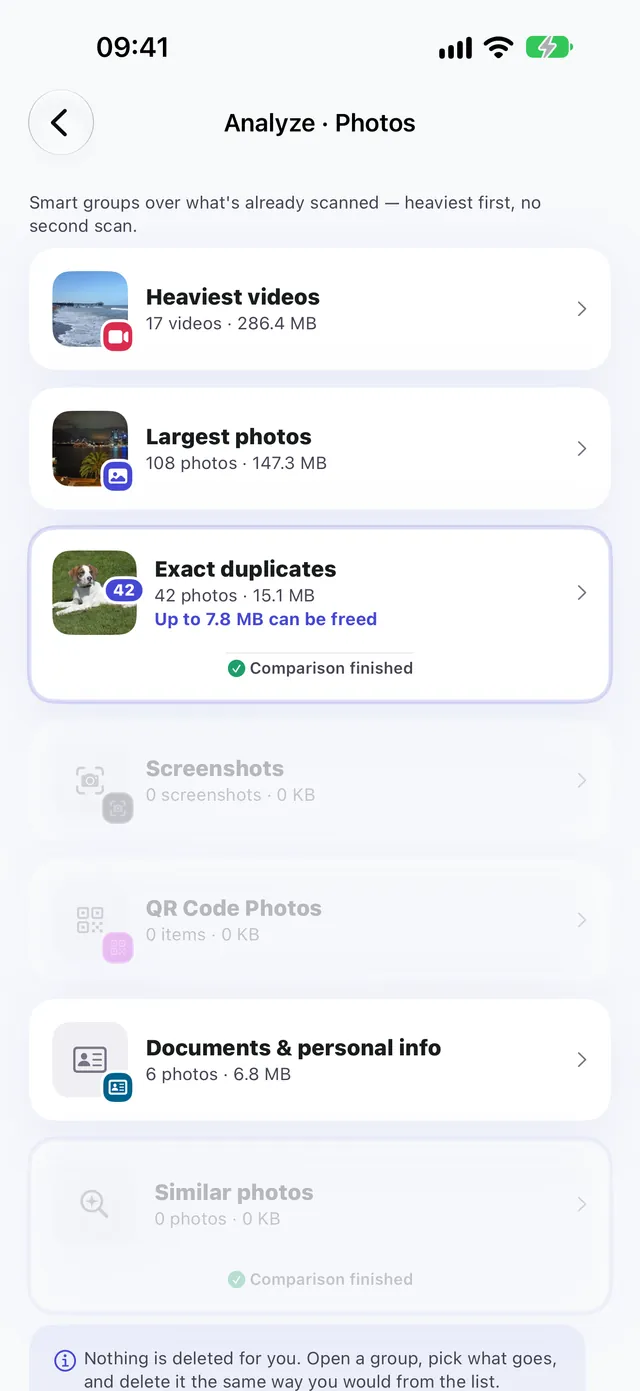
Exact duplicates and similar photos are not the same thing
OptiPixel finds two kinds of repeats in your Photos library, and treats them differently:
| Group | What it means | Free or Premium |
|---|---|---|
| Exact duplicates | Photos whose files are byte-for-byte identical, the typical result of saving the same picture twice or receiving it again. | Free: opens without an ad or Premium |
| Similar photos | Photos that look alike but are not identical files: burst shots, retakes, a slightly different crop. | Premium option (marked with a crown): opens with OptiPixel Premium, or with one short video for that visit |
Finding is free in both cases: the scan shows the count and size of every group. A photo that has an exact copy and also a look-alike edit shows up in both groups.
Everything runs on your iPhone. Your library is not uploaded, and OptiPixel deletes nothing on its own: the app says so on the Analyze screen, and every deletion is yours to select and confirm.
Find duplicate photos on iPhone, step by step
- Open OptiPixel and tap the Storage tab, then open Photos and allow access to your photo library if asked.
- Tap Analyze Photos. The groups appear with their counts and sizes. The comparison of photos keeps running for a moment: the status reads "Looking for duplicates…" while it works and "Comparison finished" when it is finished. Exact copies are found first; look-alikes take longer.
- Open Exact duplicates. Each card is one set of copies. It shows how many photos are in the set and how much deleting all but one would free.
- Tap a card to see its photos side by side: file format, resolution, date and size. The largest file carries a Suggested keep label. It is only a suggestion; nothing is selected for you.
- Tap Select, then tap the photos you want to delete. Keep at least one. If you use Select All, deselect the photo you want to keep before you delete.
- Tap the delete button in the bar at the bottom. A sheet lists what will be deleted and how much space it frees, and says Photos items are recoverable for 30 days. Confirm, and iOS shows its own confirmation too.
- For look-alike shots, open Similar photos the same way, and choose the best shot of each set before deleting the rest.
Not sure you want to delete yet? Copy your library to a drive or folder first with Backup. Backup copies files and never deletes the originals.
What happens to the photos you delete
Deletion goes through iOS, not around it. OptiPixel asks Photos to delete the photos, iOS asks you to confirm, and the photos move to the Recently Deleted album, where they stay for 30 days. You can restore them from there during that time.
The space comes back only when Recently Deleted is emptied, either by you or automatically after 30 days. To get the space back at once, open the Photos app, go to Albums › Recently Deleted and delete them there.
Tips for a safe clean-up
- Review before you select. The set shows resolution, size and date, so you can tell which copy is the one worth keeping.
- Start with Exact duplicates. They are identical files, so removing the extras loses nothing.
- Take care with Similar photos. They are different pictures that look alike; a retake may be sharper, or the odd one out may be the one you wanted.
- Remember the limits. Analyze compares the photos in your Photos library. A copy kept in Photos and again in a folder in Files is not found as a pair.
- Duplicates are one cause of a full iPhone. For videos and large photos, see the guide on freeing up iPhone storage.

OptiPixel — Reduce Photo & Video File Size
Free · No account · Runs on your iPhone
Frequently asked questions
Is finding duplicate photos free?
Yes, for exact duplicates: they open without Premium and without an ad. Similar photos are a Premium option marked with a crown; they open with OptiPixel Premium or with one short video, which covers that visit to Analyze.
Does OptiPixel delete duplicates automatically?
No. It never deletes anything by itself. You open a group, choose the photos to delete and confirm, and iOS asks for its own confirmation.
Can I get a deleted photo back?
Yes, for 30 days. Deleted photos go to the Recently Deleted album in Photos, where you can recover them until they are removed.
Why did my storage not go down after deleting?
Photos keeps deleted items in Recently Deleted for 30 days. The space is freed when that album is emptied. Open it in the Photos app and delete the items to free the space now.
Does it compare my photos online?
No. The comparison runs on your iPhone with Apple's on-device tools, and no photo or data leaves the device.
Does it find duplicate videos?
The Exact duplicates and Similar photos groups cover photos. For videos, the Analyze screen has a Heaviest videos group that ranks them by size, which helps you decide which to compress or delete.