Compress
How to compress a photo to 20 KB, 50 KB, 100 KB or 200 KB on iPhone
Need a picture under 20 KB, 50 KB, 100 KB or 200 KB for an upload form? Shrink photos to an exact file size directly on your iPhone.
Updated November 17, 2026 · Free on the App Store · iPhone & iPad, iOS 17+
Why upload forms require exact file sizes in KB
Many online submission portals, job application forms, student registration systems, and digital ID upload pages enforce strict file size ceilings. Common upload limits include "photo must be under 20 KB", "file size between 20 KB and 50 KB", or "maximum file size 100 KB or 200 KB". An iPhone photo is usually a few megabytes — the ones we measured below were 1.3 MB to 3.9 MB — so it has to become ten to a hundred times smaller.
With only a quality slider you have to guess and try again until the file fits. Compress it too hard and text or faces blur; not hard enough and the form rejects the file.
OptiPixel solves this with an exact Target File Size mode directly on your iPhone. Instead of guessing, you choose an exact target in kilobytes—including one-tap quick picks for 20 KB, 50 KB, 100 KB, and 200 KB—and the on-device engine optimizes resolution and quality to meet the limit without uploading your photos to any external server.
Upload form limits & recommended settings
The table below outlines common form requirements and the recommended priority settings to meet them:
| Target File Size | Typical Upload Use Case | Recommended Priority |
|---|---|---|
| 20 KB | Strict ID slots, badge photos, signature scans | Balanced |
| 50 KB | Online registration cards, job applications | Balanced |
| 100 KB | Student registration, profile headshots, web attachments | Balanced |
| 200 KB | General upload forms, email attachments, resumes | Balanced or Quality |
| 500 KB – 1 MB | Standard document forms, real estate listings | Quality or Resolution |
How Target File Size mode works in OptiPixel
OptiPixel's Mode B (Size) uses an iterative encoding algorithm that fits each image under your chosen byte ceiling while respecting what you prioritize:
- Quick Picks (20 KB, 50 KB, 100 KB, 200 KB): The most frequent limits for upload forms can be selected with a single tap under the Custom KB setting.
- Kilobyte Stepper: Fine-tune your target in 10 KB steps (minimum 10 KB) or switch to MB for larger files.
- Preserve Priority:
- Balanced (Recommended for targets under 200 KB): Lowers compression quality first down to an encoder floor of 60. If the file is still above the target, it gently downscales resolution and searches for the optimal balance, preserving as much visual sharpness as the target allows.
- Quality: Keeps encoder quality high (95 in our measurements) and only reduces pixel dimensions.
- Resolution: Keeps original pixel dimensions and only lowers quality. It never resizes automatically. Note that a 12 MP or 48 MP photo cannot compress to 20 KB on quality adjustments alone without resizing.
- Safety Floors & Truthful Reporting: The engine protects image integrity with a 96 px long-edge floor. If a photo cannot reach a very small target under the constraints of your chosen priority, OptiPixel delivers the best possible candidate and truthfully marks the task as Target not reached in the Queue rather than corrupting the image.
Real results on iPhone 17 Pro Max
Measured on 17 November 2026 on an iPhone 17 Pro Max with iOS 27.2 and OptiPixel 1.6.0, using the app's own compression engine. The photos: 8 HEIC photos taken on an iPhone 17 Pro (3649 to 4032 px on the long side, 1.3 MB to 3.9 MB each). Sizes in KB as the app counts them (1 KB = 1,024 bytes). Time is per photo, on the phone; reading from and saving to Photos is not included.
| Target | Priority | Reached | Result size | Long side of the result | Time per photo |
|---|---|---|---|---|---|
| 20 KB | Balanced | 8 of 8 | 19.2–20.0 KB | 228–409 px | 0.5–0.7 s |
| 20 KB | Quality | 8 of 8 | 17.7–19.9 KB | 154–279 px | 0.4–0.6 s |
| 50 KB | Balanced | 8 of 8 | 49.0–49.8 KB | 379–710 px | 0.5–0.7 s |
| 50 KB | Quality | 8 of 8 | 47.6–50.0 KB | 270–455 px | 0.4–0.7 s |
| 100 KB | Balanced | 8 of 8 | 97.6–100.0 KB | 576–1101 px | 0.5–0.8 s |
| 100 KB | Quality | 8 of 8 | 97.5–99.9 KB | 384–710 px | 0.4–0.7 s |
| 100 KB | Resolution | 0 of 8 | 302–645 KB | unchanged (3649–4032 px) | 0.1 s |
| 200 KB | Balanced | 8 of 8 | 193.0–199.3 KB | 896–1627 px | 0.5–0.9 s |
| 200 KB | Quality | 8 of 8 | 194.6–199.9 KB | 582–1101 px | 0.5–0.8 s |
Three 24 MP photos (5712 × 4284, 1.7 MB to 3.4 MB) all reached 100 KB with Balanced, at 705–961 px on the long side.
Pick Balanced for small targets: it reached every target and kept the most pixels. Quality also reached every target but with smaller pictures, and Resolution could not get a full-size photo down to 100 KB — the Queue marks those results as Target not reached.
Compress a photo to an exact KB size, step by step
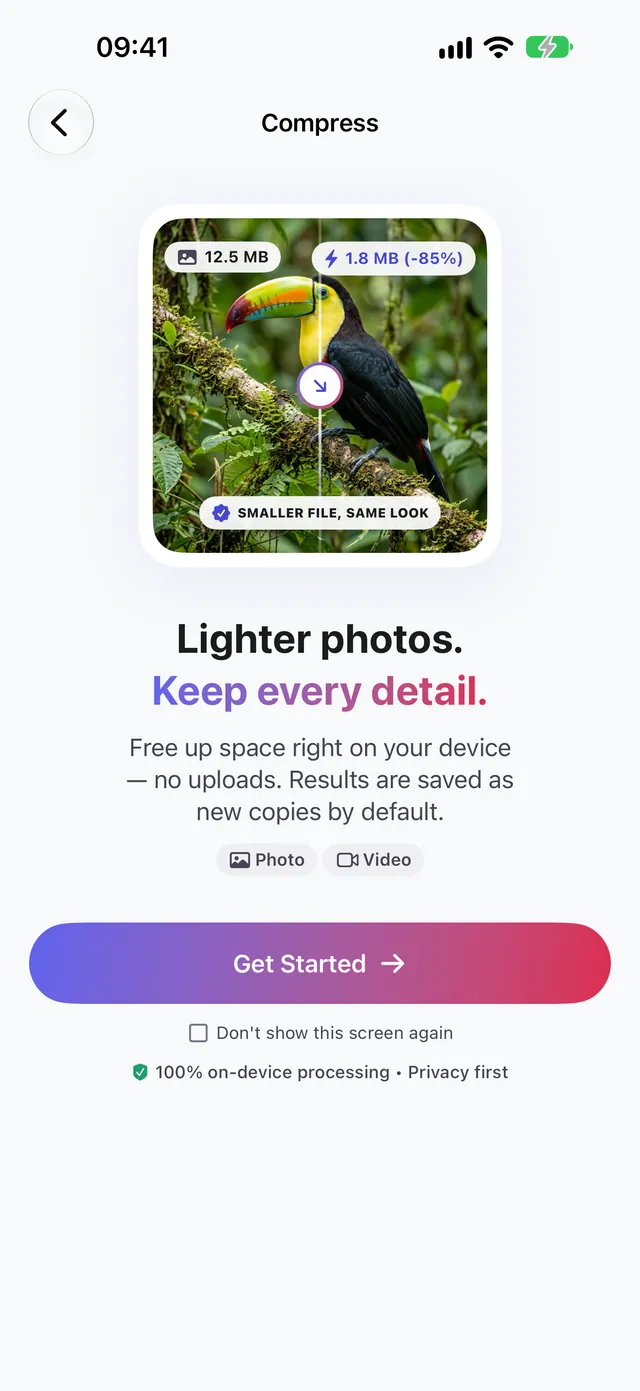
- Open OptiPixel, open Compress on Home (tap See all if it is not pinned), and tap Get Started.
- Select your photo or document from Photos, Files, or take a fresh picture with the Camera. You can select single photos or a batch.
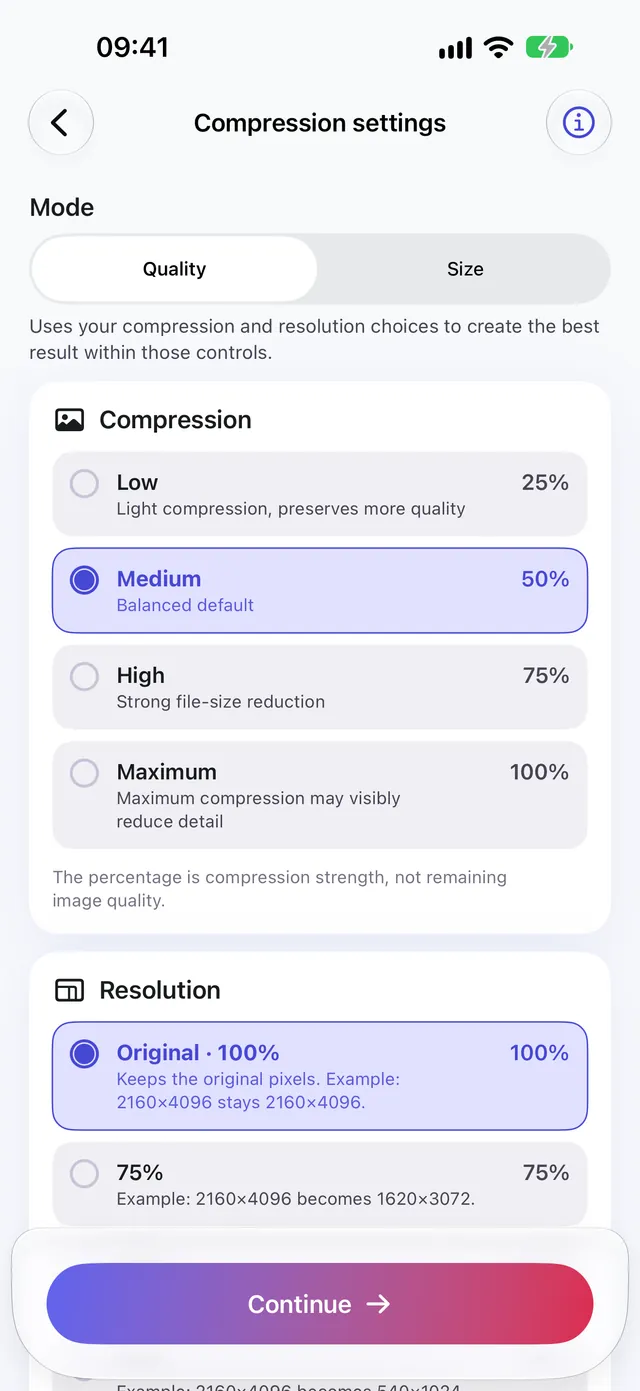
- In Compression Settings, switch the mode from Quality to Size.
- Tap Custom, ensure the unit is set to KB, and tap one of the common quick picks (20 KB, 50 KB, 100 KB, or 200 KB), or use the stepper (
−/+) to set a custom kilobyte target. - Under Preserve Priority, select Balanced so the engine can adjust both quality and dimensions for very small targets.
- Tap Continue, check the batch on the Review screen and send it to the Queue. OptiPixel encodes the image in the background on your device. By default, the result is saved as a new file in your library, keeping your original untouched.
Need to change the exact width and height in pixels rather than file weight? Use OptiPixel's Resize tool to set width and height directly.
Tips for strict KB form requirements
- Choose Balanced priority for 20 KB and 50 KB targets: Fitting a camera photo into 20 KB means making it much smaller in pixels. In our measurements Balanced kept 228–409 px on the long side at 20 KB, more than Quality did.
- Use JPEG format for universal form acceptance: Most online upload forms mandate
.jpgor.jpegfiles and reject.heic. OptiPixel outputs compatible JPEG files by default. If you only need format conversion without target sizing, use the HEIC to JPEG tool. - Strip metadata for very small targets: Camera details, location and the color profile take part of a small file's budget. You can remove them in OptiPixel or with the Metadata tool.
- Verify final size in the Queue: Tap the finished task in the Queue to inspect the exact output byte size before submitting your application.

OptiPixel — Reduce Photo & Video File Size
Free · No account · Runs on your iPhone
Frequently asked questions
Can an iPhone photo really be compressed down to 20 KB or 50 KB?
Yes. In our measurements all 8 iPhone photos reached 20 KB and 50 KB with Balanced priority; at 20 KB they were 228–409 px on the long side. At that size the picture is small, so check that a face or a signature is still clear enough for the form before you submit it.
What happens if a photo cannot reach the target size?
OptiPixel never fabricates results or fakes progress. If a target size is too small to reach under the constraints of your chosen priority (for example, if Resolution priority is selected and the image cannot fit into 20 KB without resizing, or if the 96 px dimension floor is hit), OptiPixel produces the closest candidate and marks the result as "Target not reached" in the Queue.
Are my photos uploaded to external servers or cloud services?
No. OptiPixel compresses photos on your iPhone with Apple's image frameworks and does not upload them to a server, so it also works offline.
Will compressing overwrite the original photo on my iPhone?
No. OptiPixel follows a strict non-destructive policy by default: every compressed output is created as a separate new file in your Photos library or Files directory, leaving your original photo completely intact. You can also configure Replace Original in Settings if you intentionally want to delete the original after saving.
How do I compress multiple photos to the same KB limit at once?
Select all the photos you need on the initial picker screen. Your chosen target size (such as 100 KB) and Balanced priority will apply to every photo in the batch. OptiPixel processes the batch in the background and reports individual sizes and status per photo in the Queue. Free tasks take up to 3 photos; a short video unlocks up to 10, and Premium has no limit.