Time Marker
How to add a date and time stamp to photos and videos on iPhone
Put the date, time and place right on the picture, so a site photo, delivery or handover carries its own proof wherever it's sent.
Updated November 17, 2026 · Free on the App Store · iPhone & iPad, iOS 17+
Why field teams and professionals burn timestamps into photos
While modern smartphones record capture time in hidden EXIF headers, this metadata is stripped automatically whenever photos are transmitted via messaging apps (such as WhatsApp, Telegram, or SMS), uploaded to web forms, or screenshotted. Once detached from the image file, proving when and where a picture was taken becomes legally and operationally challenging.
A burned-in timestamp renders verifiable text directly onto the visual pixels of the image canvas. Contractors, site supervisors, courier drivers, property inspectors, and insurance adjusters rely on burned-in stamps as a record that travels with the image.
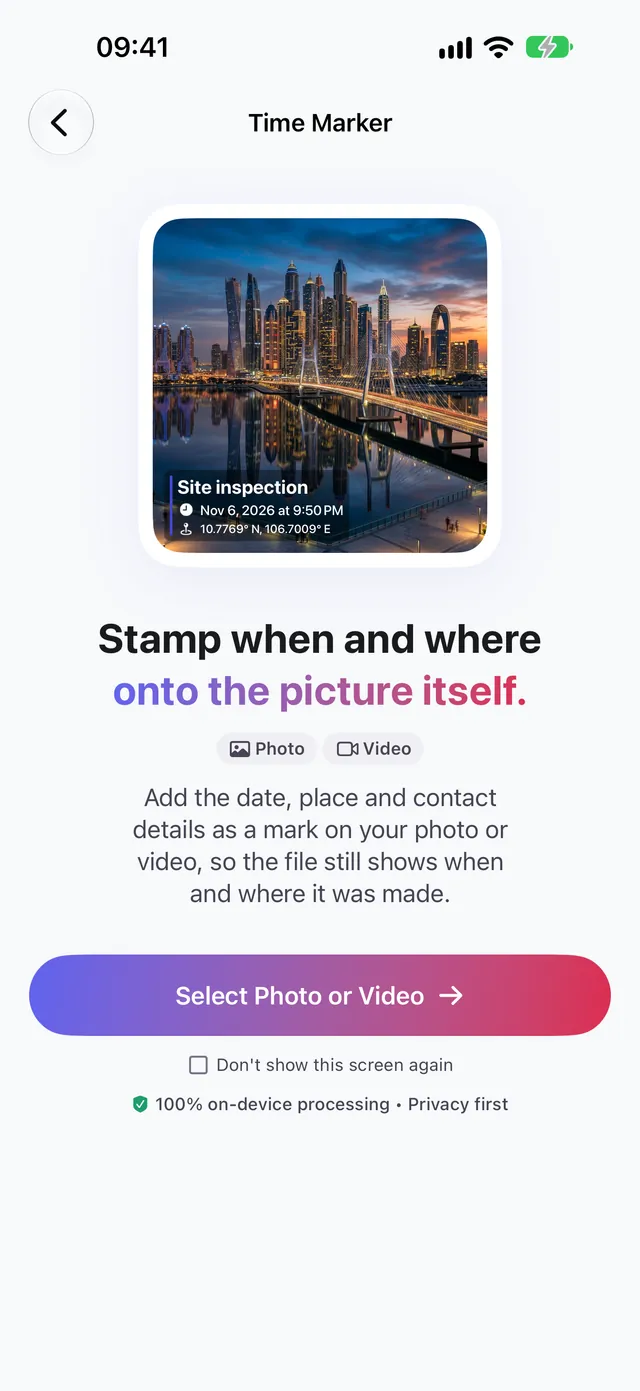
OptiPixel features a dedicated Time Marker utility engineered to burn dates, times, reverse-geocoded addresses, and custom project notes directly into photos and video clips on iOS.
Evidentiary use cases across professional industries
The table below outlines standard timestamping requirements across commercial and professional workflows supported by OptiPixel:
| Professional Industry | Active Stamped Fields | Recommended Corner | Evidentiary Purpose |
|---|---|---|---|
| Construction & Contracting | Project Title, Date, Time, Physical Address | Bottom-Left / Bottom-Right | Records daily site milestones & subcontractor handovers |
| Courier & Logistics Delivery | Tracking ID, Exact Timestamp, Delivery Address | Bottom-Left | Shows when and where a parcel was delivered, for dispute resolution |
| Real Estate & Rental Property | Room Name, Date, Timestamp, Condition Notes | Bottom-Right | Move-in/move-out condition records for security deposits |
| Insurance Adjusting | Claim ID, Exact Timestamp, Incident Address | Bottom-Left | Dated, located record of vehicular or property damage |
| Field Audits & Utility Inspections | Asset Serial, Date/Time, Contact Details | Bottom-Right | Dated field records for infrastructure inspections |
Add a timestamp to photos and videos, step by step
- Open OptiPixel and open Time Marker on Home (tap See all if it is not pinned), then tap Select Photo or Video.
- Select your image or video from Photos, the Files app, or choose Camera, which opens the Time Marker Camera to shoot a stamped photo or video.
- Configure your verified fields:
- Title: Project name, client reference, or inspection ticket number.
- Date & Time: Choose the Source: Capture time (the time the photo or video records, the default), Now, or Custom to pick a date and time yourself.
- Address: Choose the Source: Location in the file (the default), Current location, On the map or Typed. Show it as Address, Coordinates or Both.
- Phone & Note: Optional contact number and technician notes.
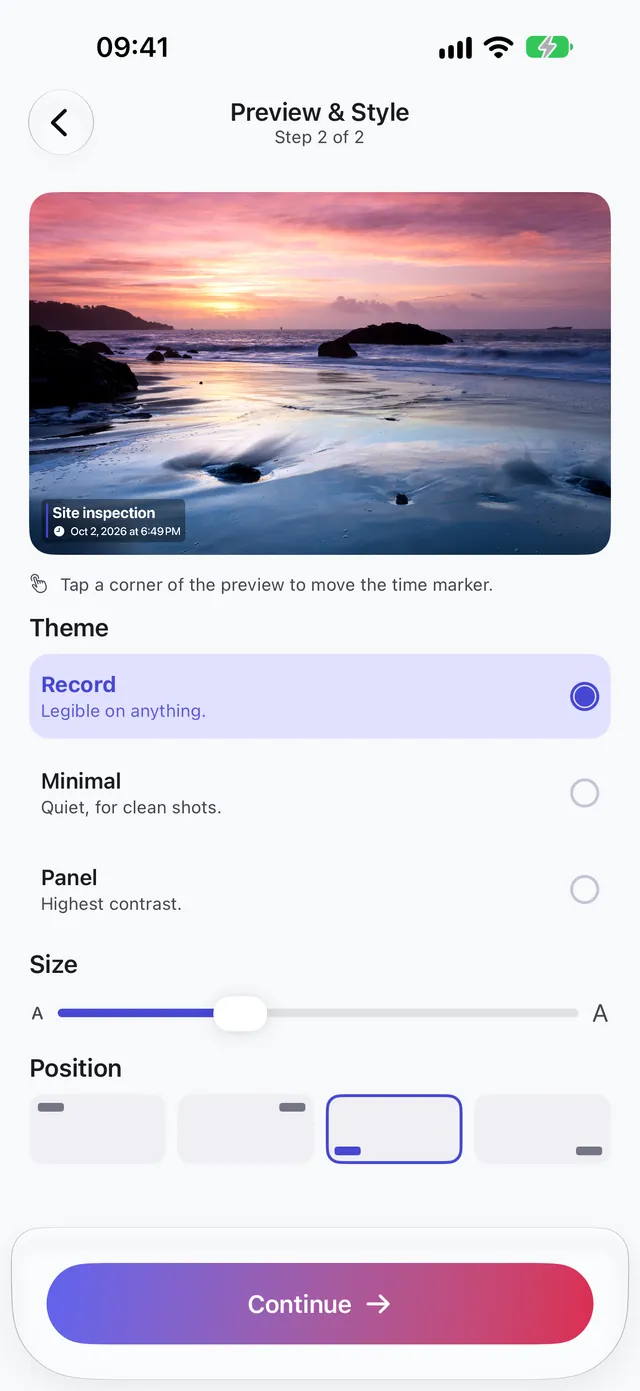
- Select position: Tap any of the 4 canvas corners on the live preview to dock the text block.
- Tap Add mark to process the task through the Queue.
- OptiPixel embeds the typography directly into the pixels at full resolution, exporting a new file while keeping the original capture untouched.
Want the stamp on the picture as you shoot instead? The Time Marker Camera draws it in the viewfinder and saves a stamped photo or video.
Need creative branding with logos and handles instead of factual inspection stamps? Use OptiPixel's Watermark tool for graphic brand signatures.

OptiPixel — Reduce Photo & Video File Size
Free · No account · Runs on your iPhone
Frequently asked questions
Does Time Marker leave blank gaps for unused fields?
No. OptiPixel uses a dynamic layout engine: any field left empty is completely omitted from the rendered text block, ensuring a clean, compact footprint with zero placeholder gaps.
Can Time Marker stamp videos as well as photos?
Yes. Time Marker stamps one photo or one video at a time. A video is stamped on every frame, so it is re-encoded and takes longer than a photo.
What if a photo has no capture time or location?
The field stays empty and says so, for example that the file has no capture time. OptiPixel never fills in today's date or another place on its own: choose Now, Custom or another place source yourself.
Is the timestamp burned into the pixels or stored as metadata?
The timestamp is permanently rasterized into the actual image pixels. It cannot be removed by metadata scrubbing tools or social media compression.
Does OptiPixel upload my location or inspection data to servers?
No. The photo, your notes and the stamping stay on your iPhone. The only lookup is optional: if you tap Use Current Location or choose a place on the map, iOS finds the address through Apple's location services, which needs a connection. Type the address yourself and nothing is looked up.
Are original unmarked captures preserved?
Yes, by default: results are saved as new items, so your originals stay in your library. Only if you choose Edit Original or Replace Original in Settings › Where results are saved does a result take the original's place.
Is Time Marker free?
Stamping the date and time is free. The Title, Address, Phone and Note fields are Premium options marked with a crown: saving a stamp that uses them needs OptiPixel Premium or one short video.