Time Marker
How to take photos and videos with a date, time and place stamp on iPhone
Shoot a site photo, a delivery or a handover and have the date, time and place already on the picture, instead of stamping it afterwards.
Updated November 6, 2026 · Free on the App Store · iPhone & iPad, iOS 17+
Why stamp the picture while you shoot
The date and place the iPhone records live in hidden metadata that chat apps and web forms strip, so a stamp drawn on the picture is what travels with it: see Time Marker for how it works on a finished photo.
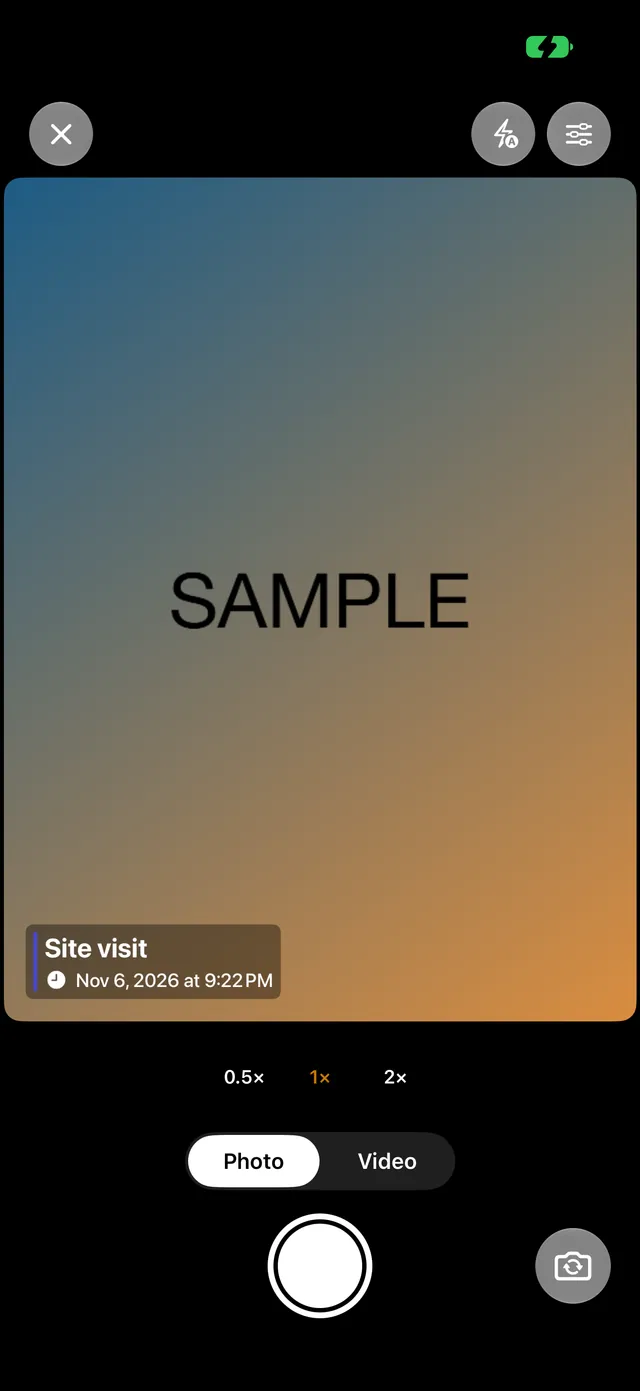
In Time Marker, choose Camera to stamp at the moment of capture: you see the stamp in the viewfinder, and the photo or video comes out of the camera already marked, with the same fields, themes and corners.
What the camera stamps
Every field is optional, and a field left empty draws nothing, so the stamp never has blank rows.
| Field | What goes in it |
|---|---|
| Title | A short label such as a project name or a ticket number |
| Date & Time | Now (the default) or Custom |
| Address | Current location (the default), On the map or Typed, shown as address, coordinates or both |
| Phone and Note | A contact number and a short note |
The camera has no Capture time or Location in the file choice, because there is no file yet: the time is now, and the place is where you are, where you pick on the map, or what you type. In a video the time line advances every second; the address is the one at the start.
Take a stamped photo or video, step by step
- Open OptiPixel, open Time Marker, tap Select Photo or Video and choose Camera.
- Allow the camera when iOS asks. Allow location too if you want the current address, and the microphone if you want sound in videos.
- Tap the settings button at the top right to open Camera Settings. Under Fields, switch on what you want stamped and fill it in. Under Style, pick the look and the corner. Every change shows in the viewfinder at once.
- Choose Photo or Video, frame the shot and press the shutter. Tap the picture to focus, use the zoom buttons or pinch to zoom, and use the flash button for flash or the torch.
- For a video, press the shutter again to stop. A call, a very hot phone or nearly full storage also stops a recording, and what was recorded is saved.
Each capture is saved to your Photos library as a new item as soon as it is finished, and the last capture appears as the thumbnail. It does not go through the Queue: the camera stays ready for the next shot.
Settings worth knowing
- Also Save Without the Mark is off by default. Keeps a second copy with no mark on it.
- Video Quality is 1080p by default, with 4K on iPhones that support it.
- Auto FPS is on by default: Drops video to 24 fps in low light to keep it bright.
- Mirror Front Camera is off by default: Saves front camera photos and videos as the preview shows them.
Tips for stamps that hold up
- Check the status line under the top bar before a shot that matters. If the location is off or the address cannot be found, the address stays empty and the line says why. The camera never swaps in another value.
- Put the stamp in the corner that hides the least. The corner is a setting, not a tap on the viewfinder.
- Need to stamp a photo or video you already have? Use Time Marker on it. To remove the location from a file before sharing it, use Metadata.

OptiPixel — Reduce Photo & Video File Size
Free · No account · Runs on your iPhone
Frequently asked questions
Is the stamp part of the picture or stored as metadata?
It is drawn into the pixels, in the photo and on every frame of the video, so it cannot be removed afterwards. The file's own capture date is also written as usual, and its GPS location is written only when the address source is the current location.
Does the camera upload my location or photos?
No. Stamping happens on your iPhone. The only lookup is the address: iOS turns your coordinates into an address through Apple's location services, which needs a connection. If it fails, the address stays empty, and you can show coordinates instead.
Is the camera stamp free?
The date and time are free. The Title, Address, Phone and Note fields are Premium options marked with a crown. A shot that uses them needs OptiPixel Premium or one short video, which unlocks them until you close the camera. The prompt appears when you press the shutter, never in the middle of a recording.
Where do the photos and videos go?
To your Photos library, as new items. OptiPixel needs permission to add to Photos; if it is off, the status line says the capture was not saved.
Can it record video with sound?
Yes, if the microphone is allowed. If it is not, the video is recorded without sound and the camera says so.
Does it replace the iPhone's Camera app?
No. It is a camera for stamped captures. Other OptiPixel tools that offer a camera still use the system camera.